
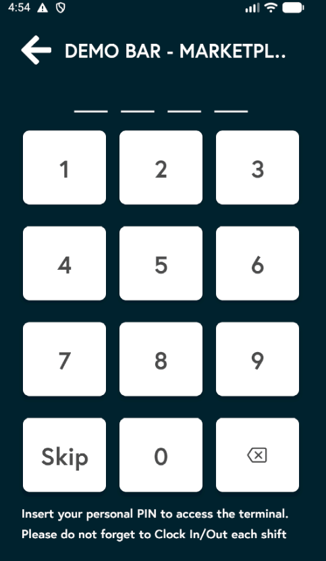
1. Click on the EPOS app on your terminal.
2. Press Skip or enter your Pin if you already have this set up for your store.
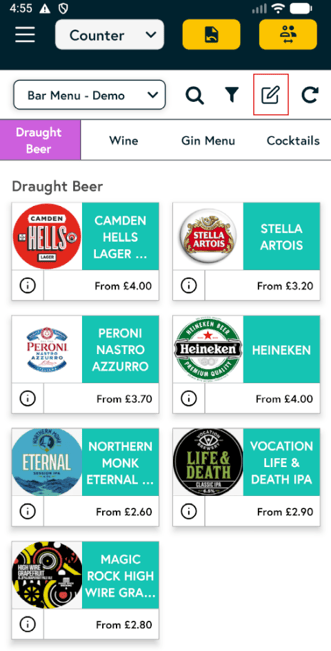
3. Click on the edit icon (a square with a pencil highlighted in a red box) in the top row to colour code your items.
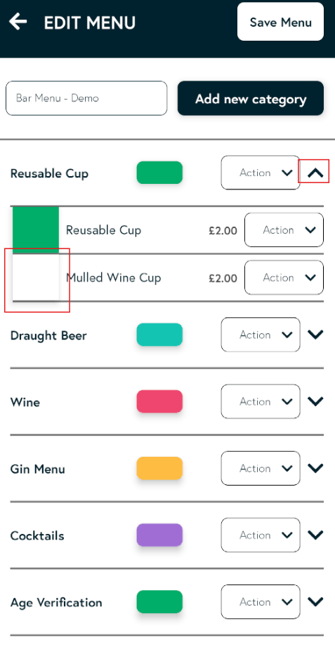
4. Click on the category arrow on the right to open the items in that category, then click on the square box to the left of the item you would like to colour code.
5. Choose a colour from the palette for your selected item, then click Save.
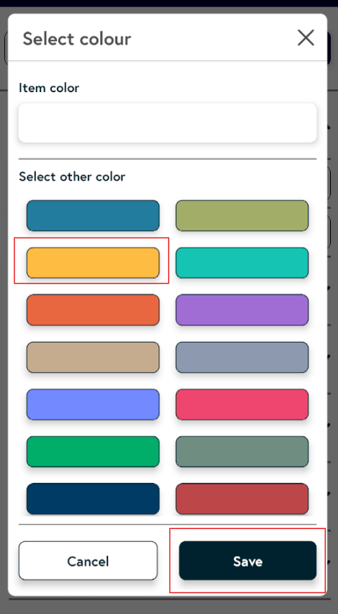
6. Then click on the Save menu at the top right.

7. You will now see that the colour has been applied to your selected item.

Note: You can also apply a single colour to an entire category from the edit menu. To do this, click on the box on the right-hand side of the category you want to colour code, then follow the steps above to choose a colour and click Save. The colour will be applied to the whole category.