
1. Login to the NOQ Portal.
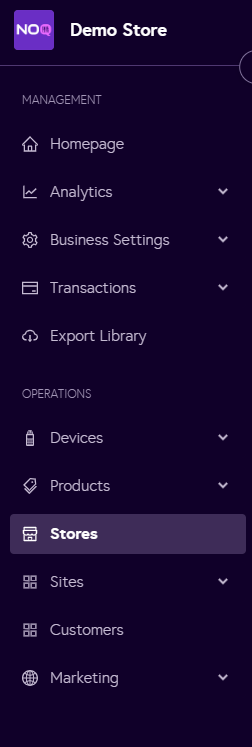
2. Navigate to 'Store' from the left navigation panel.
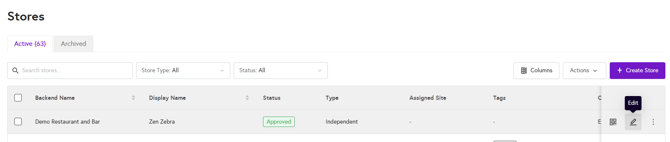
3. Once you are in Stores, click on the pencil icon (Edit) for the store you want to Complete the Financial Setup.
4. Under the 'Payment Gateway' section click on 'Financial Setup'

5. For the financial setup, there are two options: in-person merchant services and online merchant services. In-person is for taking payments on-site via the terminal, while online is used when you are using our online PWA (mobile ordering) service.
- In-Person Merchant Service:
- Select Adyen from the dropdown, then you will see two more text box will appear.
- From the Account ID dropdown, select the Account ID associated with the MSA (Merchant Service Account) you want funds to be paid into. This is the same Account ID you receive once your MSA is approved. (You can check your Account ID from the Business Settings -> Merchant ID from the left nav bar).
- Select the Balance Account you have created for this MSA from the dropdown.
- From the payment methods dropdown, select all the card types you want to allow for terminal payments – options include Mastercard, Visa, Diners, American Express, and Maestro. If you want to block any card from taking payments, simply do not select that option.
- Click Create Store to generate a Store ID, which you can then use for reassignment.
- After entering all the above details, click Save financial details in the top right corner.
- Your in-person financial setup is complete.

- Online Merchant Service:
- Follow the same steps as above to set up your online merchant service and fill in all the details.
- Please note that for payment methods online, Diners is not available; you can only select from four card options.
- After entering all the required details, click Save financial details in the top right corner. Your online merchant account setup is now complete.
