
1. Login to the NOQ portal.
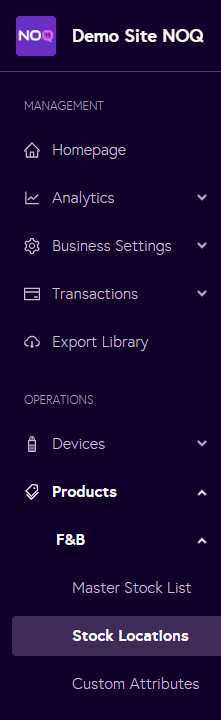
2. Navigate to Products -> F&B -> Stock Locations from the left navigation bar.
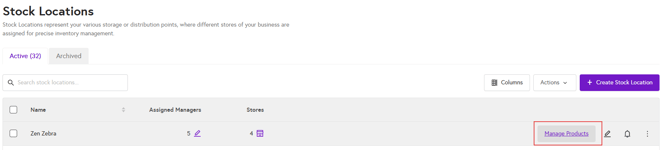
3. From the Stock Locations page, click on Manage Products.
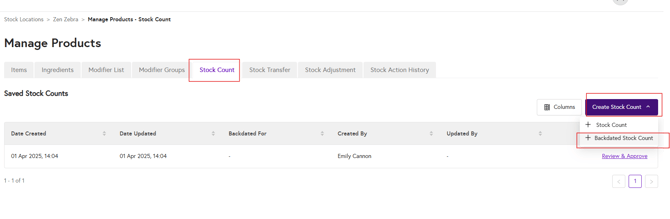
4.From the Manage Products page, go to the Stock Count tab, click the arrow next to Create Stock Count, and select Backdated Stock Count.
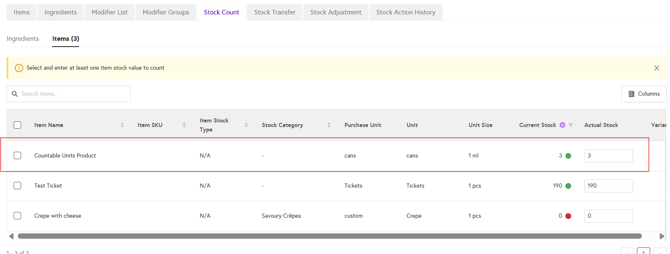
5. Then, under the same tab, select the items or ingredients for which you want to create a backdated stock count.

6. Next, select the relevant item and enter the actual stock quantity in the Actual column. Optionally, add a reason for the backdated stock count, then click Save Stock Count.

7. Similar to a regular stock count, after saving you must review the details and then approve the backdated stock count.

8. Click on Approve Stock Count and click Save to complete the process.

9. When you return to the Backdated Stock Count and select that item, you will see that it has been updated.
Note: Once another stock action has been completed, you cannot reverse this stock action. This applies to all stock action reversals.