
Creating a Loyalty Scheme
To set up a Loyalty Scheme, login to the NOQ Backend Portal and then go to Marketing > Loyalty from the left navigation panel.
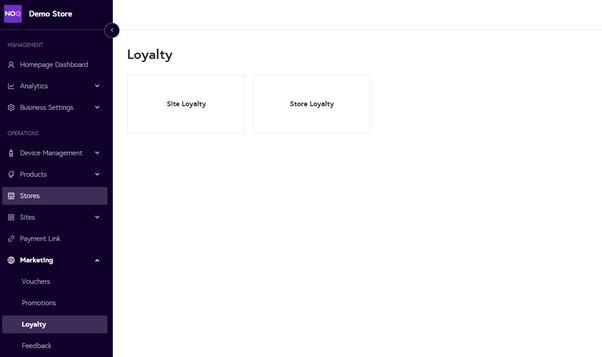
You can create either a Site-wide or Store-level Loyalty scheme. This guide focuses on Site Loyalty.
Step 1: Create a Site Loyalty Scheme
- Select Store Loyalty and click + Create Loyalty Scheme.

- Fill in the details for creating site loyalty:

- Name – Enter a name for the scheme.
- 1 point is awarded if customer spends – Choose a value between £1-£100.
- 1 point is redeemable for a value of (£) – Set how much each point is worth.
- Points awarded after – Choose when points become available to redeem:
- Instant
- 15 Days
- 30 Days
- Click Save when done.
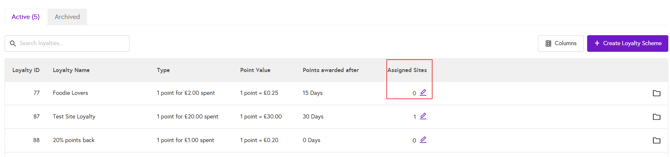
Your scheme will now appear in the Site Loyalty section.
Step 2: Assign Stores
- Click the Pencil Icon under Assigned Sites and add your site(s).
To learn how to create a loyalty scheme for your store click here.