
Why create an External User?
Creating an External User lets you share reports from the Insights app with stakeholders who don’t need full access to the NOQ Portal, keeping your data secure while still giving them the visibility they need.
Creating an External User lets you share reports from the Insights app with stakeholders who don’t need full access to the NOQ Portal, keeping your data secure while still giving them the visibility they need.
1. Login to the NOQ Portal.
2. From the sidebar, Navigate to Business Settings > Users > External Users.
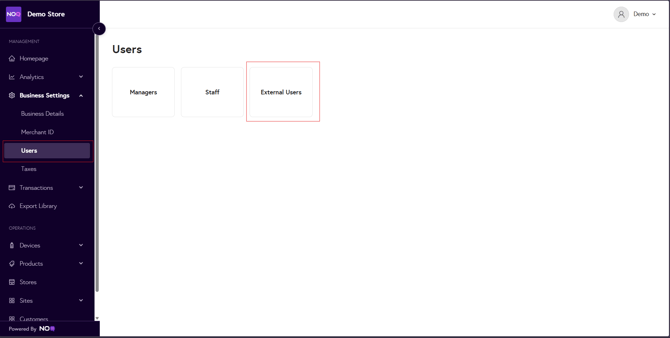
3. To create new external user, click on + Create External User.

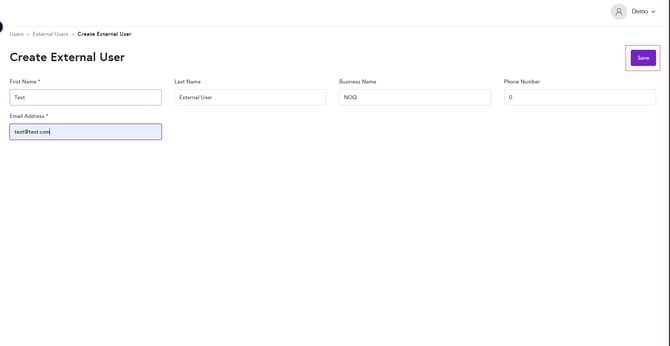
4. Fill out the form.
- First Name *: First name of the External User.
- Last Name : Last name of the External User.
- Business Name : Business name of the External User.
- Phone Number : Mobile Number of the External User.
- Email Address *: Email Address of the External User.
First Name and Email Address are mandatory fields. All other fields are optional.
⚠️ The Email Address must be unique and must not already exist in the External Users list. ⚠️
The newly created external user will appear at the bottom of the External Users list.