
Site-wide KDS creation allows you to create new KDS, assign them to multiple stores
1. Login to the NOQ Portal
2. Navigate to Sites -> Own Sites.
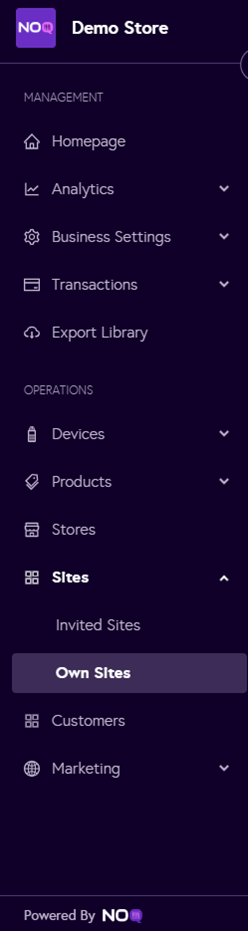
3. Click the ‘Edit’ icon next to the site you want to edit the details for.

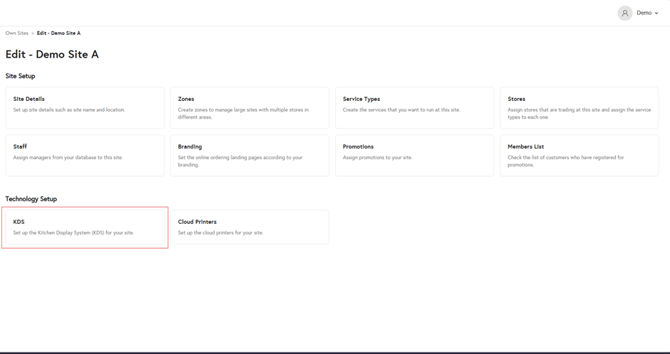
4. Under Site Details click on KDS.
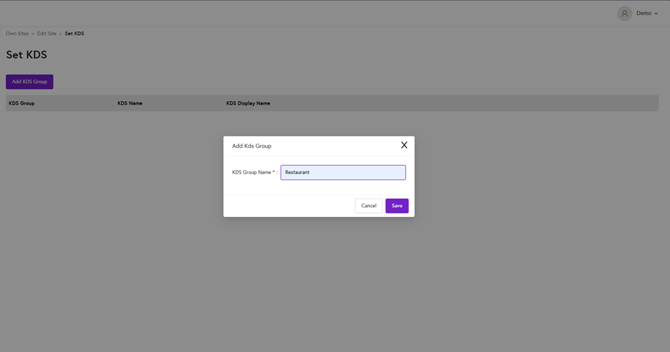
5. Click on Add KDS Group to create new KDS group and enter the name of KDS Group. Click on save.
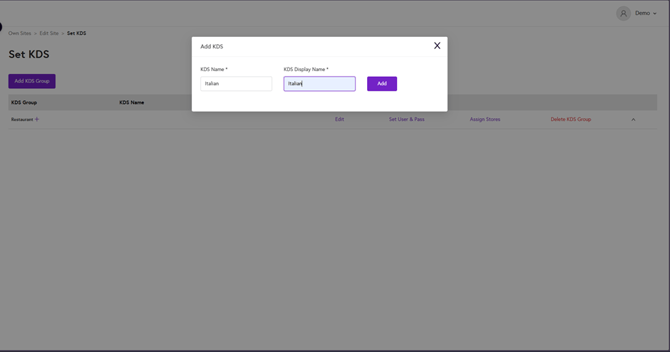
6. Click on plus icon beside the KDS group name to enter KDS name & KDS display name. Click on add to add KDS.
7. You can set the username & password for specific KDS group you created. To do that click on set user & pass to create user & password.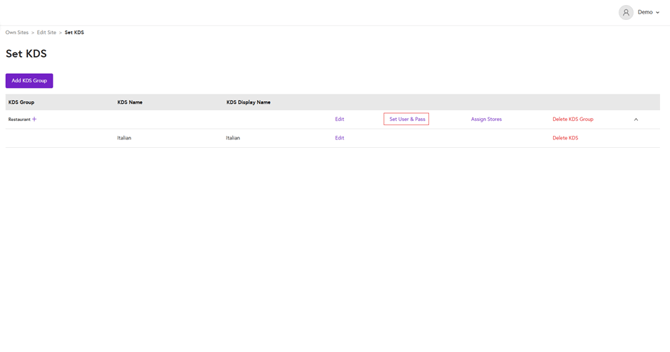
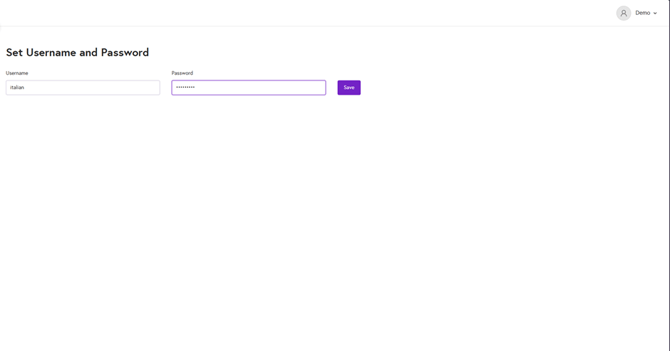
8. Create user & password of your choosing and click on save.
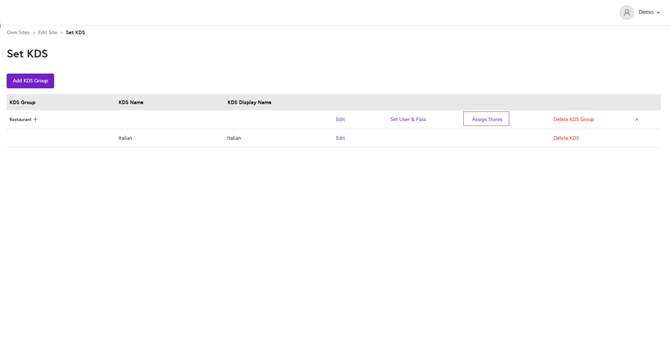
9. Navigate back to set KDS screen to assign stores by clicking on Assign stores.
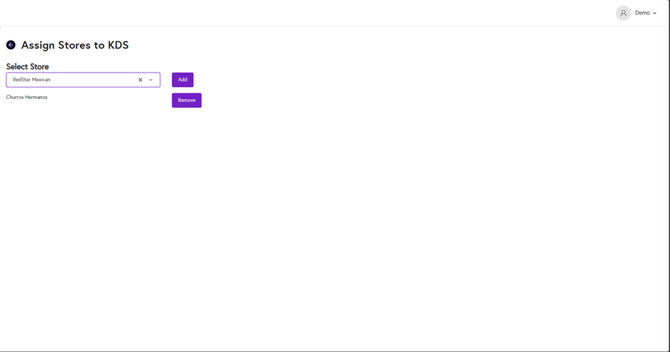
10. Select the store from drop down you want to assign KDS group, the click on add-to-add KDS group to the store. You can also remove store by clicking on remove button.
11. From sidebar navigate to Stores. Click on pen icon to see store profile and the click on store profile.

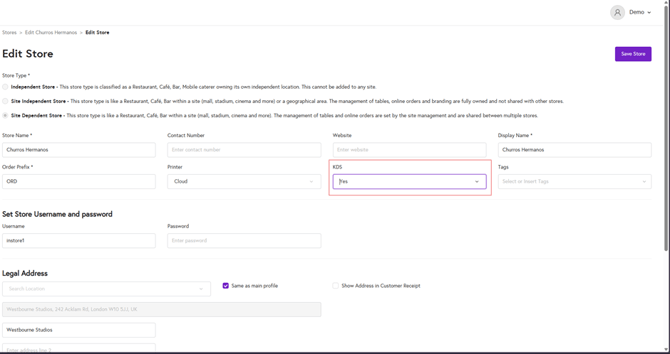
12. Make sure under KDS, yes is selected. If not, select yes and click save store.
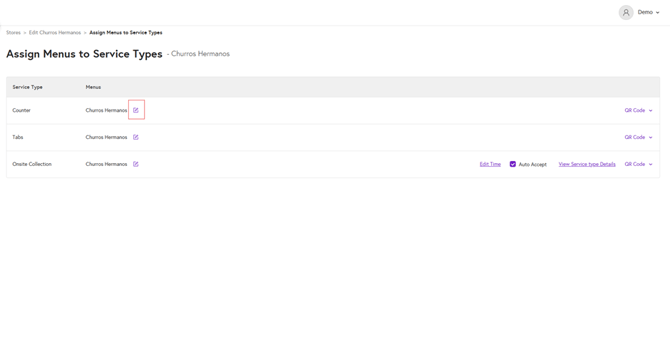
13. After saving store, navigate to Assign Menu, and select the service type, click on pen icon to edit the service type.
14. Click on Assign printers and KDS to menu items. You will see each menu category and all items within that category. In the KDS group column, select the KDS group you created. Then, in the KDS column, select the relevant KDS. If you select a KDS group and KDS at category level, they will automatically be assigned to all items within that category. Click Save.
