
1. Login to the NOQ portal.
2. Navigate to Business Settings -> Taxes from the left navigation panel.

3. Click on Create Tax to add a new tax for your business.
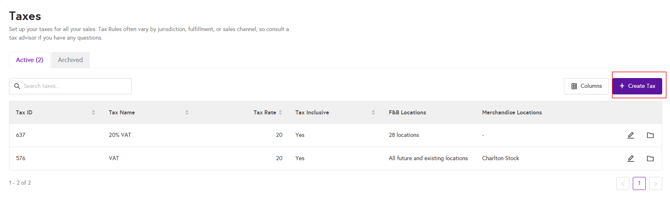
4. Creating Tax:
-
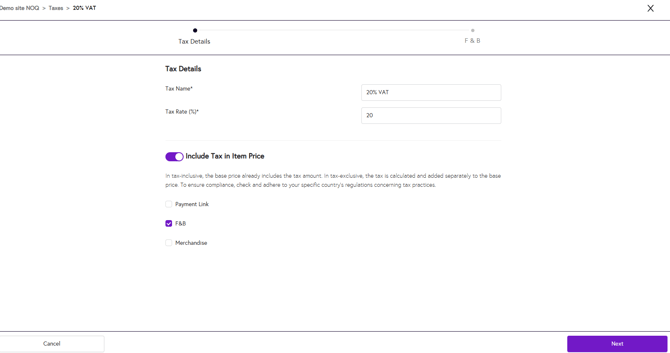
Enter Tax Details:
-
Enter Tax Name.
- Enter Tax Rate. (Example: 20% VAT, then enter 20 in the text box)
- Toggle this option on if you want the tax to be included in the item price.
- Lastly, select the checkbox if you want taxes to be enabled for your payment links, F&B, or merchandise, depending on what your business requires.
-
-
Enter F&B details in the second section, or merchandise details depending on what you selected.
- Here you can toggle on “Apply to all existing locations,” which means the tax will be enabled for every location. You can then click on “Select locations” to review and choose the specific locations where you want the tax to be enabled.
- Apply tax to items: Select all items or specific items based on your requirements.
- Apply tax to manual items: Toggle this on if you want tax to be applied to manually entered items on the EPOS app.
- Apply tax to keypad sales: Toggle this on or off to apply tax to key add‑on sales based on your requirements.
- Tax exemption: Select the service types and items where you do not want tax to be applied.

5. After adding all the details, click Save at the bottom right corner. Your tax will be saved and applied to the items you have selected.