
Create a Custom Attribute
1. Login to the NOQ portal.
2. Navigate to Products -> F&B -> Custom Attributes from the left navigation panel.
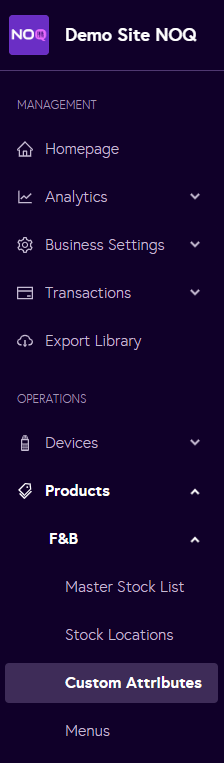
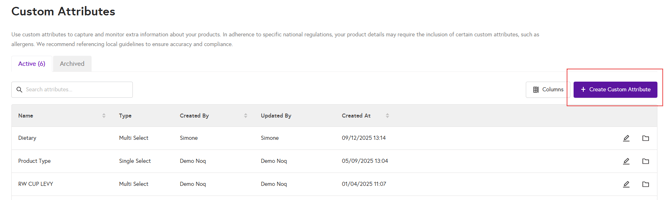
3. Click on 'Create Custom Attributes'.
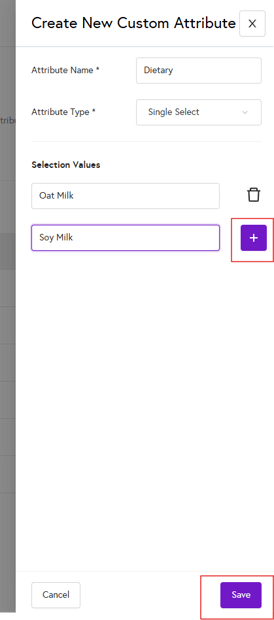
4. The ‘Create new custom attribute’ window will open. Enter a name for the attribute, then choose the Attribute Type: Single Select, Multi Select, or Text Input. In the example below, ‘Single Select’ is chosen. You can then add options (for example, “Oat Milk”) by clicking on the plus (+) button. Once you’ve added your options, click on the Save button to create your custom attribute.
Assign the Custom Attribute to the Items (Master Stock List)
1. Once you have created a custom attribute, navigate to Products -> F&B -> Master Stock List to locate the item and assign it to the custom attribute you have created.
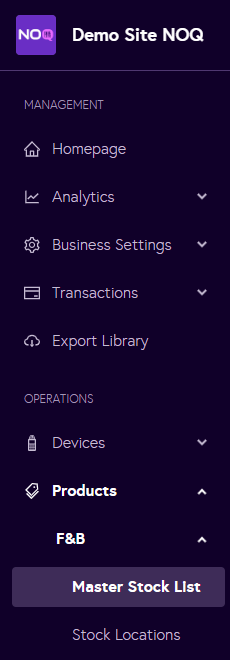
2. Locate the item and click on the edit icon as shown in the screenshot below.

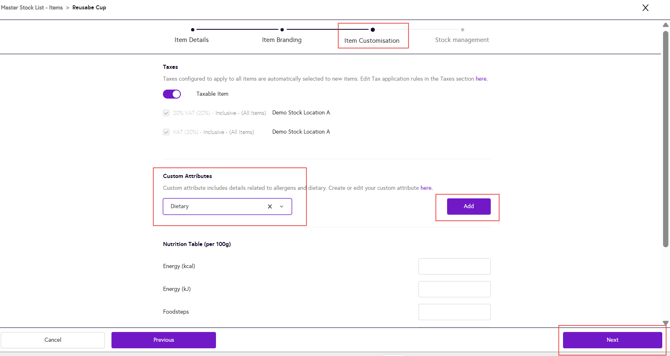
3. Go to the Item Customisation step at the top. Under the Custom Attributes section, select the attribute you created from the dropdown, click Add, then click Next and Save.
4. Your custom attribute is now added to the item you have created.