
Use this process when you need to create several balance accounts under the same Merchant ID.
Before You Begin
-
Ensure you have access to the NOQ Backend Portal
-
Confirm you have permission to edit Merchant ID settings
-
Decide whether all accounts will share the same transfer and payment settings
Part 1: Create Multiple Balance Accounts
Step 1: Log in to the NOQ Portal
-
Log in to the NOQ Backend Portal.
-
From the sidebar, navigate to:
Business Settings → Merchant ID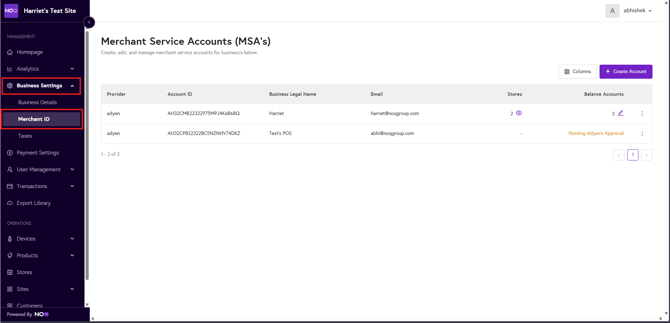
Step 2: Open Balance Accounts
-
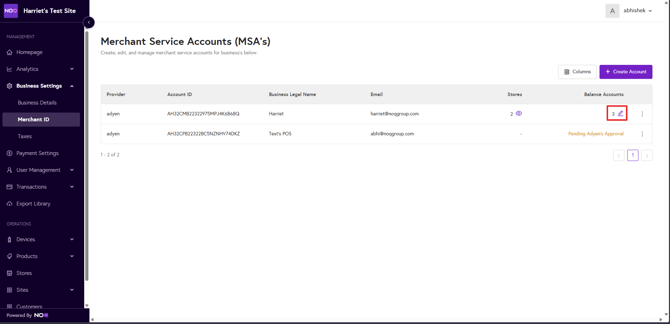
Under the Balance Accounts column, click the pencil icon.
-
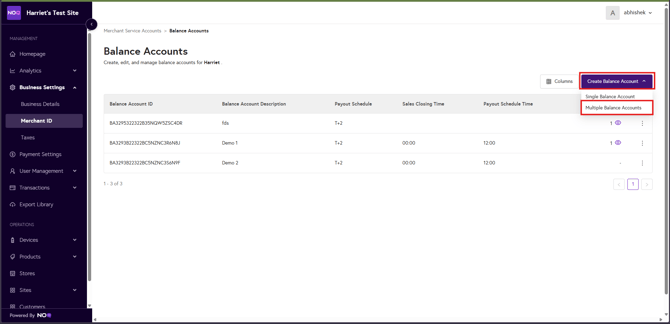
Click the Create Balance Account dropdown.
-
Select Multiple Balance Account.
Step 3: Specify the Number of Accounts
-
Enter the number of balance accounts you want to create.
-
Click + Add Accounts.
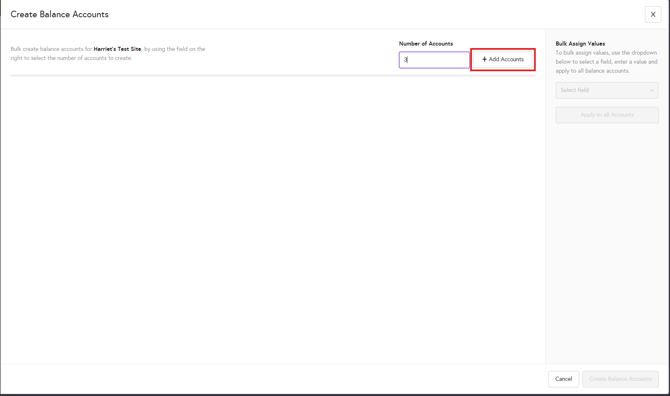
The system will automatically generate the corresponding number of rows.
Step 4: Configure Account Details
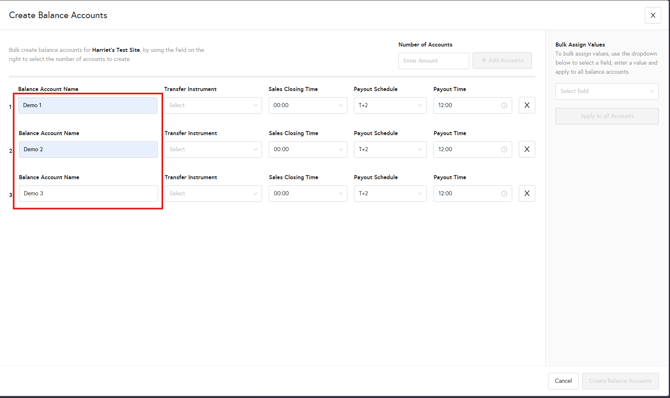
Each row represents one balance account.
Enter Account Names
-
Provide a Balance Account Name for each row. This is how it will appear on your bank statement.
Option A: Apply the Same Settings to All Accounts (Bulk Assign)
If you want to apply the same values (such as Transfer Instrument or other fields):
-
Use Bulk Assign Values from the right-hand sidebar.
-
Select the field you want to apply the same value to.
-
Choose the required value.
-
Click Apply to all accounts.
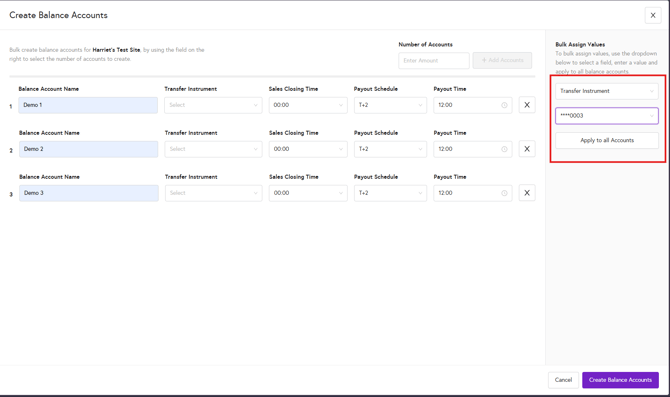
This is recommended when creating multiple accounts with identical configurations.
Option B: Assign Different Settings Individually
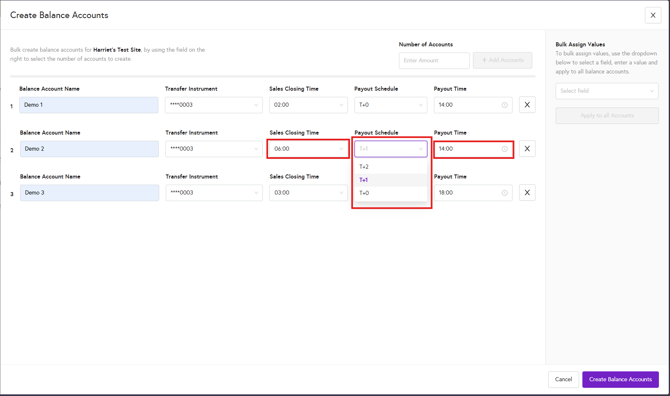
If each account requires different values:
-
Select values manually from the dropdown fields for each row.
-
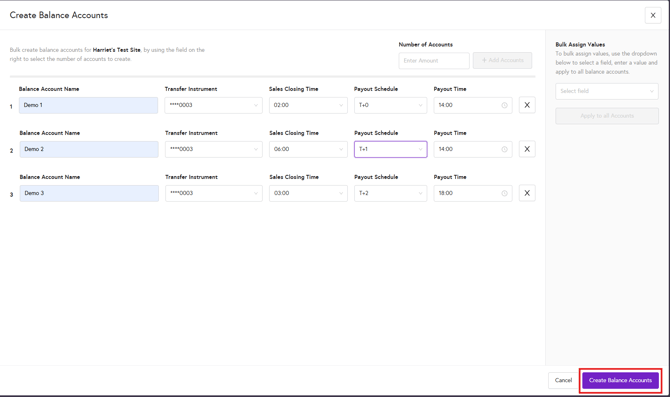
Review all entries carefully.
-
Click Create Balance Account.
Step 5: Confirm Account Creation
Once submitted, the new balance accounts will be successfully created.
⚠️All fields are mandatory when creating balance accounts, especially the Transfer Instrument. If you do not select a Transfer Instrument, you may not receive your payment. Always double-check all details before proceeding.⚠️
Part 2: Complete Store Financial Setup
After creating balance accounts, you must link them to stores.
Step 6: Access Store Financial Setup
-
Click the three dots next to any newly created balance account.
-
Select Store Financial Setup.
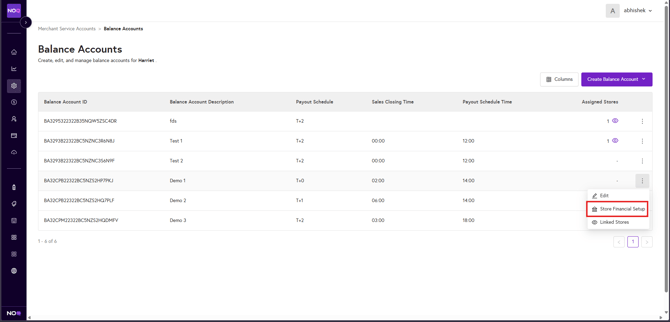
The Account Details tab will be automatically populated.
Step 7: Link a Store
-
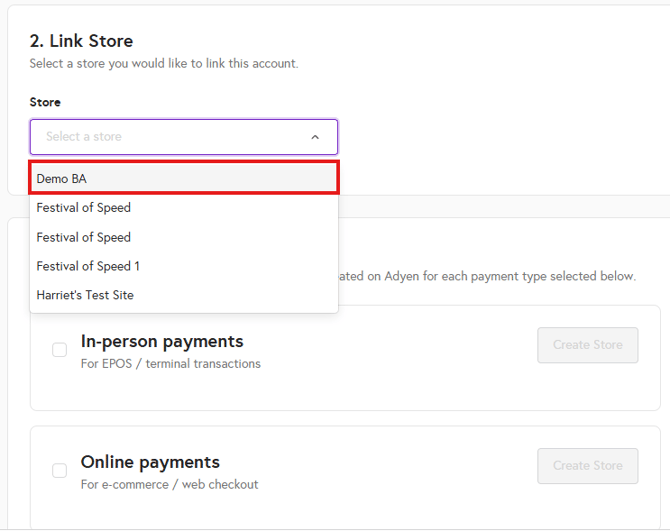
Scroll to the Link Store tab.
-
From the dropdown, select the store you want to configure.
Note:
-
Only stores with incomplete financial setup will appear.
-
Stores with only one payment type configured may also appear.
Step 8: Configure Payment Types
Depending on the selected store:
If the Store Has One Payment Type Configured
-
The payment type will automatically populate.
If the Store Has No Payment Type Configured
-
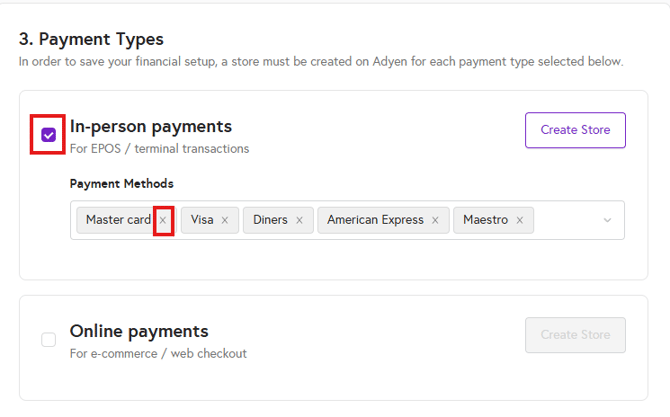
Select the checkbox for:
-
In-person Payments (for terminal payments)
-
Online Payments (for online transactions)
-
-
The available payment methods for the selected type will auto-fill.
-
To remove a payment method, click the cross (×) next to it.
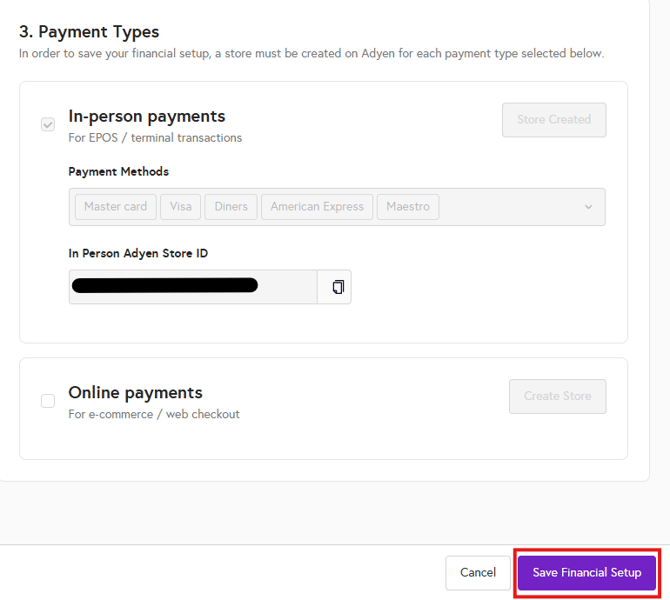
Step 9: Create Store ID and Save
-
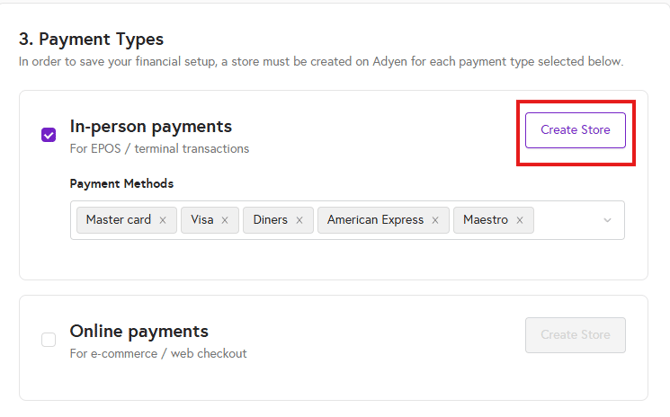
Click Create Store to generate the Store ID.
-
After the Store ID is created, click Save Financial Setup to complete the configuration.
Important Notes
-
Bulk Assign is recommended for faster setup when accounts share identical configurations.
-
Always review account names and payment settings before clicking Create.