
Step 1: Log in to the NOQ Portal
- Log in to the NOQ Backend Portal using your credentials.
Step 2: Open Staff Management
- From the sidebar, navigate to:
User Management → Staff - Click + Create Staff.

Step 3: Enter Staff Profile Details
Fill in the following information:
- Staff Name (Required)
- Last Name (Optional)
- Email (Optional)
- Phone Number (Optional)
- Staff ID (Required)

Step 4: Assign Stores
- From the Stores dropdown, select the stores you want to assign the staff user to.

Assigning a store is optional.
Assign to Future Stores (Optional)
If you want the staff user to automatically be assigned to newly created stores:
- Enable the checkbox:
Add to any future stores created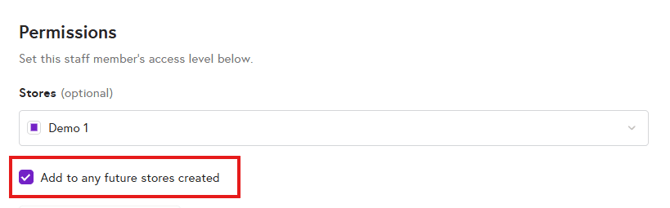
Step 5: Configure Staff Permissions
- Review the available permission sections.
- Under each section, select the permissions you want to grant to the staff user.

You can:
- Use the search bar to find specific permissions.

- Click Select All to grant all permissions across all section.
- Click the checkbox below a section edit to grant all permissions within that section.

Step 6: Configure Staff Settings
Set Staff PIN
You can either:
- Enter a PIN manually, or
- Click Generate PIN to let the system create one automatically
A staff PIN is required to access the EPOS app and to perform Clock In / Clock Out actions.
Hourly Rate (Optional)
You can also enter an hourly rate for the staff member if needed.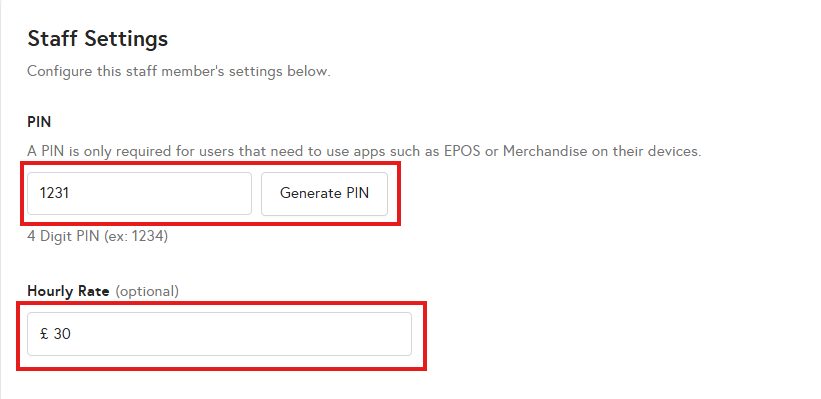
After reviewing every permission and setting up staff's pin, click on Create Staff to create new staff user.