1. Login to the NOQ Portal.
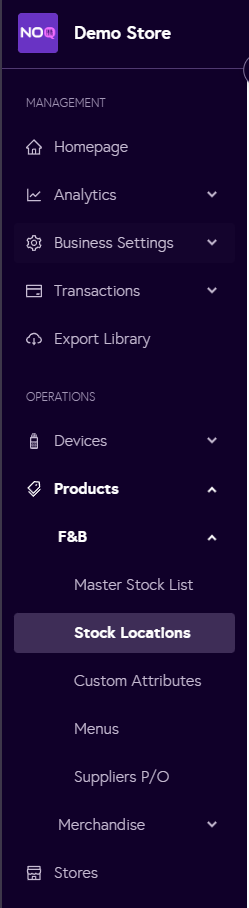
2. From the Sidebar, navigate to Products > F&B > Stock Locations.
3. Click on Manage Products for stock location of your choice.

4. Go to Stock Adjustment tab, Click on + Create Stock Adjustment.

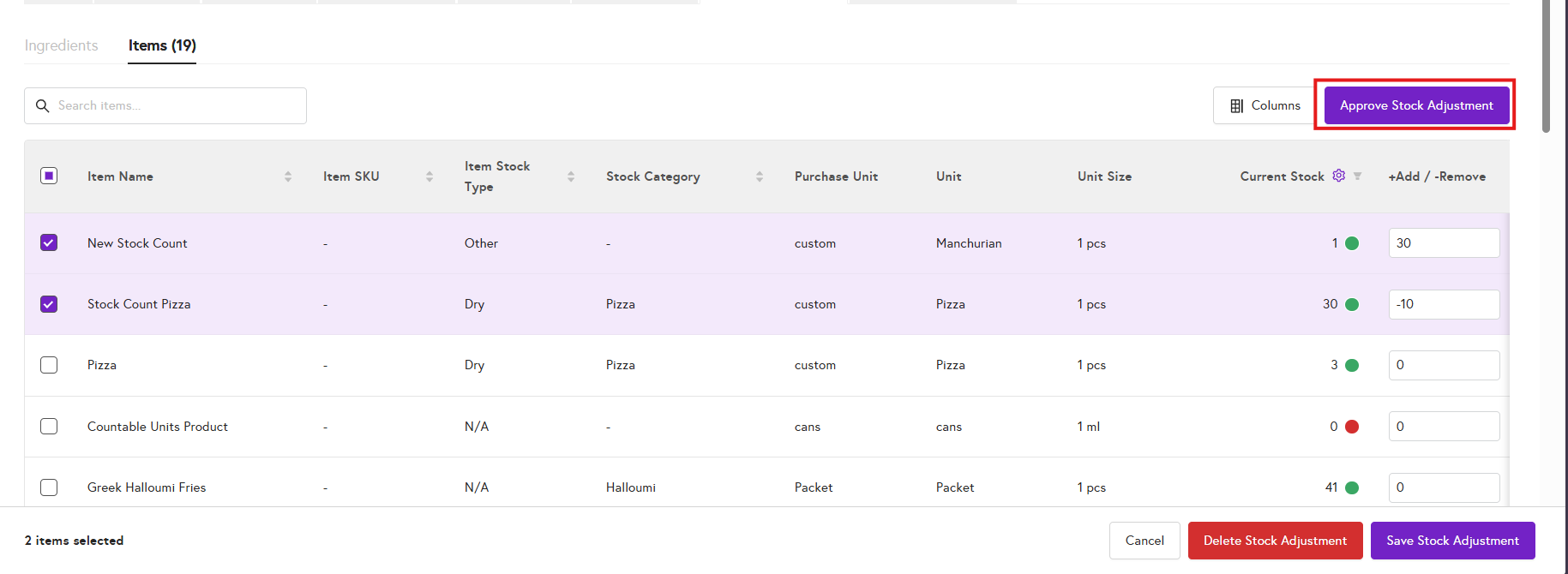
5. As with Stock Count, choose whether you want to perform a stock adjustment for Ingredients or Items. Then select the specific ingredients or items you want to adjust, and in the +Add / -Remove column, enter the quantity to add, or remove stock by placing a minus (-) sign before the number. You can adjust stock for multiple items at once.Select the appropriate reason for stock adjustment .After completing the stock adjustments for all required items, click Save Stock Adjustment.

6. After creating a stock adjustment, approve it in the same way you approve a stock count by click on Review & Approve.

7. Review the stock adjustment. You can still edit the adjustment if needed, then click Approve Stock Adjustment to confirm.