
1. Login to the NOQ portal.
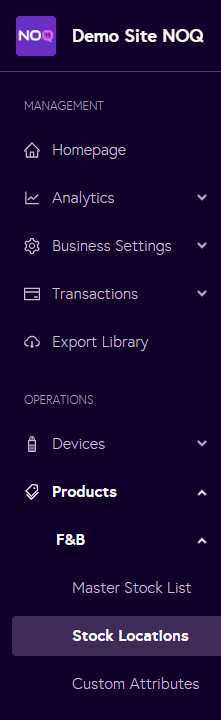
2. Navigate to Products -> F&B -> Stock Locations from the left navigation bar.
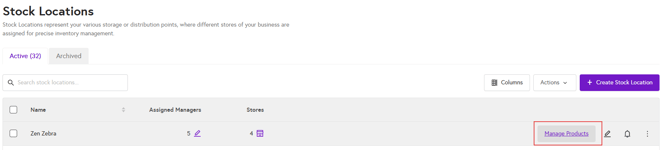
3. From the Stock Locations page, click on Manage Products.
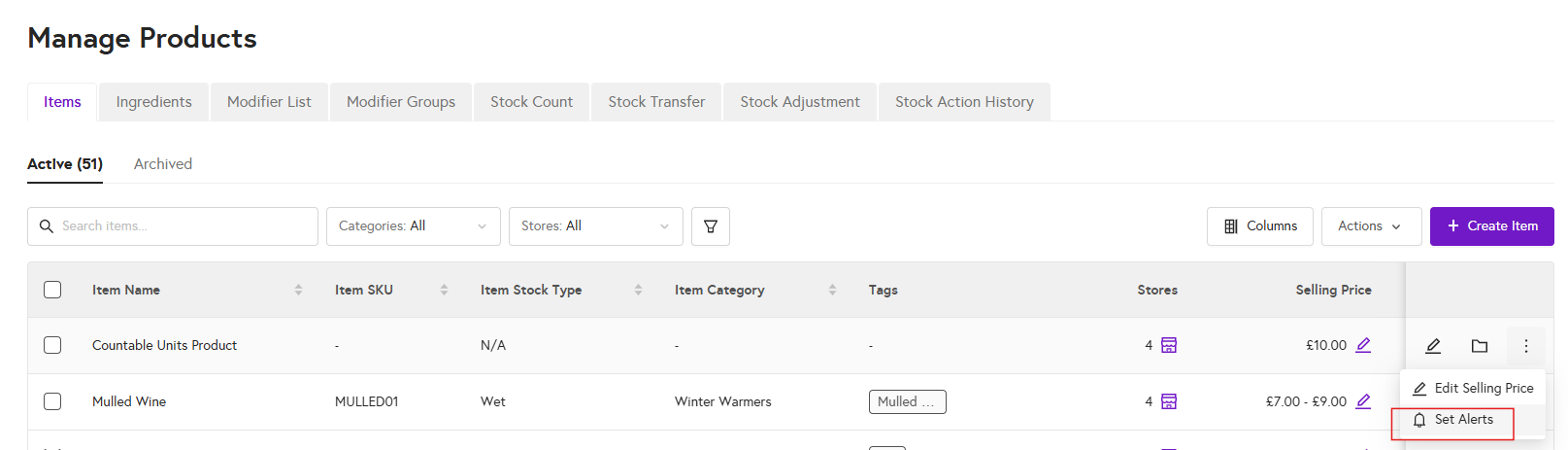
4.From the Manage Products page, go to the Items or Ingredients tab, locate that item or ingredient and the click on the three dots and select 'Set Alerts'.
5. Enter the Stock Alert info as below:
-
Set Stock Alert By: you can choose whether to set it by units or by purchase units.
- Stock Alert Quantity: enter the quantity at which you want to receive an alert. If stock reaches this level or below, you will receive an email notification.
- Ideal Stock Quantity: enter the target stock level you want to maintain for this item or ingredient under normal conditions.
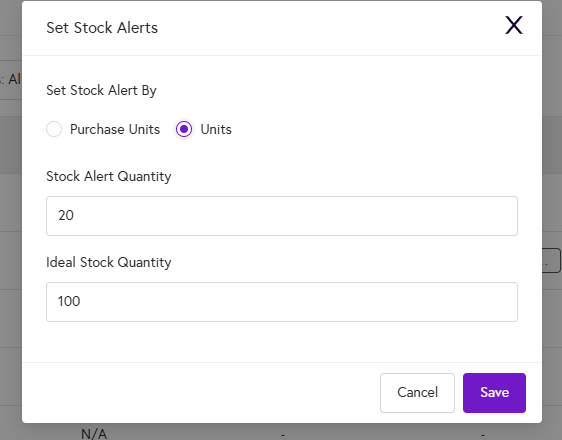
6. Once you have entered all the details, click Save to create the stock alert. For example, in the screenshot above, a stock alert has been set to trigger when stock falls below 20. In the portal, if the current stock for that item is 2, you will receive a notification and the item will be highlighted in red to indicate that it is low in stock.
