1. Login to the NOQ portal.
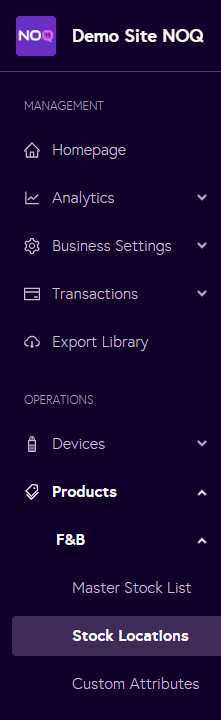
2. Navigate to Products -> F&B -> Stock Locations from the left navigation bar.
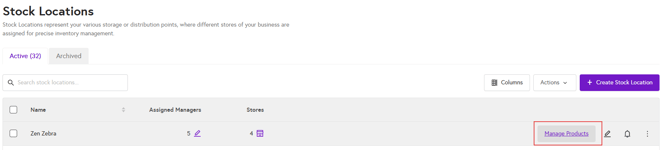
3. From the Stock Locations page, click on Manage Products.
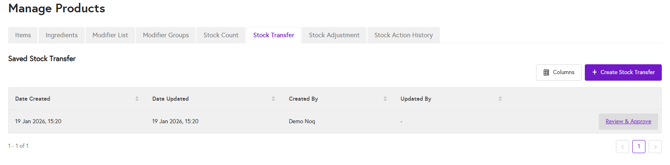
4.From the Manage Products page, go to the Stock Transfer tab, click the arrow next to Create Stock Transfer.
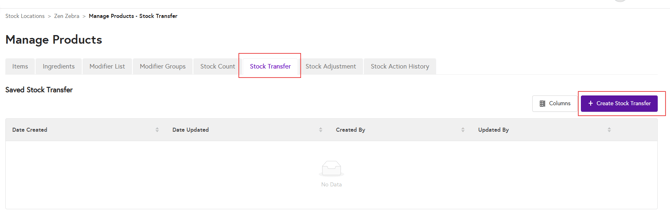
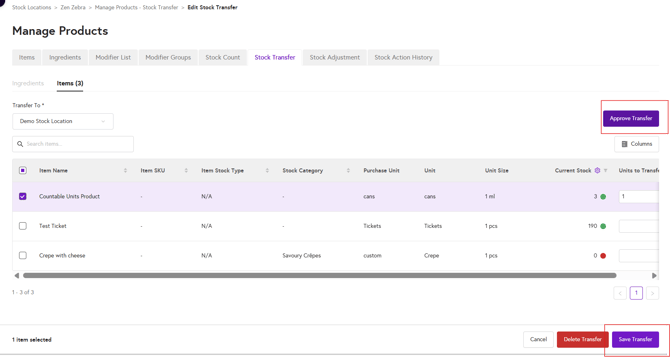
5. Now in the stock transfer page:
-
First, select whether you want to transfer items or ingredients
- Then, in the 'Transfer to' dropdown, select the stock location to which you would like to transfer the selected item or ingredient.
- Enter the number under the Units to Transfer column
- Click on Save Transfer after entering all details

6. After saving the transfer, review the details and click on Approve Transfer. Once approved, the transfer will be completed and saved automatically.