
1. Login to the NOQ Portal.
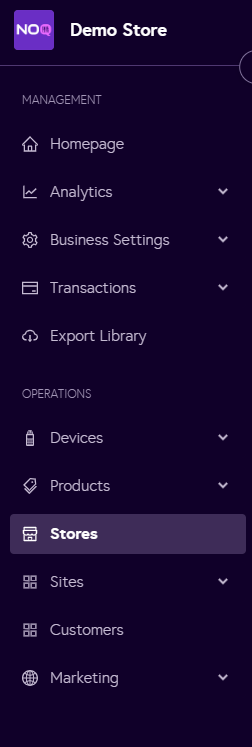
2. Navigate to 'Store' from the left navigation panel.
3. Click on 'Create Store' on the top right corner

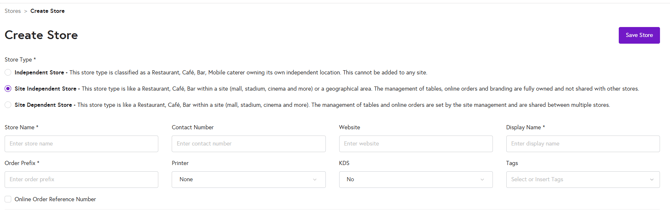
4. Enter the Store Details as follows:
- Select one of the Store Types: Independent Store, Site Independent Store or Site Dependent Store
- Add a Store Name for your Business
- Add a Display Name - This name will appear on your terminal
- Add Contact Number (Optional)
- Add Website (Optional)
- Add Order Prefix - This will appear on your receipt (Ex: ORD)
- If you have a printer assigned to Cloud, Bluetooth you can select from the dropdown. Otherwise you can leave it as None.
- If you have a KDS assigned to a store you can Select Yes from the dropdown otherwise leave it as No.
- You can create Store Tags if you want.
- You can create Store Tags if you want.
- Store Username & Password
- Set a username and password for your store:

- Set a username and password for your store:
- Legal Address Details:
- you can either select the check box stating 'Same as main profile' or add a new for the store.

- you can either select the check box stating 'Same as main profile' or add a new for the store.
- Financial Details:
- Add the VAT number (Optional)
- Add the Company Registration Number (Optional)
