
1. Login to NOQ Portal.
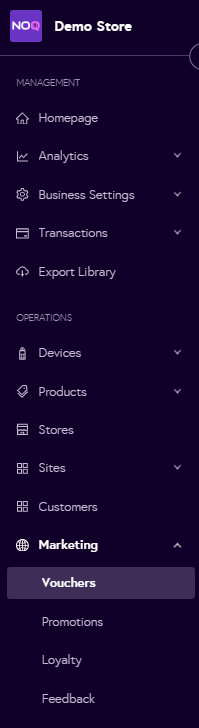
2. Navigate to Marketing -> Vouchers.
3. Click on Create Voucher on the right side of the screen.

4. Now enter the Voucher Details:
- Firstly, Enter the General Section Details:
- General Information:
- Enter Voucher Name (Required)
- Enter Voucher Details (Optional)

- Discount Type: There are three voucher types you can choose from: Fixed discount, Percentage discount, or Free. Below is a description of each option.
- Fixed discount: Enter a fixed amount. If you want any remaining balance to be available for future use after redemption, select the checkbox. If you want the entire voucher to be used in a single transaction, leave this checkbox unselected. You can also set a minimum product quantity or a minimum purchase amount required to redeem the voucher (optional).

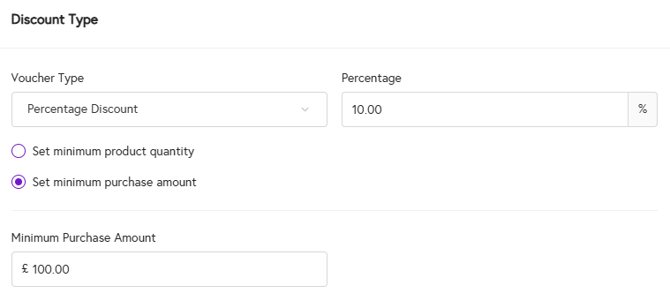
- Percentage Discount: Enter the percentage discount amount in the text box provided. If you want to set a minimum spend before the percentage discount can be redeemed, select minimum purchase amount and enter the required value. You can also set a minimum product quantity that must be purchased to redeem the voucher. For example, in the screenshot below, we have set a 10% discount when the customer spends £100.
- Free: You can select Free as the discount type if you want to apply a free redemption voucher for your business.
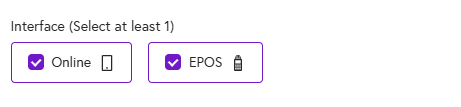
- Interface: After selecting the voucher type, choose where you want it to be redeemable – Online, EPOS, or both. At least one option must be selected before you continue.
- Fixed discount: Enter a fixed amount. If you want any remaining balance to be available for future use after redemption, select the checkbox. If you want the entire voucher to be used in a single transaction, leave this checkbox unselected. You can also set a minimum product quantity or a minimum purchase amount required to redeem the voucher (optional).
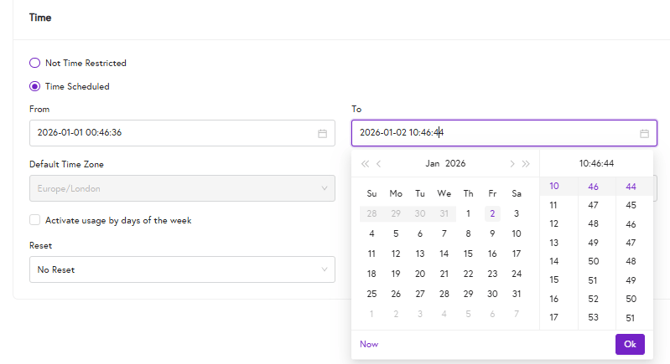
- Time: In the Time section, you can choose to schedule when the voucher is active or leave it without any time restrictions. Please see the descriptions below for both options and select the one that best applies to your use case.
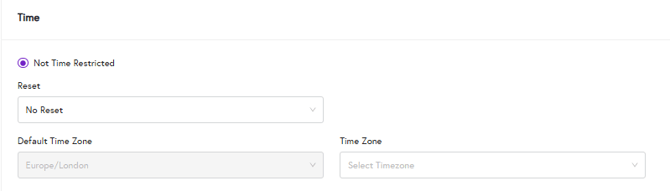
- Not Time Restricted: Select this option if you do not want any time restrictions on your voucher. You can optionally set a reset schedule as None, Daily, Weekly, or Monthly. You can also specify a time zone if needed.
- Time Scheduled: You can set a start and end date and time for your voucher, configure a reset schedule as described above, and specify a time zone(optional). You can also optionally restrict the voucher by days of the week by selecting the checkbox for each day you want it to be active and defining the applicable time range.
- Not Time Restricted: Select this option if you do not want any time restrictions on your voucher. You can optionally set a reset schedule as None, Daily, Weekly, or Monthly. You can also specify a time zone if needed.
- General Information:
- Secondly, Enter the Location Section Details:
- Location Information:
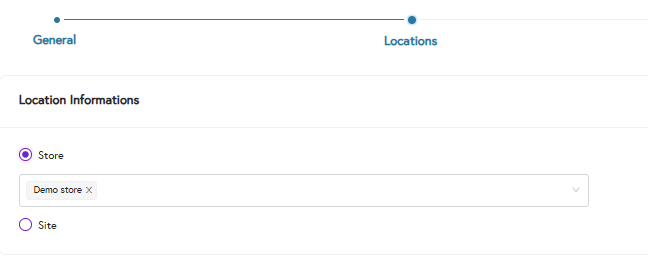
- Store: If you want the voucher to applied at store level, Select the store radio button and select the store names from the dropdown for whichever stores you would like the voucher to be applied to. (You can select multiple stores from the dropdown.)
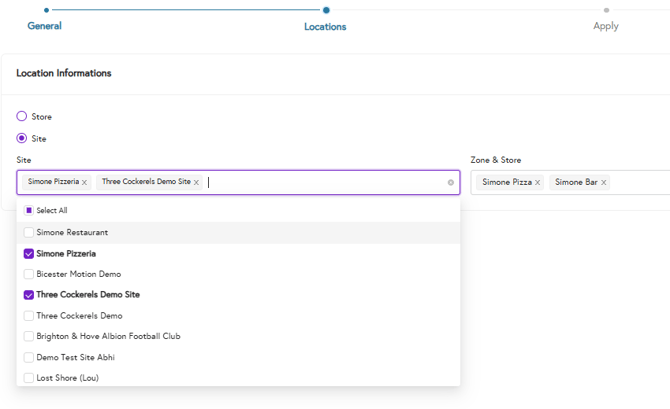
- Site: If you want the voucher to be applied at the site level, select the Site radio button, then choose the relevant sites from the dropdown. You can select multiple sites, and then select the applicable stores and zones from the dropdowns (multiple selections are allowed).
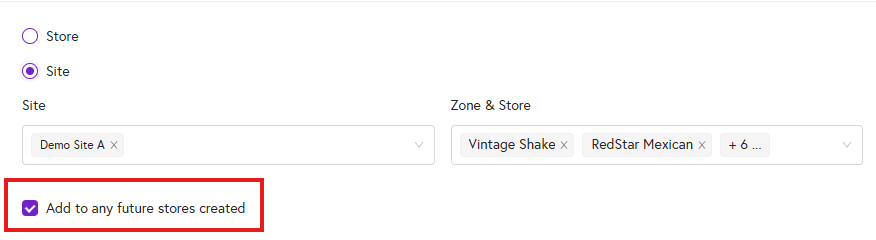
- If you want this voucher to be automatically applied whenever a new store is created, select the “Add to any future stores created” checkbox.
- Store: If you want the voucher to applied at store level, Select the store radio button and select the store names from the dropdown for whichever stores you would like the voucher to be applied to. (You can select multiple stores from the dropdown.)
- Location Information:
- Thirdly, Enter the details in the Apply Section:
- Apply: You can choose to apply the voucher to the entire sale (cart), specific categories, or specific items. Select one of the options as shown in the screenshot below.

- Usage: You can choose one of the two options below:
- Unlimited: Select this option if you want the voucher to be used an unlimited number of times.
- Limited: For Limited usage, you can choose one of the following options and specify the amount in the text box once selected: Maximum usage or Minimum usage.

- Apply: You can choose to apply the voucher to the entire sale (cart), specific categories, or specific items. Select one of the options as shown in the screenshot below.
- Fourthly, Enter the Details in the Target Section:
- Target: There are three options out of which you can select the one which you would like - Single Code, Auto Generated Codes & Manual Generated Codes.
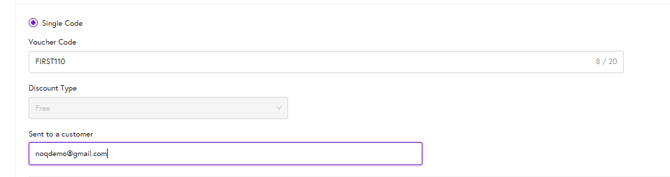
- Single Code: If you want to send a single voucher code to a customer, select this option. You can enter a prefix for the Voucher Code (up to 20 characters) and then type the customer’s email address in the text box below. Click Next and Save the voucher, your single code voucher is now saved and ready to use.
- Auto-Generated Codes (Customer Emails List): You can either assign auto-generated codes to a customer email list, or make the voucher available for anyone who has the code.
- For Assigning to Customer Email List – click this option, then click Download template.

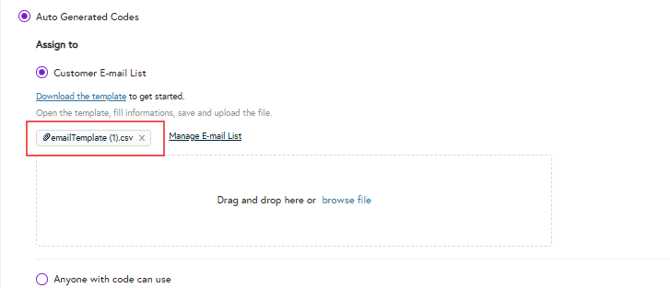
- Once you’ve downloaded the template, enter all customer email addresses that you want the auto-generated codes to be sent to in column A of the Excel file, as shown in the screenshot below.

- Once you have added all customer email addresses, save the Excel file. Then, either drag and drop it into the upload area in the NOQ Portal or click to browse and upload the file. Once the file has been successfully attached, it will appear as shown in the screenshot below.
- Click on Next and review all the all information and Save the Voucher. Your voucher has been created and the QR code will be sent to the customer's email address.
- For Assigning to Customer Email List – click this option, then click Download template.
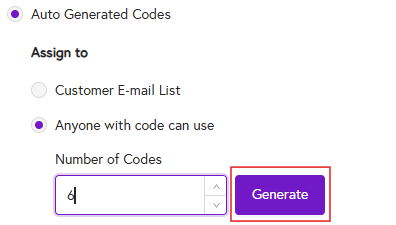
- Auto Generated Codes (Anyone with code can use): Select this option, enter the number of codes you want to generate, and click Generate. Once the success message appears, save your changes.
- Click on Next and review all the all information and Save the Voucher. Your voucher has been created and download the QR codes from the voucher page.
- Manual Generated Codes:
- You can download the template and assign manually codes to each customer's email.
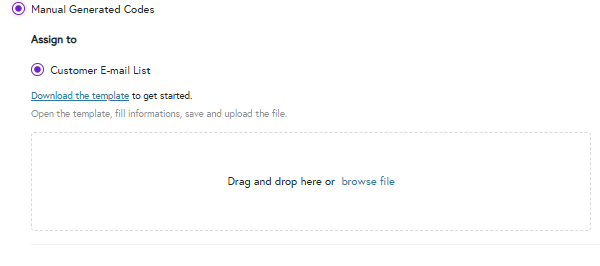
- Once you’ve downloaded the template, enter each customer’s email address and their assigned code in columns A and B of the Excel file. After you’ve completed and saved the file, drag and drop it into the upload area in the NOQ Portal (or click to browse and upload). When the file has been successfully attached, click Next and then Save to confirm your changes.
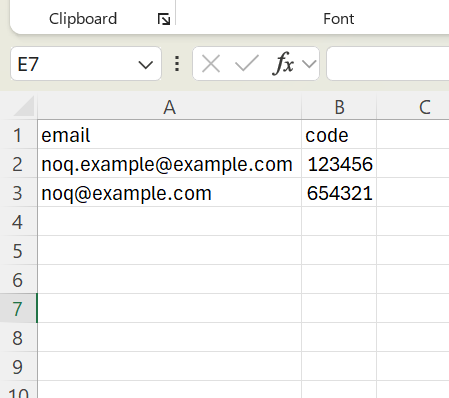
- You can download the template and assign manually codes to each customer's email.
- Single Code: If you want to send a single voucher code to a customer, select this option. You can enter a prefix for the Voucher Code (up to 20 characters) and then type the customer’s email address in the text box below. Click Next and Save the voucher, your single code voucher is now saved and ready to use.
- Target: There are three options out of which you can select the one which you would like - Single Code, Auto Generated Codes & Manual Generated Codes.
Note: After completing each section, click the Next button in the top-right corner of the page to move to the next section. If you prefer to save your progress and review it later, click the Save as draft button to store your changes and return to them when needed.
Tip: If you want to create voucher codes and attach multiple unique codes to a single email, you must use the Manual Generated Codes option in our portal while creating vouchers.