
Step 1: Downloading the NOQ Insights App
- Go to the App Store (iOS) or Google Play Store (Android) on your device.
- Search for NOQ Insights and download the app.
- Open the app and log in with your credentials. If you don’t have login information, contact NOQ support for assistance.
Step 2: Access the Sidebar.
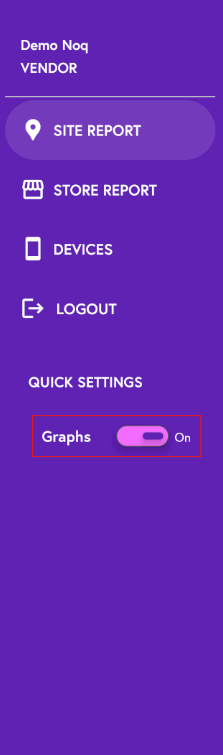
- Once logged in, tap the Three Lines menu icon in the top left.
- Under Quick Settings, you can see Graph toggle which is by default on. Tap on it to turn it off.
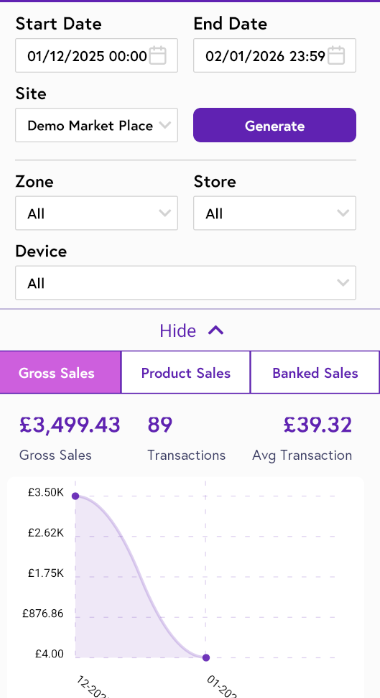
- Here is the report screen with Graphs toggle on.
- Here is the report screen with Graphs toggle off.
