1. When you power on your terminal, you will see the NOQ Merch app on the screen - tap on it to open it.
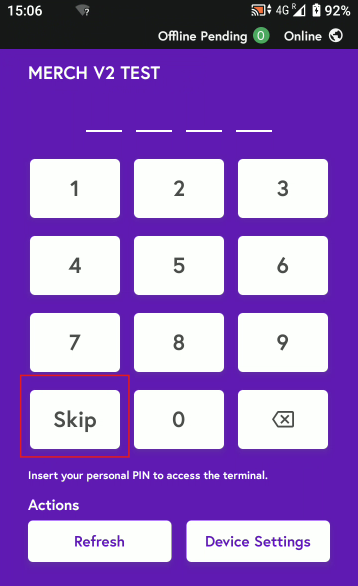
2. Either tap Skip or enter your store PIN to sign in to the app.
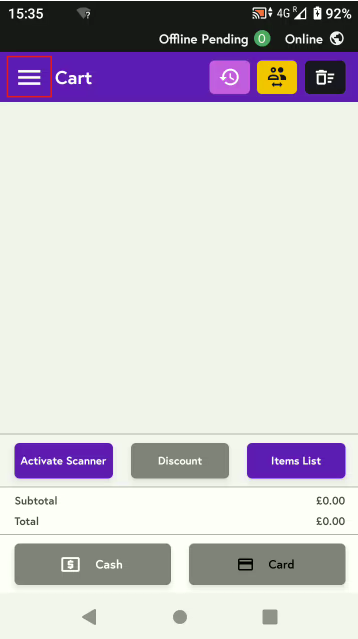
3. Click on three horizontal lines on top:
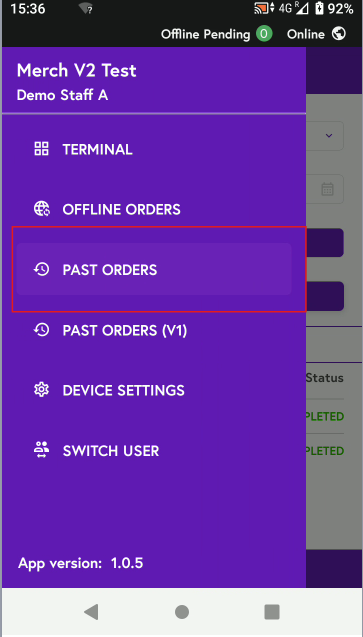
4. Click on Past Orders:
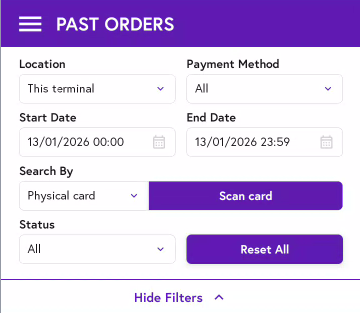
5. Select the location and payment method (card or cash), apply any date and time filters, then either scan the card or search by order number or card number.
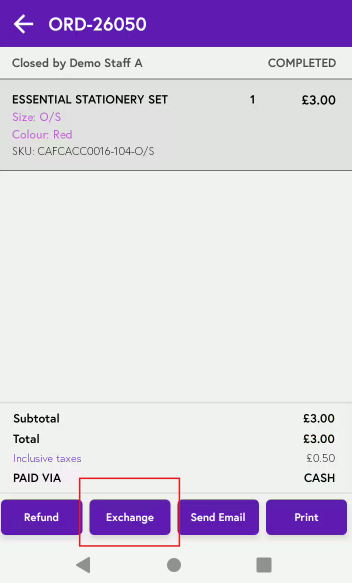
6. Once you have found the order which needs to be exchanged click on it, then click the Exchange button.
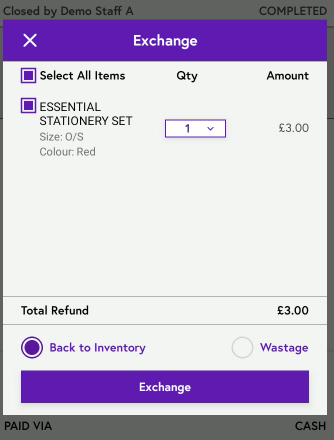
7. Select the items to be exchanged, then either return them to inventory if they are in good condition, or mark them as wastage.
8. Next, tap on the items list and select items that add up to the same amount as the original transaction (for example, £3). Make sure the prices match and, if the exchange is permitted, tap on the selected items to confirm.
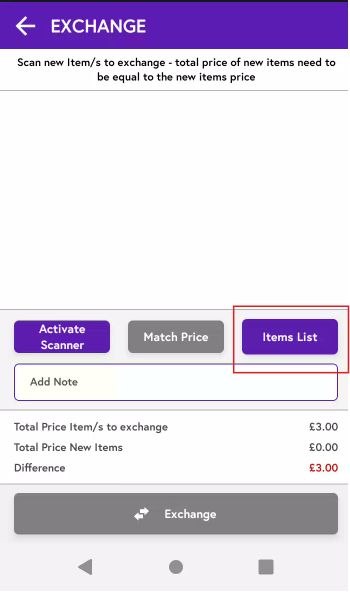
9. Once the new items total the same value (e.g. £3), the difference will be £0. You can then tap Exchange to complete the process.

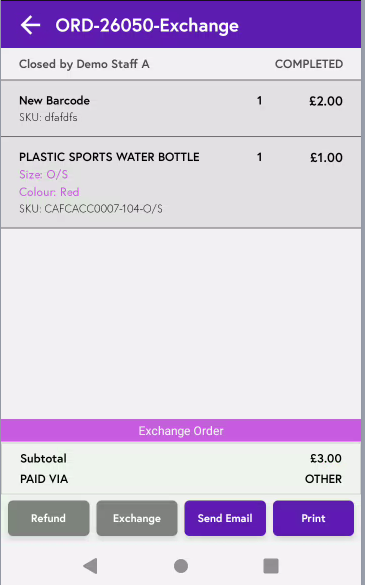
10. Now, when you go to Past Orders, you will see the word “Exchange” added to the Order ID for the exchanged order item. You can click to view it, send an email to the customer, or print it, and a pink bar will show that the order has been exchanged.