
What's items log? “Log Waste Item” means recording stock that has been lost, damaged, expired, or thrown away so your inventory stays accurate.
1. Login to the NOQ EPOS v3 app.
2. The PIN screen will appear. Enter your PIN, or tap Skip if that option is available.

3. There are two ways to mark an item as log waste.
- From the items list or menu, tap and hold the item. Logging Wastage pop-up will appear, as shown in the screenshot. Tap the "+" (Plus) icon to increase the wastage amount or the "-" (Minus) icon to decrease it. When you’re ready, tap Log Wastage to confirm. If stock count is enabled for that item, the system will automatically reduce the stock level in the backend.

You will see a success message stating that item "logged as wastage".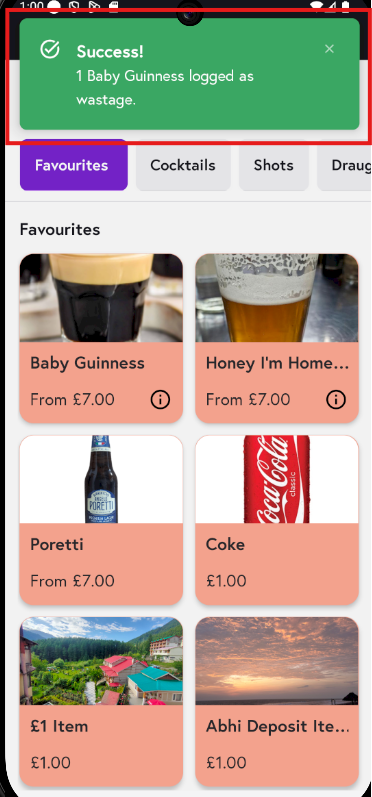
- Add the item to the cart as normal. Swipe left on the item name to open the logging Wastage option. You can only log up to the maximum quantity of that item currently in the cart.
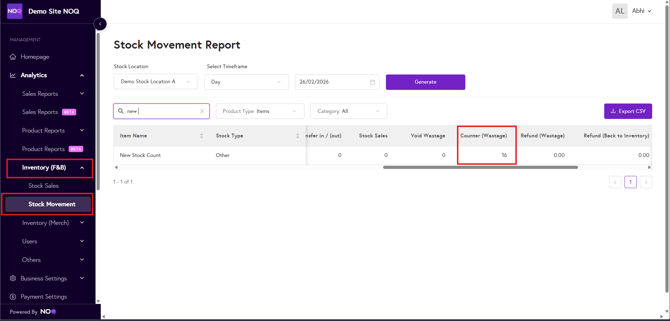
4. In the backend, go to Analytics > Inventory (F&B) > Stock Movement. Enter all the required details and search for the items you logged as wastage. Scroll to the right to find the Counter (Wastage) column, which shows the total wastage recorded from the Counter (EPOS app).
5. If the item has variants, follow the same steps, but instead of selecting the main item, choose the specific variant you want to log as wastage.