
1. Login to the NOQ Portal.
2. In the sidebar, go to Sales Report (Beta).
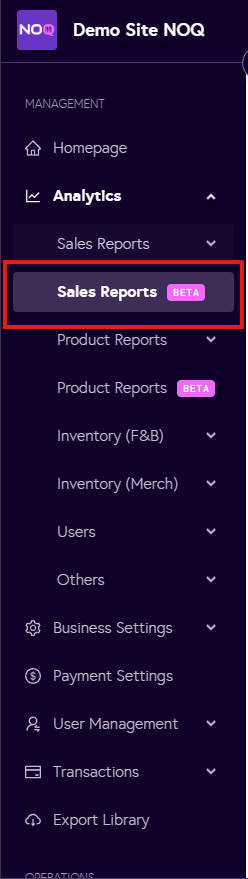
3. You’ll see several sections, including Overview, Commission & Deduction, and Offline Sales & Fees. Each section contains its own set of reports. Select the report type you want to view. In this guide, we’ll walk through the Overview by Store report within the Overview section.

4. When the report page opens, you’ll see that some filters are pre-applied for today. To remove a filter, click the cross icon next to it. To change the date range, click on the date filter.

5. The date selection panel will now open. You can either choose one of the default options on the side, or use the date range at the top to set a custom date manually. You can also set a start and end time for the selected date. If you don’t want to include time, click Hide times. When you’re happy with your selection, click Set Date to apply the date filter.

6. You’ll now see data for the date range you selected. You can change the site, store, and sales channels (Online, F&B EPOS, Merch EPOS) using their respective drop-down menus. Use the funnel icon to open the filter panel.

7. In the filter panel, you can adjust the date, select a site, choose zones for the selected site, select stores for the selected site, and refine by payment type, payment mode, service type, and store type (Internal or External). After configuring all the fields, click Apply Filter to apply the changes. Click Reset All Filters to clear all filters.

8. To show additional data, click the Columns button and use the drop-down menu to select which columns you want to include in the preview.

10. To export the sales report as a CSV file, click Download CSV file. The file will reflect the data based on your selected filters.

This Sales Report is currently in beta. If you notice any inaccuracies, please Contact Us.