
When your terminal is not connected to the internet, a notification will appear at the top of the device stating, "You are working offline." Any orders taken during this offline period are saved locally and must be processed manually once you regain internet access.
🚨Important🚨We strongly advise that you encourage your customers who are paying by card to use their physical cards by inserting them into the base of the terminal and entering their PIN for enhanced security when processing offline orders.
How to View and Process Offline Orders in NOQ EPOS Lite
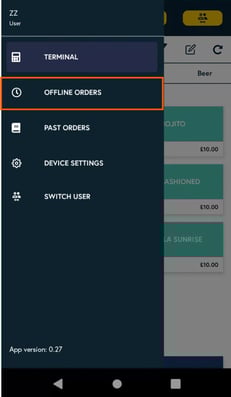
- Tap the three lines in the top left hand corner then select Offline Orders in the menu.
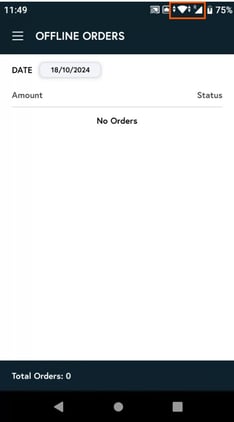
- If there are any transactions, your terminal needs to be connected to a network before pushing through any transactions. You can check this in the top right hand corner for wi-fi or 4G.
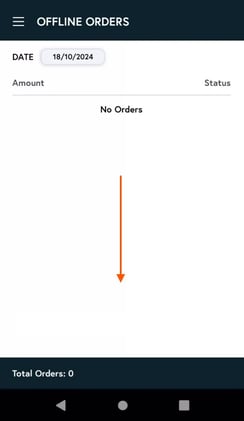
- To push any transactions, simply swipe down on the white area of the screen to refresh. Once the screen updates, all transactions will be visible in the "Past Orders" section (tap three lines and tap Past Orders).
What happens if my offline orders fail to sync?
If there are any remaining orders in the Offline Orders section, this means they have not yet been processed. Ensure you are in an area with strong 3G/4G or Wi‑Fi coverage, then swipe down on the screen to refresh and attempt to sync again. Always review this section at the end of your service to confirm that all Offline Orders have been successfully captured (refer to Step 3 for guidance).
If orders are still not syncing, please contact our support team here.
Please note: When the terminal is in offline mode, no 3G/4G icon will be visible in the status bar of your terminal. Once you have finished trading in offline mode and are ready to process these payments, ensure the terminal is connected to a stable Wi‑Fi or mobile data network. If you need support with enabling 3G/4G on your device, please contact our team, but make sure you are in an area with strong network coverage.
If you encounter any transactions that fail to process, please contact our customer service team for assistance.
What offline setup options are available to help minimise the risk of payments being refused when operating offline?
-
Limit Offline Transactions: You can restrict the number of offline transactions allowed per device. You can also set a maximum total value for offline transactions on each device, for example, a £500 offline-only limit.
- Transaction Value Controls: You can set a maximum value for individual offline transactions to help manage risk - for example, you might cap any single offline payment at £80.
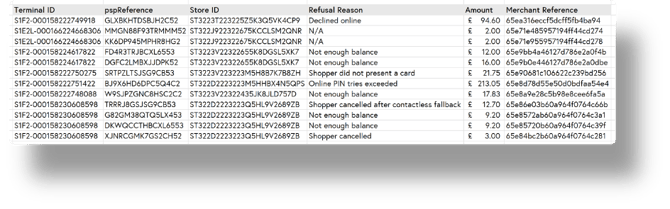
- Monitoring & Reporting: You can view this in the Reports section, where you can download a CSV file. There will be a column called “Refused Reason” that shows why each transaction was refused, helping you stay on top of any issues.
What if the transaction was refused during offline mode?
If a customer’s transaction is ultimately refused while the terminal was operating offline, then once the device reconnects to a stable 3G/4G or Wi‑Fi network, all transactions will start syncing from offline orders to past orders and any transactions that have been refused, you can download the sales summary CSV, where the status column and the “Refused Reason” column will clearly show which transactions were refused, as highlighted below.

Our team can log in to the Adyen portal and provide you with a breakdown of the specific refusal reasons if there are plenty of them.
Here is an example of how refused transactions might be presented by our team in an Excel file(Pivot): in the first column, you will see the refusal reason exactly as it appears in the Adyen portal (we have included the link below), alongside the corresponding transaction amount.
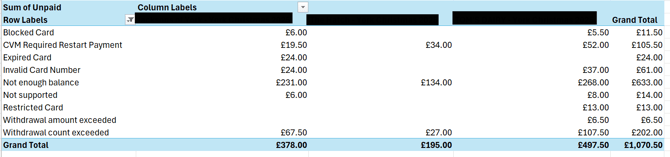
You can also check all the refusal reasons listed by Adyen on their portal here.