
1. Login into NOQ Portal.
2. Navigate to Transactions -> Payouts.

3. From the MSA dropdown, select the merchant service account number for which you want to view the payout. If you only have one MSA, it will be selected automatically. Under Reports Tab, then click on Download for the chosen MSA. This will download a CSV file where you can review all your transactions and reconcile them with your NOQ sales report. To learn how to view NOQ sales report click here.
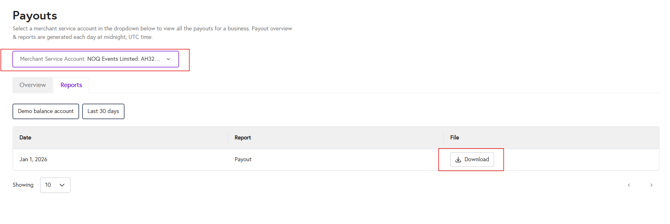
Note: If you are a vendor receiving payouts on a T+1 or T+2 schedule on a daily basis, then you can follow the above steps, then go to the Reports tab and download the payout file to see how much you were paid via Adyen, and reconcile this against your NOQ sales reports.
Additionally, you can also view your sales in the NOQ Insights app. Click here to learn how to check your sales report on our app.
4. Under the Overview tab, you can see a summary of your total booked transactions. See the example screenshot below.

5. You can also filter the data by date. In the screenshot, the filter is set to “Last 30 days”. Click on the date filter, where it says 'Last 30 days' for example based on this screenshot to see the available options, select the range you want, and then click “Apply”.
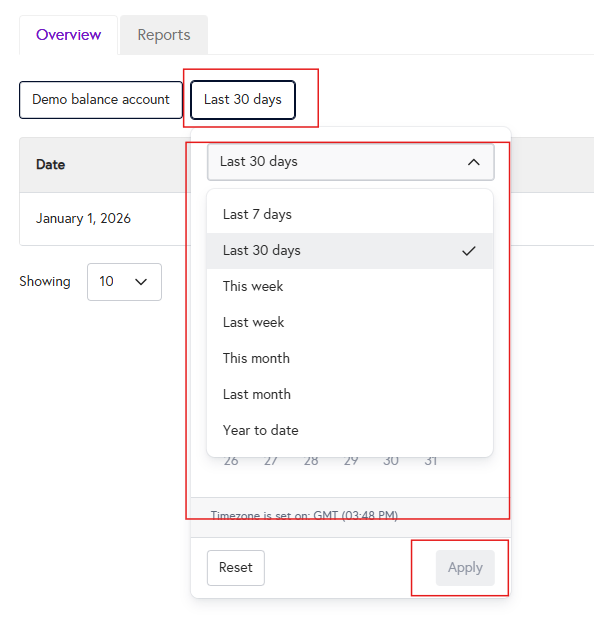
Note: You can filter the dates for both Overview & Reports tabs separately.
Important: If your Adyen settlements do not match your NOQ reported sales totals, this may be due to additional charges or deductions. To understand these in detail, please contact our support team and we’ll walk you through the breakdown.