
1. Log in to the NOQ Portal.
2.From the sidebar, go to User Management > Managers.

3. Either click the manager’s name directly, or click the three dots next to it and select View details.

Click the Edit icon in the Staff Settings section.

4. Enter a 4-digit PIN, or click Generate PIN to create a new one, then click Save Changes to apply it.

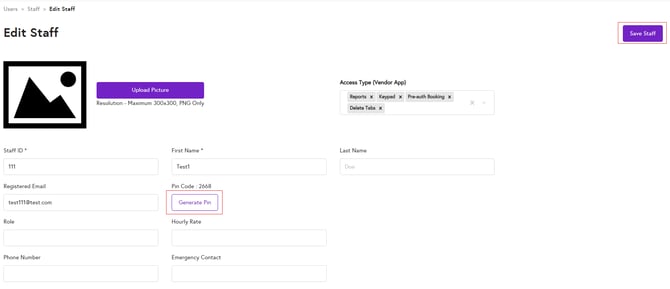
5. From the sidebar, go to User Management > Staff. Click the three dots next to the staff member whose PIN you want to change, then select Edit.

6. Click Generate PIN to create a new PIN code, then click Save Staff to apply the changes.
Note:
-
Once the new PIN is generated, please log in to the EPOS app using that PIN. It should allow you to access the system. If you experience any issues, please contact us here.
-
To learn how to enter pin on the terminal click here.
- To learn how to create staff and generate pin click here
- To learn how to create manager and generate pin click here