
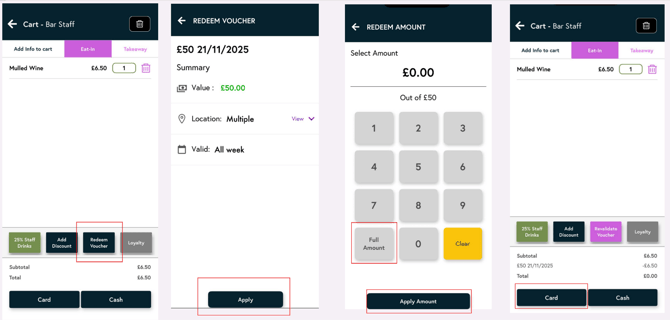
- Add the items into the cart
- Select ‘View Cart’
- Select ‘Redeem Voucher’
- Scan the voucher presented by the customer
- Here you can see how much money the customer has on their voucher.
- Select ‘Apply’
- Select ‘Full Amount’
- Select ‘Apply Amount’
- Now you will go back to your cart and the total will either be £0 – Press card and this will go into your past orders.
- If the customer still has an amount to pay you can proceed with taking their payment.
NOQ Lite App
Important Notes for Staff
- Vouchers cannot be manually adjusted without scanning the QR code.
- If a voucher fails to scan, check for damage, smudges, or screen brightness issues on phones.
- Once a voucher is fully redeemed, the system will block further use automatically.