NOQ Portal allows you to view Product Sales Report to track how many items were sold, revenue earned, and performance over a selected period.
1. Login to the NOQ Portal.
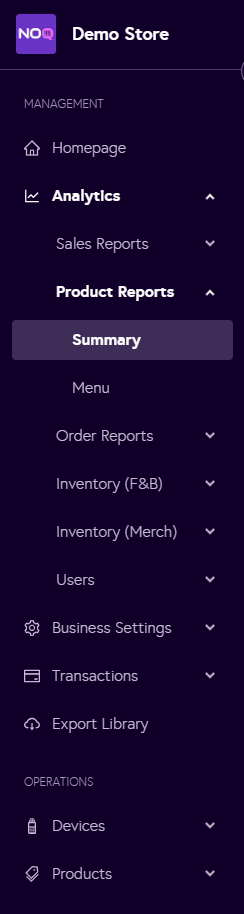
2. Navigate to Analytics > Product Reports > Summary.
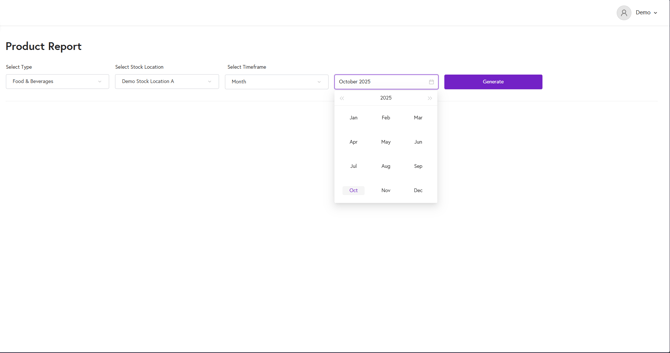
3. You will see drop-down to select type. Select Food & Beverages.
- After selecting Food & Beverages, it will ask you to choose stock location.
- After selecting stock location, select the timeframe you want report for. It can be Day, Week, Month, Year or even you can select custom timeframe.
- After selecting timeframe, select the time and click on generate to generate the report.
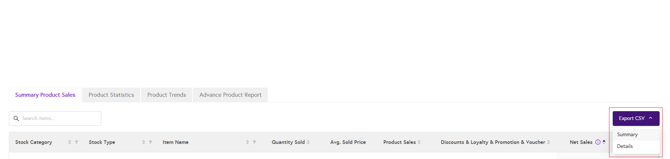
4. Product report will give you information under Summary Product Sales tab about following:
- Stock category : Category of the item (if any).
- Stock Type : Stock type of the item.
- Item name : Name of the item sold.
- Quantity Sold : How many items sold during the chosen timeframe.
- Average Sold Price : Average Price of item sold.
- Product Sales : Total sales from the item.
- Discounts & Loyalty & Promotion & Voucher : It will show if user get any kind of discounts from different schemes.
- Net Sales : Net sales is indicative to the items only and does not include any refund and unpaid amount.
- Inclusive & Exclusive Tax : It shows whether the tax is inclusive or exclusive in the item.
- Net After Tax : It shows net sales after tax deduction.
5. Under Product Statistics tab, you can see product sales by store, stock category & items.

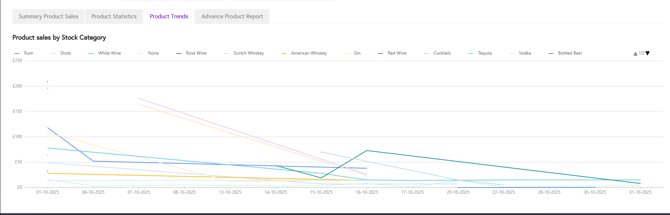
6. Under product trends, you can see graph of all items and how they performed during the selected timeframe.
7. Under Advance Product Report, you can see the performance of the items for the selected timeframe.

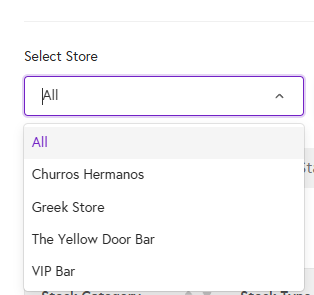
8. You will see product report for all the stores assigned to the selected stock location. You can select singular store if you want report for that store.
9. You can export excel file of summary by clicking on Export CSV > Summary. If you want detailed version of sales you can download details excel file by clicking on Export CSV > Details.