After customer place their order using NOQ web app follow below steps.
1. Log into the NOQ EPOS app.
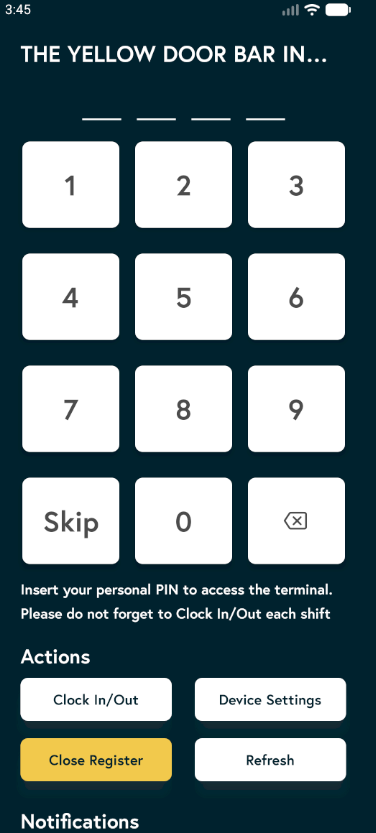
2. On the homepage, enter the Manager/Staff PIN. If a Skip button is available, you can tap this instead.
3. From the drop-down menu at the top of the screen, select Online.

4. You will see the order under the Pending tab. Tap the thumbs up 👍 icon to accept the order or the thumbs down 👎 icon to reject it. In both cases, the customer will receive an email notification. At the bottom of the screen, select the estimated preparation time for the order. Once you accept the order, it will move to the Active tab.
If Auto Accept Order is enabled in the backend portal, the order will appear directly in the Active tab.

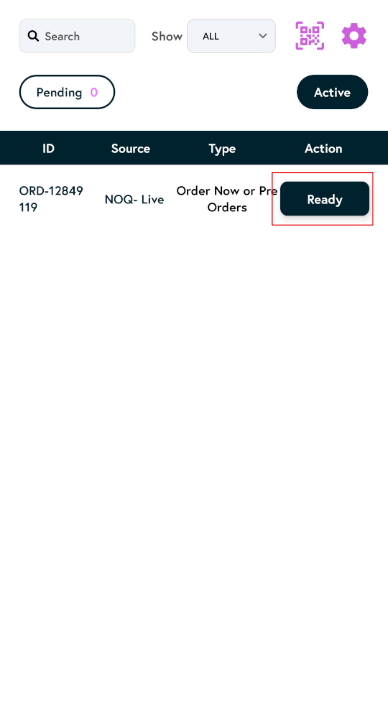
5. Click on Ready when order is ready. It will send customer notification of collecting order.
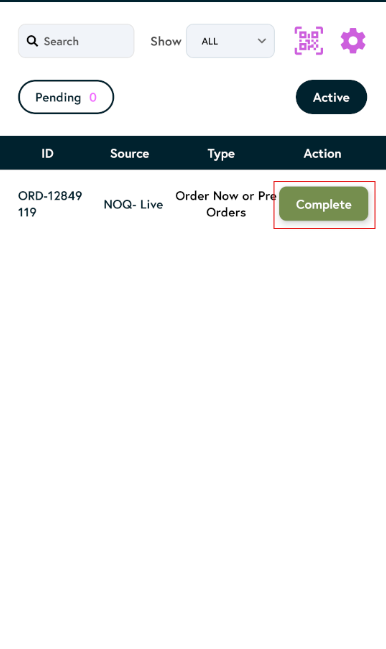
6. Once the customer has collected their order, tap Complete to close the order.