1. Login to the NOQ Portal.
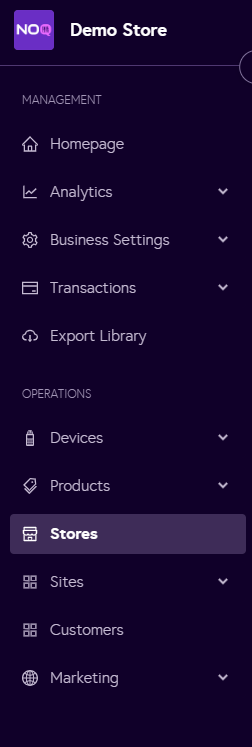
2. Navigate to 'Store' from the left navigation panel.
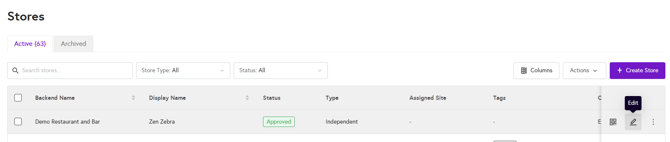
3. Once you are in Stores, click on the pencil icon (Edit) for the store you want to Set KDS for.
4. Go to Store Profile.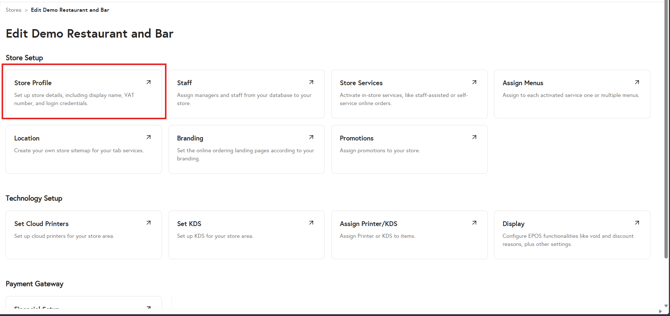
5. Make sure KDS is set to Yes. If not, Set it to Yes and click on Save Store.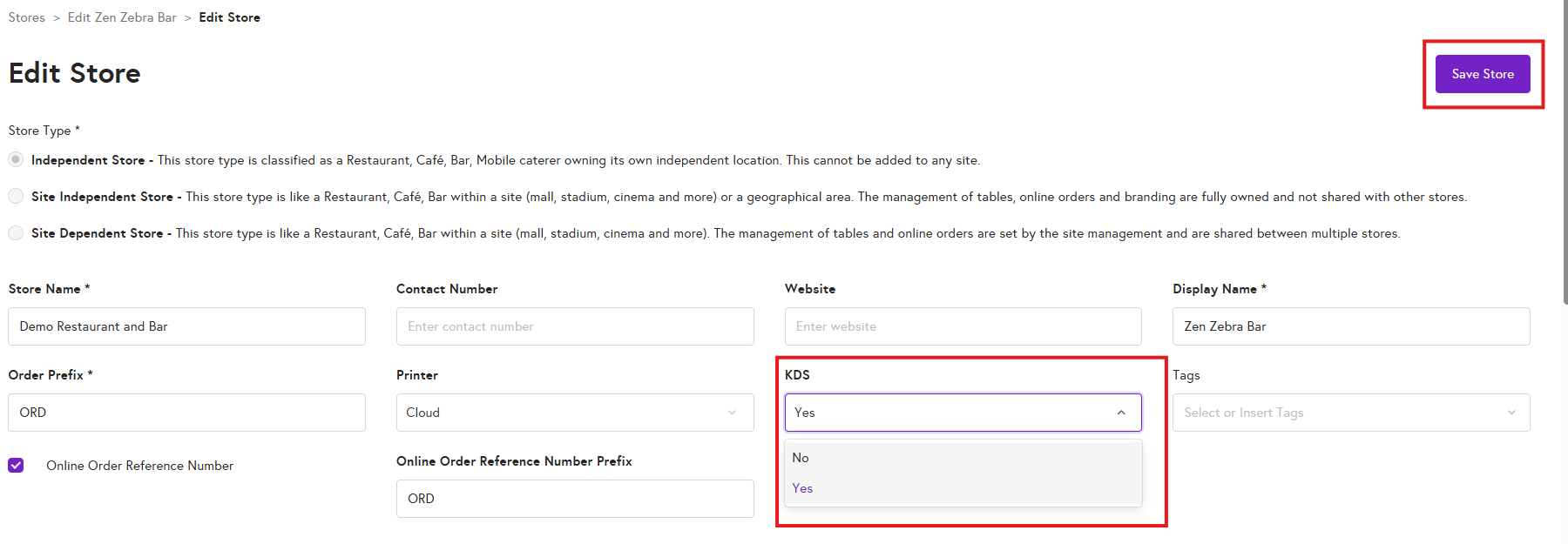
6. Under the 'Technology Setup' section, click on 'Set KDS'
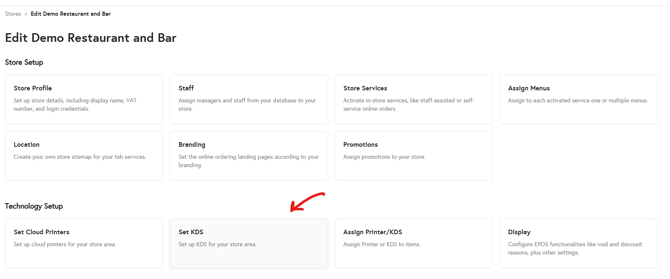
Note: A KDS Group is essentially a way to group similar preparation areas and their items. For example, you could create a KDS Group called “Kitchen” and within it add KDS names for specific items like “Pizza” and “Pasta”. You might also create another KDS Group called “Bar” and add KDS names like “Beer” and “Cider”.
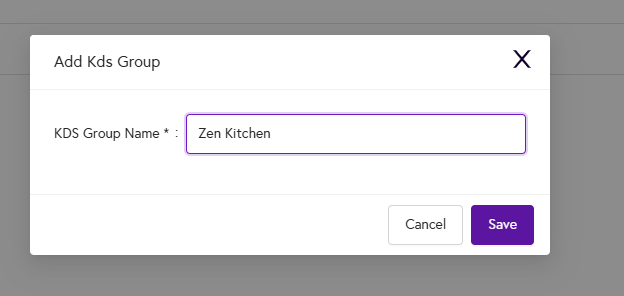
7. Click on 'Add KDS Group', a dialog box will appear and you can type in the name of for the KDS group and click save.
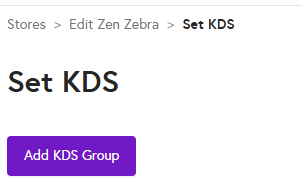
8. Once you have added a KDS group, click on the plus (+) icon to add a KDS. You can add multiple KDS under one KDS group. When you click on the plus (+) icon, a dialog box will appear.
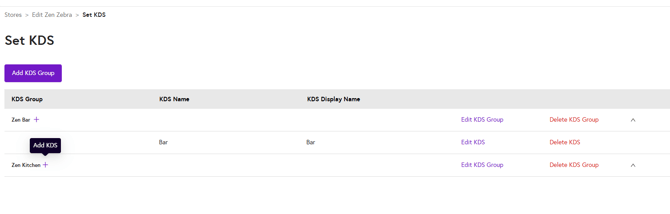
9. in the dialog box, enter the KDS name and KDS display name, then click on the 'Add' button
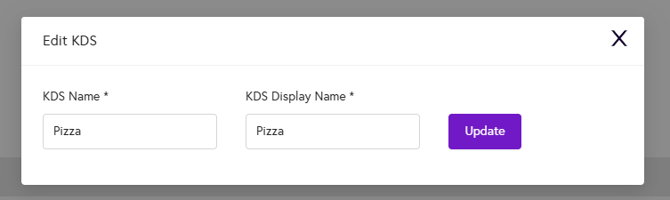
10. The KDS for your store is now set up.
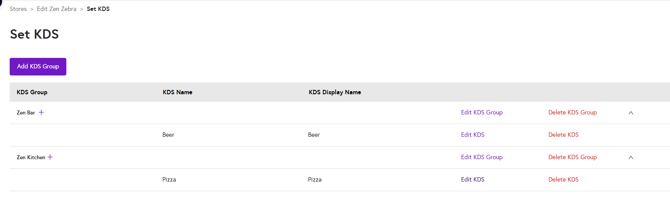
Note: You can edit the name of a KDS or KDS group by clicking on Edit KDS or Edit KDS Group respectively. You can also delete a KDS or KDS group by clicking on Delete KDS or Delete KDS Group respectively.
KDS App
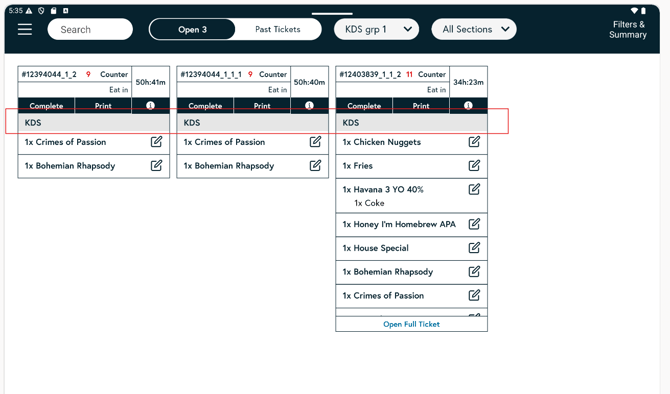
- Once the backend is set up, you can log in to the KDS app and see it displayed as shown below. Download the NOQ KDS app from the Google Play Store or Apple Store and log in using your store username and password.
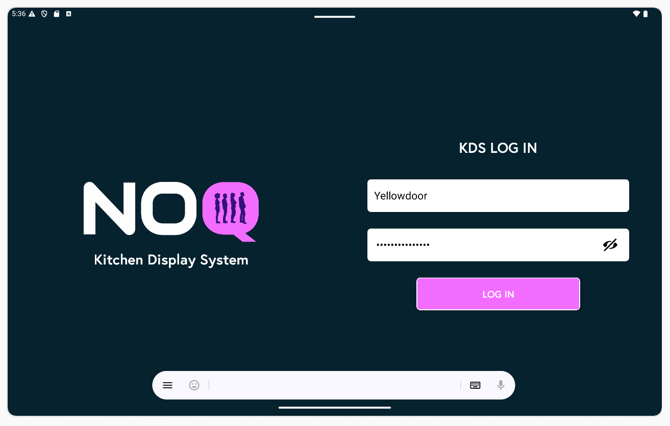
- Once you are logged in and have created two different KDS Groups (e.g. KDS Group 1 and KDS Group 2), click on the filter button below and select the relevant KDS Group. For example, if one of the KDS names inside KDS Group 1 is “KDS”, select that from the list.
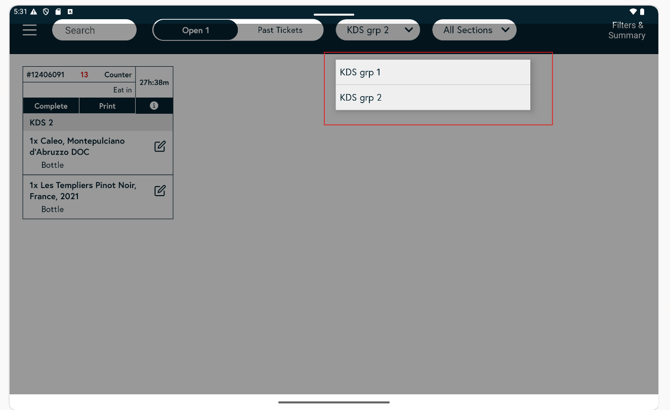
- In the KDS Group section, this is where your KDS names will appear. For example, if KDS Group 1 has a KDS named “KDS”, you will see it listed there.