
To setup interval ordering for the NOQ KDS app, you must first complete the following two steps in the NOQ backend portal.
- Menu Structure must be Grouping Categories Items. Follow link below to learn how to create Grouping Categories Items.
- Assigning menu items to the relevant KDS. Follow link below to learn how to assign items to the KDS.
1. Log into the NOQ EPOS app.
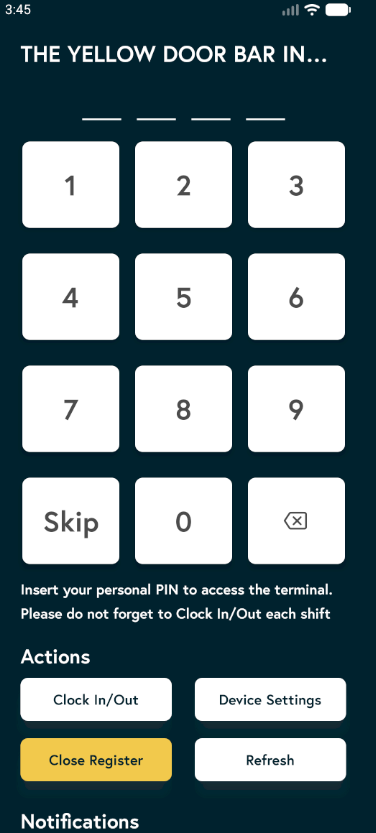
2. On the homepage, enter the Manager/Staff PIN. If a Skip button is available, you can tap this instead.
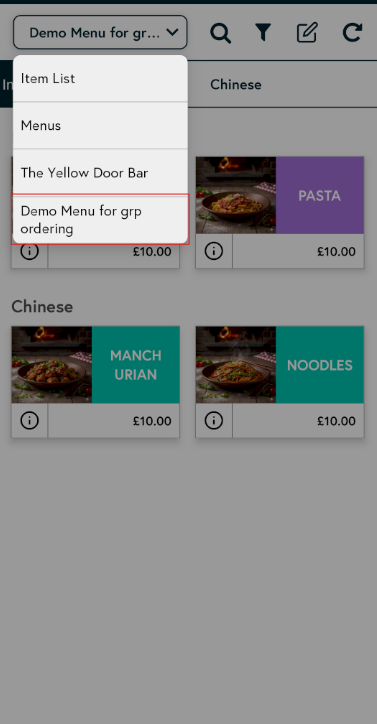
3. From the item list drop-down, select the menu that uses the Grouping Categories Items structure.
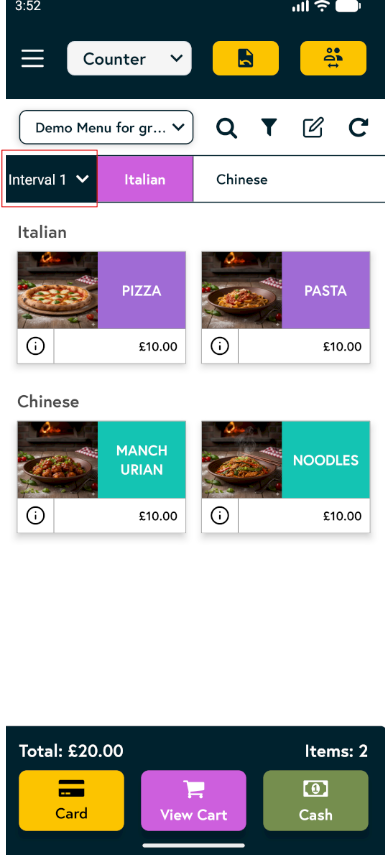
4. Add items from the first group. Once you have added the required items, use the group name drop-down to switch to another group.
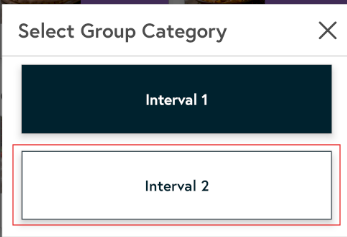
After selecting another group, add the required items from that group as well. Once all items from the necessary groups have been added to the basket, proceed to take payment as normal. A confirmation message will appear stating that “KDS sent successfully.”
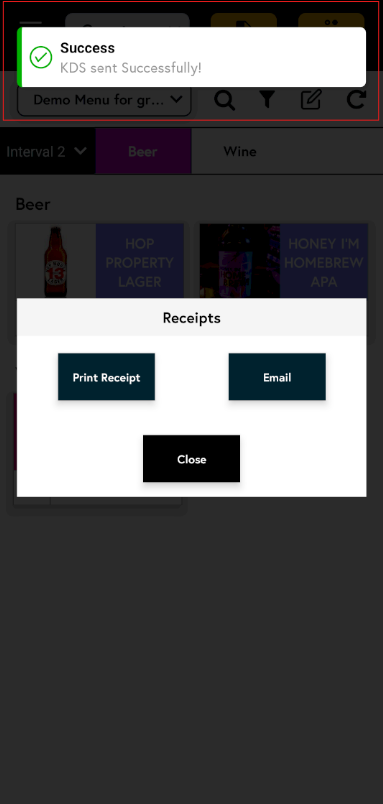
5. Log into the NOQ KDS app using the same store credentials. You will see orders from groups in the Open section.

6. To print an open ticket, click the printer icon in the top-right corner.
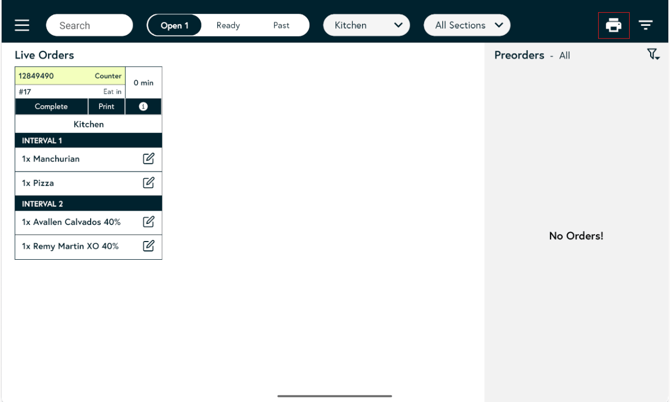
A pop-up will appear; click Yes, Print to print the ticket.

7. You can also print a specific group. To do this, click the filter icon in the top-right corner.

From the Filter by group drop-down, select the group you want to print. Only that group will be shown in the Open section. Click the cross (X) icon to clear the filter.
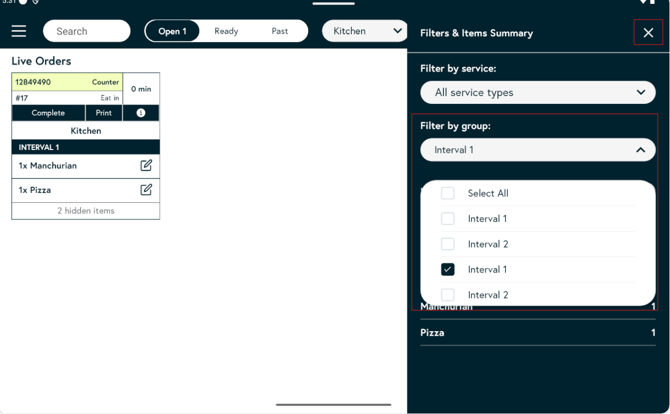
Click the printer icon in the top-right corner to print only the currently selected group’s open ticket.
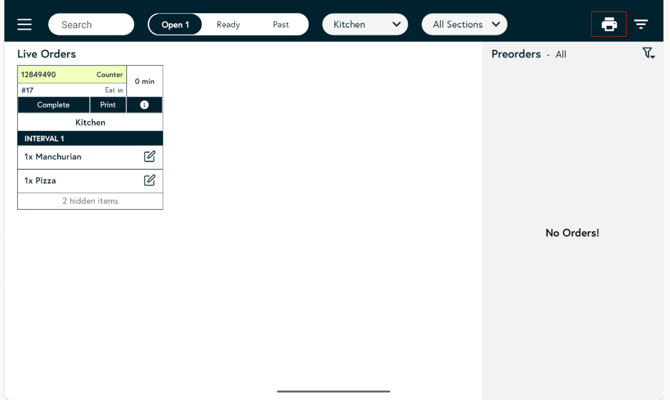
A pop-up will appear; click Yes, Print to print the ticket.