
1. Login to the NOQ Portal.
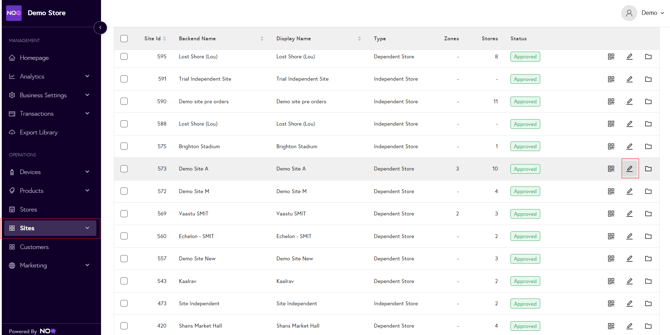
2. From the sidebar, go to Sites > Own Sites. Click on any dependent stores site Pen🖊️ icon for the site you want to edit.
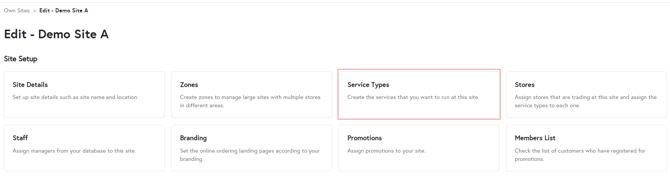
3. Click on Service Types.
4. In the Service Types section, you’ll see all available service types. Under “Set up Service Types”, tick the checkboxes for the service types you want to enable for that store. Below is an explanation of each service type:
- Enable counter ordering: this enables counter ordering on your terminals, allowing customers to place their orders directly at the counter.
- Enable onsite off-counter ordering: this enables tab ordering on your EPOS app, allowing staff to open and manage tabs (e.g. create new tabs, add items, merge tabs) and keep a running bill for each table while taking orders directly at the table from the EPOS app.
- Enable onsite collection: by enabling this, you activate the onsite collection option in your mobile ordering, allowing customers to place orders on their phone and collect them from your store counter.
- Enable onsite delivery: by enabling this, you activate the onsite delivery option in your mobile ordering, allowing customers to place orders on their phone and have them delivered directly to their table.
- Enable express ordering: this enables the express ordering option in your mobile ordering service, designed for fast, grab-and-go items such as crisps and other ready-to-serve products, so customers can place quick orders while on the move
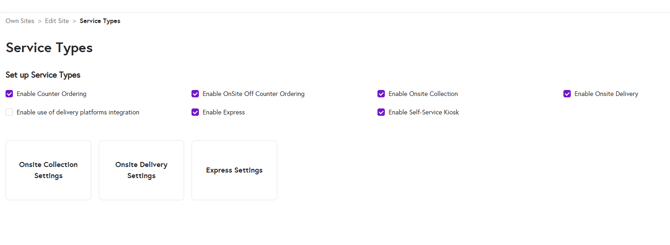
Note: To configure onsite collection, onsite delivery or express ordering, select the relevant service type and then add the specific settings within it.
5. Your selected service types are now enabled for stores assigned to sites. Next, go to Sites > Own Sites > Stores to toggle these service types on or off for each dependent store within the site.
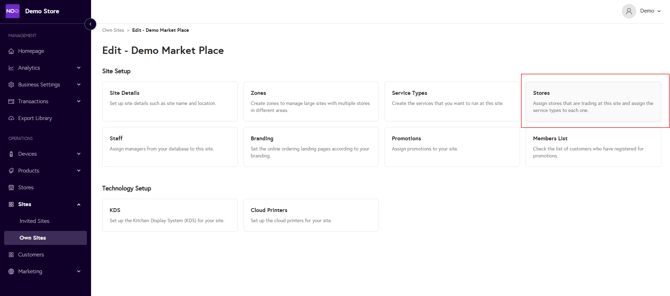
6. On this page, you can assign stores to the site, toggle on or off the service types you’ve enabled for each store at site level, and, once you’re satisfied with your selections, click Save settings at the bottom of the page to apply your changes.
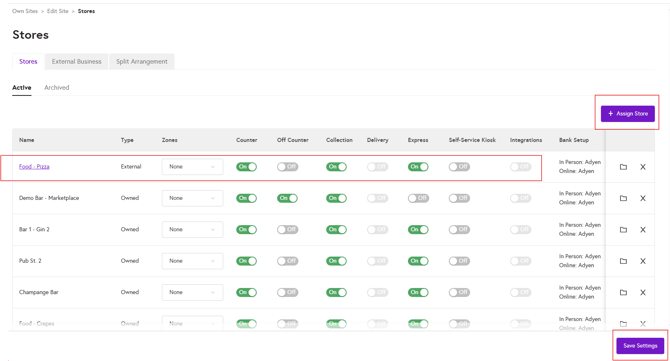
Can’t see the store you’re looking for? Use the guide below to assign a store to a site.
If you assign new stores to the site, counter service will be enabled by default. If you don’t want to use counter service for a store, you can simply toggle it off. Click Save settings at the bottom of the page to apply your changes.