
This guide explains how to:
-
View assigned vouchers
-
Check voucher details
-
Filter and search vouchers
-
Apply a voucher at checkout
Step 1: Log in to the PWA
-
Open the PWA (Progressive Web App).
-
Log in using your email.
Step 2: Access Your Vouchers
-
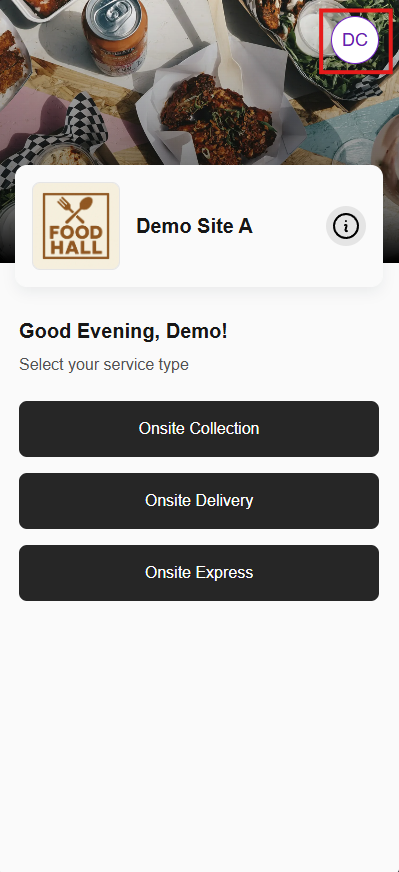
After signing in, click on your Profile.
-
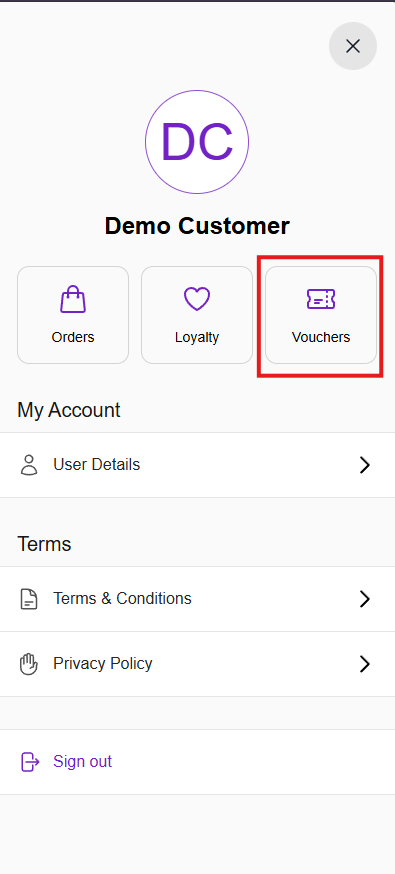
Select the Voucher tab.
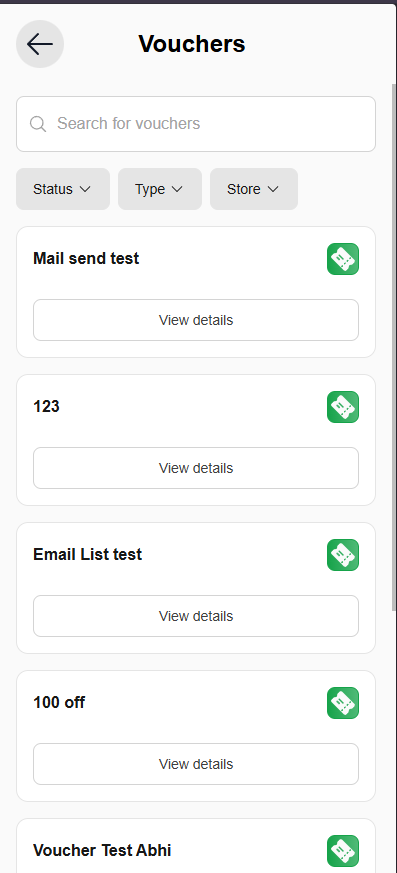
You will see a list of all vouchers assigned to your account.
Step 3: View Voucher Details
-
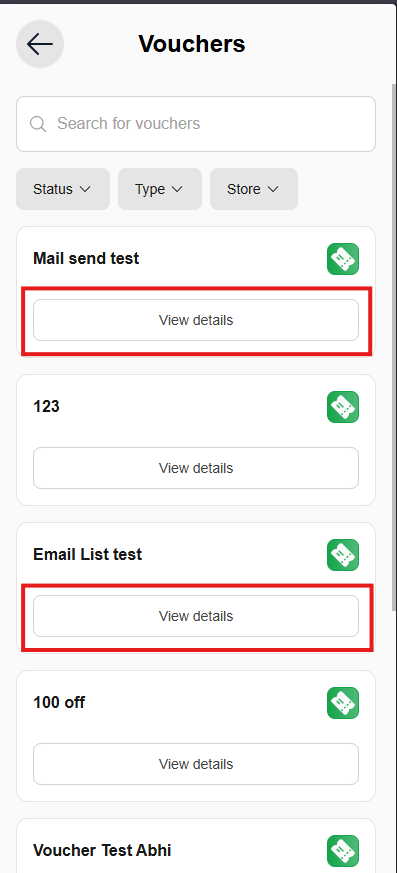
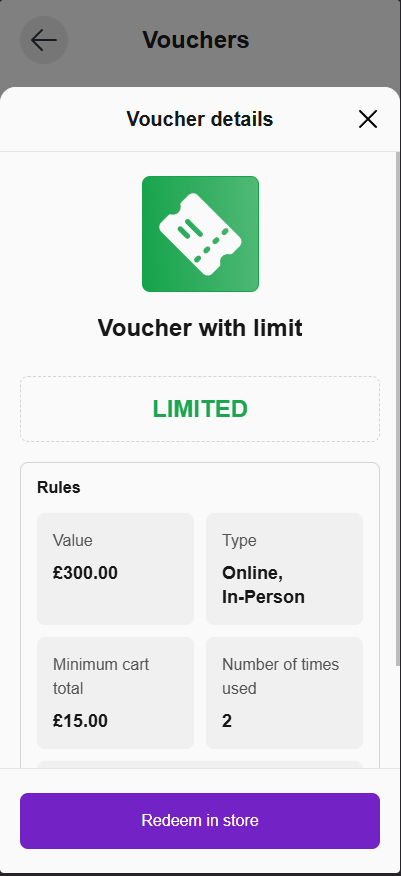
Click View Details on any voucher.
-
You will see:
-
Voucher name
-
Voucher code
-
Voucher rules and conditions
-
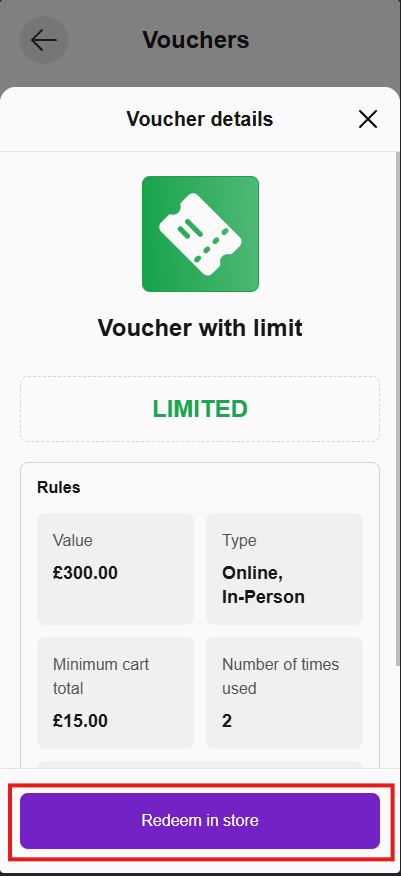
If the voucher type is set to In Person in the backend, a Redeem in Store button will appear.
-
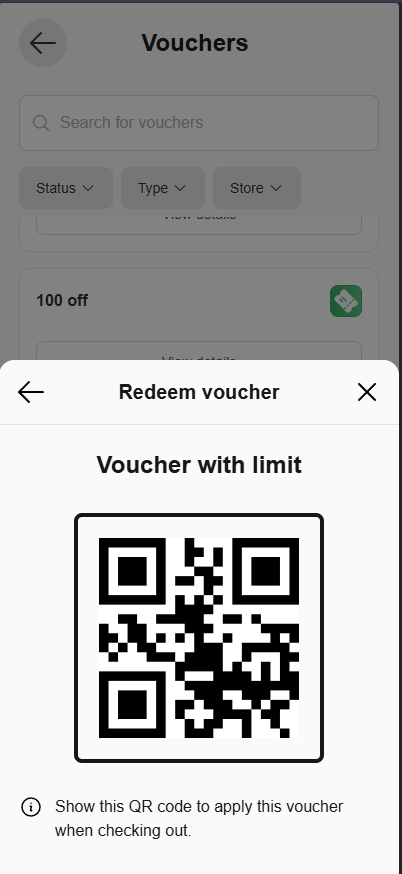
Click Redeem in Store to generate a QR code.
-
Show this QR code in-store to redeem the voucher.
Step 4: Search and Filter Vouchers
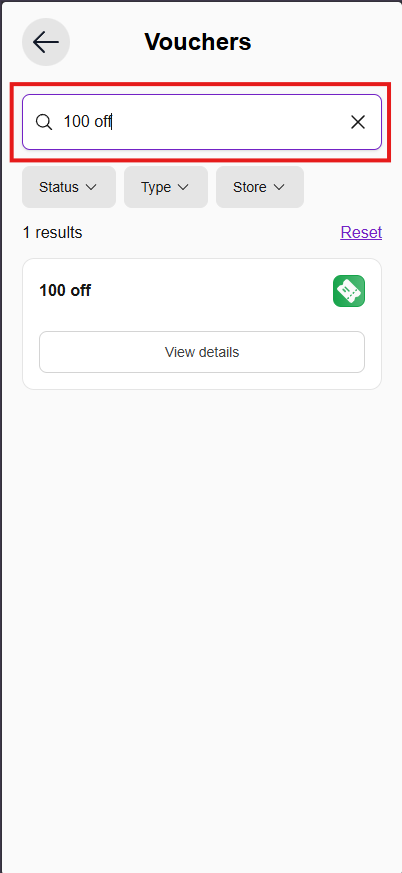
You can search and filter vouchers to quickly find what you need.
Search
-
Use the search bar to find a voucher by voucher name.
Filter by Status
You can filter vouchers based on their current status:
-
Active – Displays all vouchers that are currently valid and available for use.
-
Redeemed – Displays vouchers that have already been used.
-
Expired – Displays vouchers that are no longer valid because their expiry date has passed.
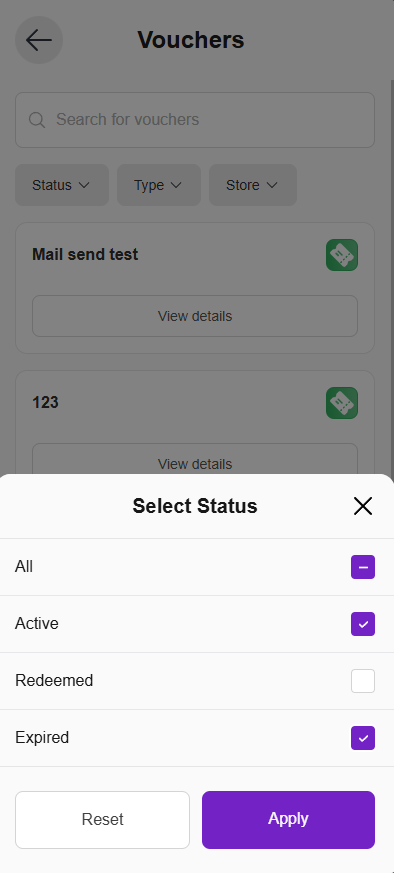
Filter by Type
-
Online – Shows vouchers that can be used for online purchases.
-
In Person – Shows vouchers that can be redeemed in-store.
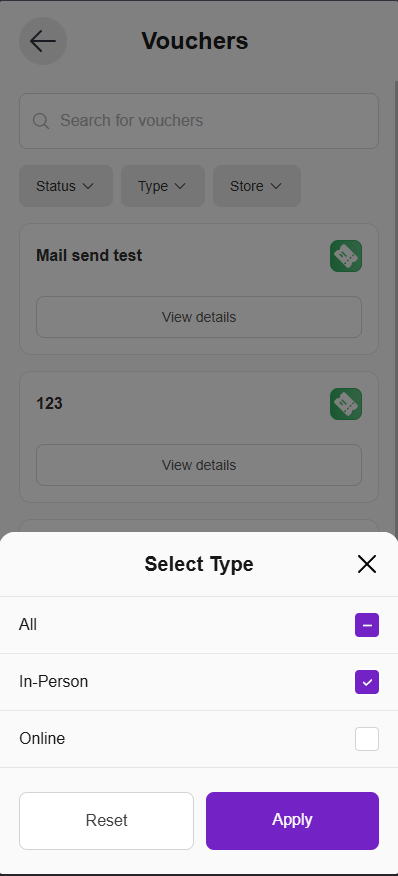
Filter by Store
-
Select a store to view vouchers associated with that specific location.
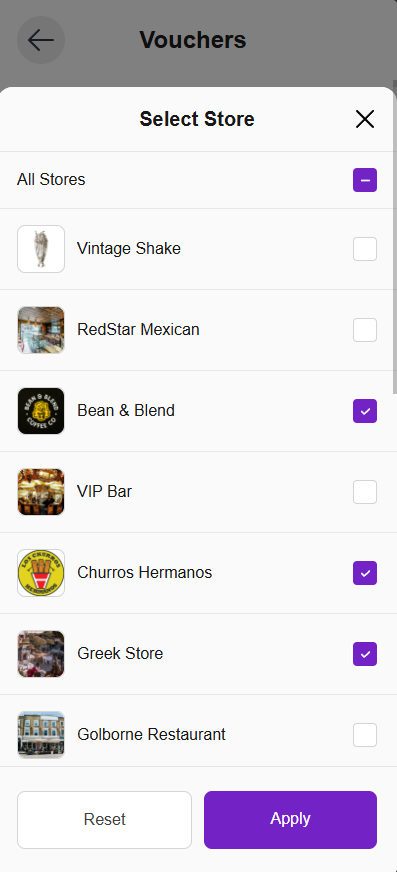
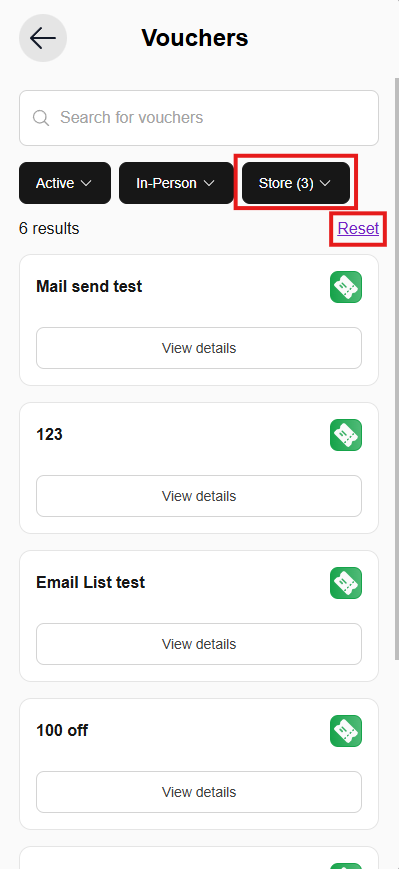
Click Reset to clear all applied filters. If you select multiple options within any filter type, a number will appear showing how many options you’ve chosen for that filter.
Step 5: Apply a Voucher at Checkout
-
Add items to your cart as usual.
-
Proceed to checkout.
Based on:
-
The items added
-
The store selected
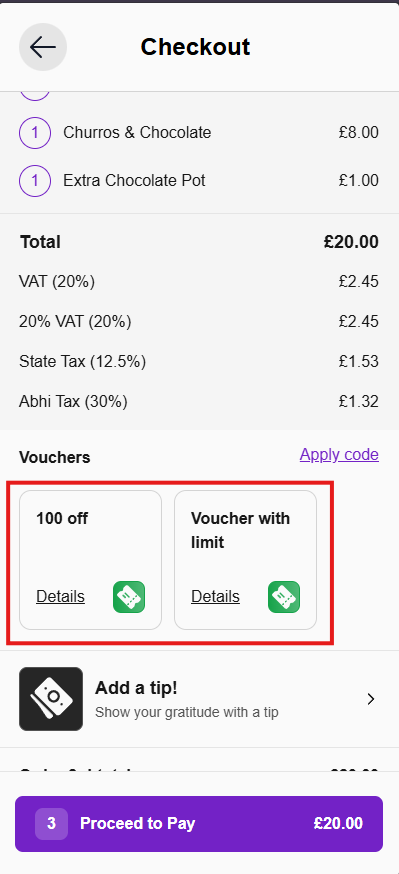
You’ll then see all vouchers that are valid and available to use.
Step 6: Apply or Remove a Voucher
-
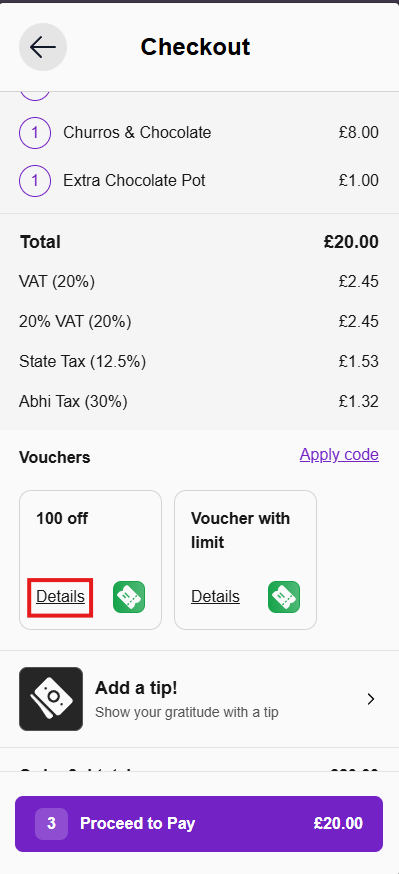
Click View Details to review the voucher.
-
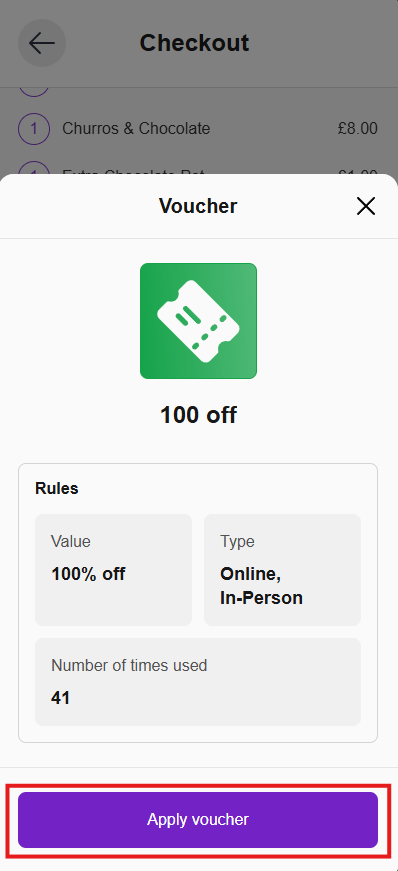
You can apply the voucher by:
-
Clicking Apply Voucher within the details page
-
OR tapping directly on the voucher name
-
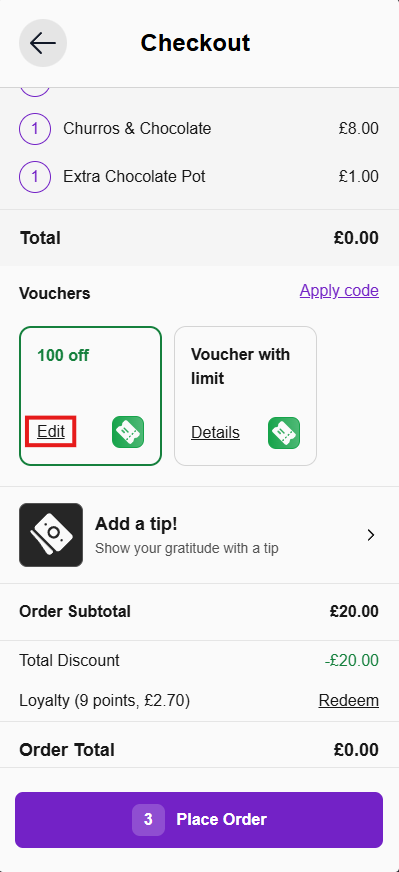
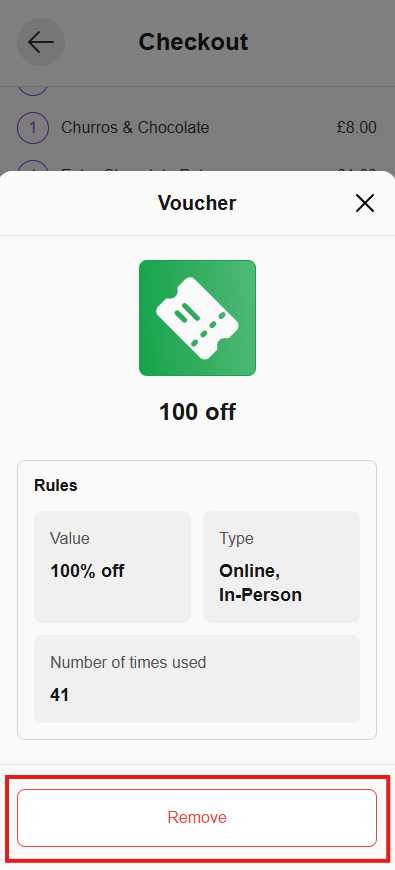
To remove a voucher:
-
Click Edit.
-
Click Remove.
Step 7: Complete Checkout
After applying the voucher, continue with checkout as usual.
⚠️If you see a voucher at checkout but get an error when you try to apply it, this is usually due to the voucher rules. For example, the voucher may be valid for the store you’ve selected, but only for specific items that are not currently in your cart. To check the rules for a voucher, open its details as shown in Step 3 of this guide. ⚠️