1. Login to the NOQ portal.
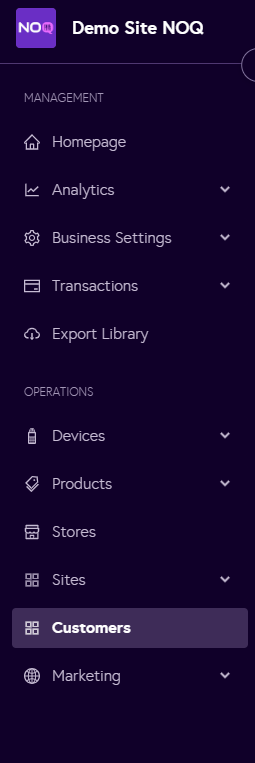
2. Navigate to 'Customers' from the left navigation panel.
3. Here you can view all your created customers. To find a specific customer, enter their name in the search box and their record will appear.
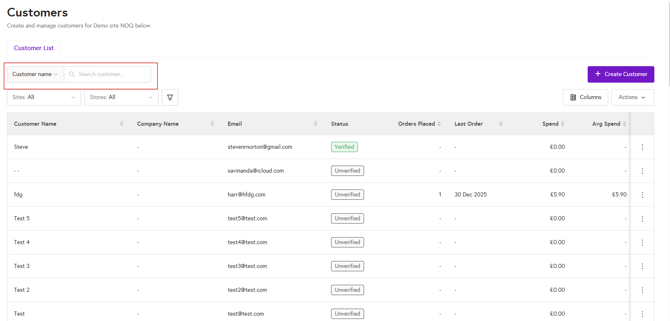
Verified and Unverified Customers
Verified Customer
A customer is marked as Verified when they log in to the mobile ordering website using their email address. Once logged in, their status appears as Verified in the backend.
Unverified Customer
A customer is marked as Unverified when they place an order as a guest and enter their email address at checkout without logging in.
If an unverified customer later logs in using their email address, their status will automatically update to Verified in the backend.
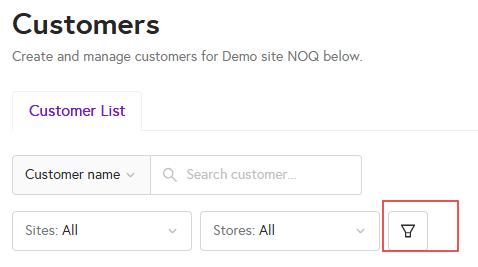
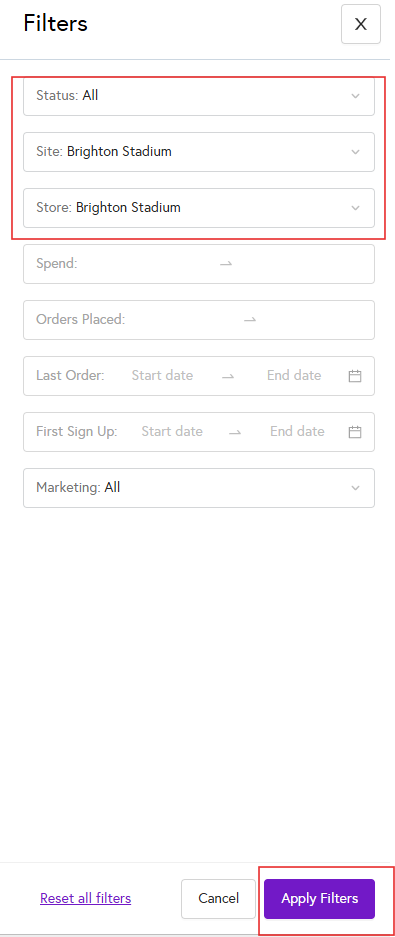
4. You can also filter customers from this page. Click on the funnel icon to open the filter panel, then enter your filter details. For example, you can select a particular store or site and apply the filters to narrow down the list. Once applied, only the customers matching your selected criteria will be displayed.