
Step 1: Log in to the NOQ Portal
-
Log in to the NOQ Backend Portal using your credentials.
Step 2: Open Merchant Service Settings
-
From the sidebar, navigate to
Business Settings → Merchant Service.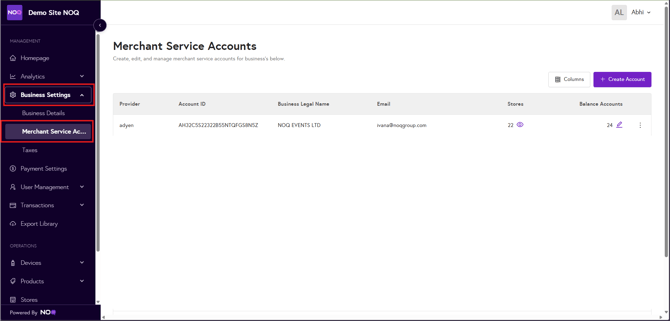
Step 3: Select a Merchant Account
-
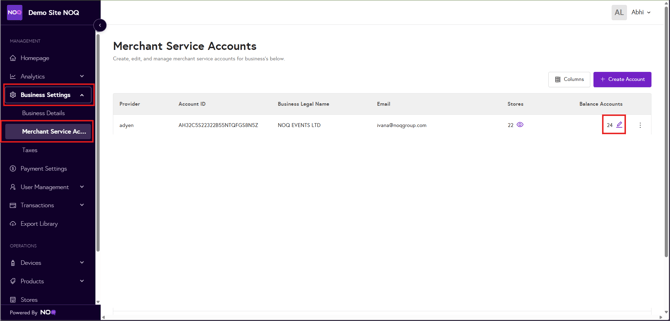
Locate the Merchant Account that contains the balance account you want to review.
-
Click the pencil (edit) icon to open the merchant account.
Step 4: Access the Balance Account
-
Locate the Balance Account for which you want to view linked stores.
-
Click the three dots (⋮) next to that balance account.

Step 5: View Linked Stores
-
Click Linked Stores (eye icon).

A list of stores associated with the selected balance account will appear. Only stores with at least one completed financial setup will be shown.
This means the store must have either:
-
In-person Payment setup, or Online Payment setup
Step 6: Review Store Information
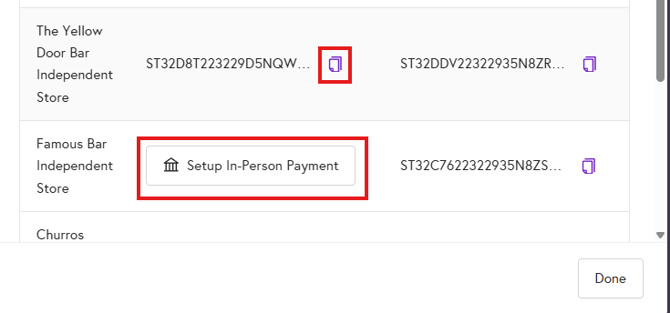
The Linked Stores table displays the following details:
-
Store Name – The name of the store linked to the balance account.
-
In-person Payment ID – The Store ID used for terminal (in-person) payments.
-
Online Payment ID – The Store ID used for online/mobile ordering payments.
You can copy any Store ID by clicking the Copy icon next to the ID.
If a payment setup is still pending, a button will appear such as:
-
Setup In-person Payment or Setup Online Payment
Step 7: Complete Pending Financial Setup
-
Click Setup In-person Payment or Setup Online Payment.
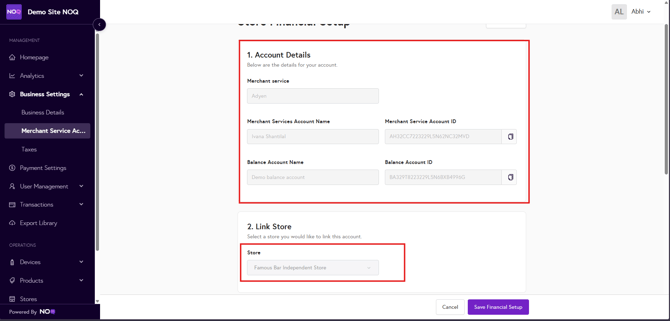
You will be redirected to the Store Financial Setup page.
-
The Account Details and Link Store sections will already be filled automatically.
-
Only the remaining payment setup will be editable.
-
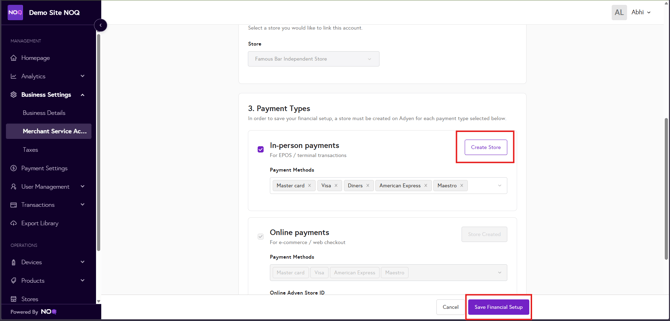
Enable the required payment type. You can remove any payment method by clicking the cross (×) next to that method.
-
Click Create Store to generate the Store ID for that payment type.
-
Click Save Financial Setup to store the new Store ID details.
Result
Once the setup is completed, the corresponding Store ID will appear in the Linked Stores table under the relevant payment column.