
1. Login into the NOQ portal.
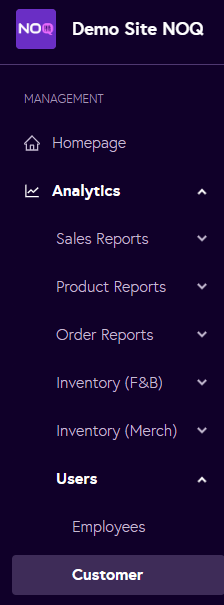
2. Navigate to Analytics -> Users -> Customers from the left navigation panel.
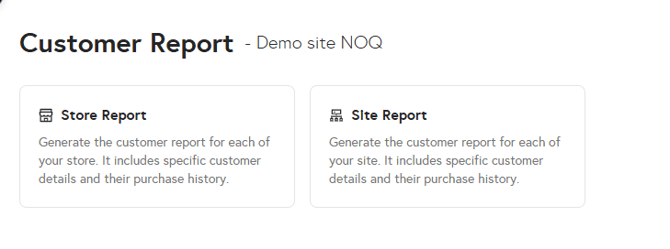
3. On the Customer Report page, select either Store Report or Site Report.
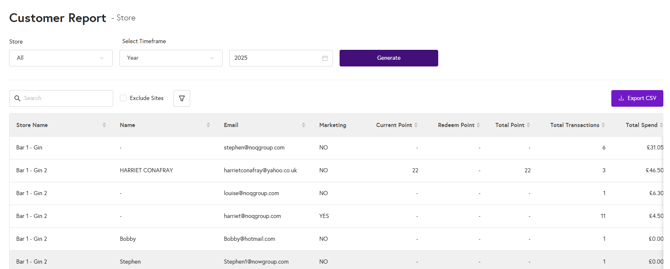
4. On the Customer Report page, follow the steps below:
-
Select the store for which you want to generate the customer report from the dropdown.
-
Select the timeframe for which you would like the report.
-
Click Generate once the filters are set.
-
Use the search bar to search for a specific customer.
-
To download the full dataset, click Export CSV.
Note: If in step 3 you select Site Report, then in step 4 point 1 select the site for which you want to generate the customer report. All remaining steps stay the same as above.