NOQ enables you to access detailed staff reports so you can track each staff’s sales activity, performance, and total hours worked..
1. Login to the NOQ Portal.
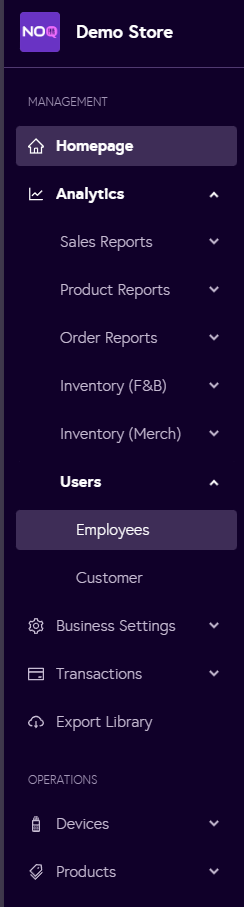
2. From the sidebar, navigate Analytics > Users > Employee.
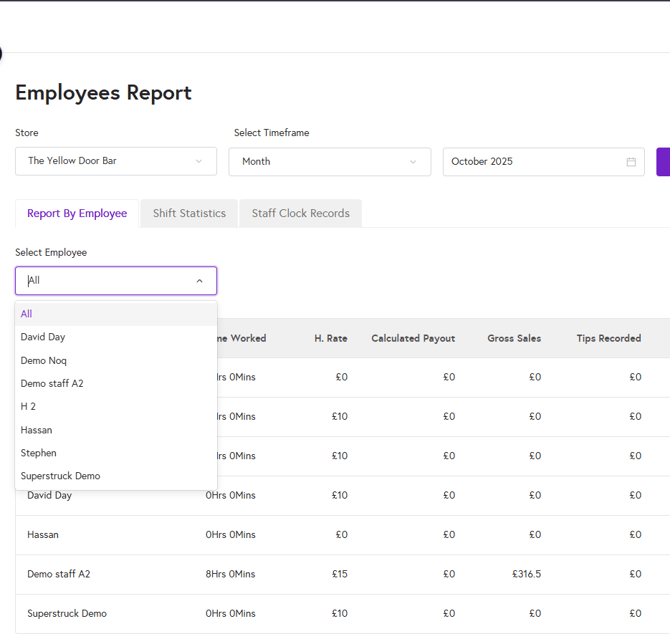
3. From the dropdown, select the store for which you want to view the employee report. Then choose the timeframe for the report – this can be Day, Week, Month, Year, or a custom range. Click on Generate to create the employee report.

4. Under the Report by employee tab, you can see all employees assigned to the selected store, including managers, staff, and external users. The report shows the following details :
- Employee name : Name of the Employee
- Time worked : Total time worked for selected timeframe.
- H. Rate : Hourly Rate for the employee.
- Calculated Payout : Total payout for time worked.
- Gross sales : Total sales by the employee.
- Tips Recorded : It shows any tips received by the employee.
- Orders : Number of orders done by employee.
- Sales Per Order : Average amount per order.
- Tip Per Order : Average tip per order.
- Total Pay/ Sales : Percentage of the employee’s payout compared to their gross sales.
- Total Sales/ Employee hrs : Average Sales per hour employee worked for.
- Void Items & Void Amount : It shows if employee voided any item with amount.
5. You can also see the report for any one employee by simply clicking on select employee drop down.
6. Click on Export CSV to download a CSV file. If you have selected a specific employee, the CSV will contain data only for that employee; otherwise, it will include data for all employees..

7. Under shift statistics tab, you can see following data :
- Day : On which day employee worked.
- Clock In & Clock Out : When employee clocked in & clocked out.
- Total time worked
- Hourly Rate
- Calculated Payout
You can export CSV file for either all employee or for any specific employee.
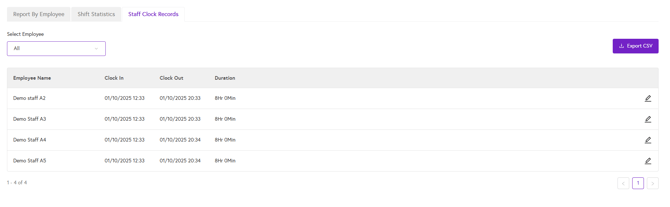
8. Under the Staff clock records tab, you can see the clock-in time, clock-out time, and total time worked for all employees or for a specific employee. You can also export a CSV file for either all employees or a selected employee..