1. Login to the NOQ portal.
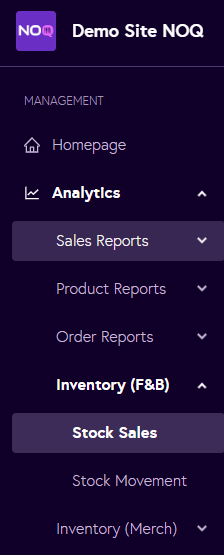
2. From the left-hand navigation panel, go to Analytics > Inventory (F&B) > Stock Sales.
3. Under the stock report, select your stock location, choose the desired time frame, and click Generate. This will create an F&B inventory stock sales report for you.

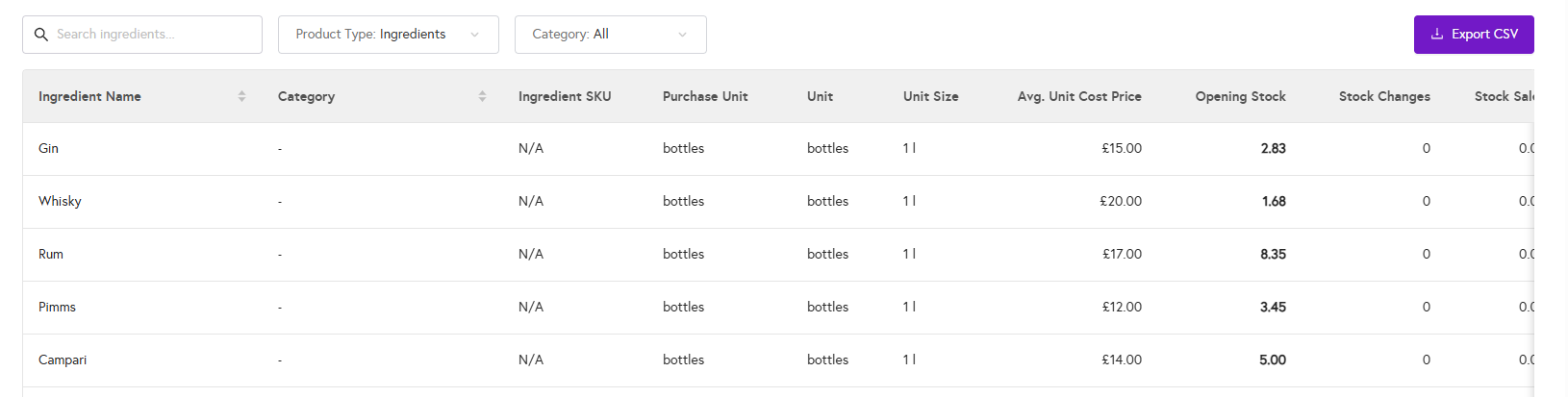
4. Once the report is generated, you can filter by product type (e.g. items or ingredients) and by their adjacent category. If you want to search for a particular item or ingredient, you can also use the search bar. To view and download the full report, click Export CSV in the top-right corner.