
1. Login to the NOQ Portal.
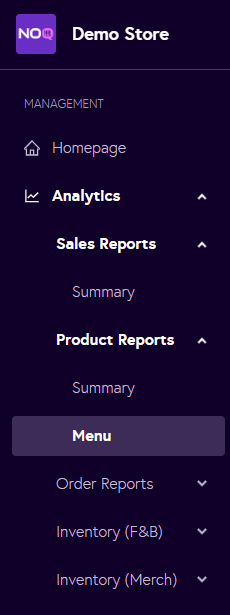
2. Navigate to Analytics -> Product Reports -> Menu from the left navigation bar.
3. Choose whether you want to generate the report for your own stores or for external stores you have invited to your business.

4. From the “Select Menu” dropdown, choose the menu you want to download a report for. Then select the time frame, choose the relevant stores for which you want to generate the report, and click Generate.

5. You will now see your menu report, including total menu sales and sales broken down by category and item. To download the data, click Export CSV in the top-right corner.
