1. Login to the NOQ portal.
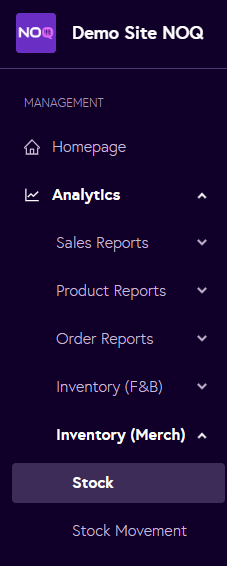
2. From the left-hand navigation panel, go to Analytics > Inventory (Merch) > Stock.
3. Under the stock report, select your stock location, choose the desired time frame, and click Generate. This will create an Merch inventory stock sales report for you.

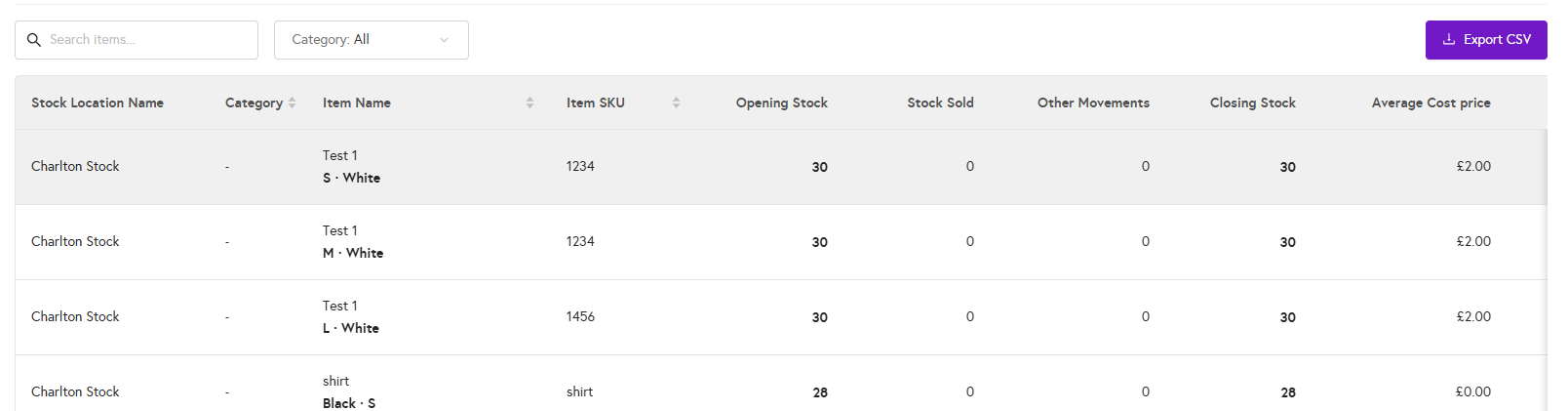
4. Under the report, you can search by individual items or filter by categories. If you want to export the full data set, click Export CSV to download the complete report.