
1. Login to the NOQ portal.
2. Navigate to Transactions → Orders.
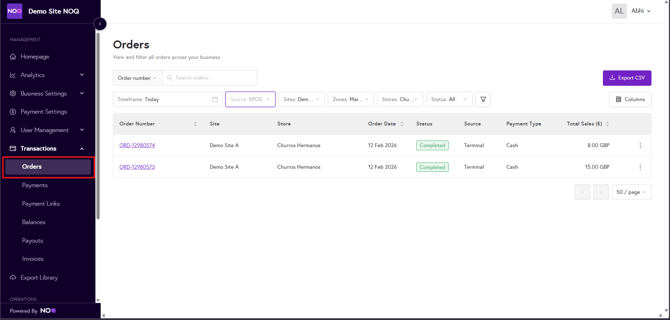
3. In the order view, set the source to Merchandise, then select your desired timeframe. Once chosen, the report will be generated for that period and displayed on screen.

4. You can filter by store, exclude sites if needed, and search by order number. To download the full dataset, export the CSV by clicking the 'Export CSV' button in the top-right corner.
