
1. Login to the NOQ portal.
2. Navigate to Transactions → Orders.

3. In the order report, set the source to EPOS, select your desired date range, and click Set Date to generate the report.

4. Use the Stores drop-down to filter orders by specific store. To add more filters, click the funnel icon to open the filters menu.
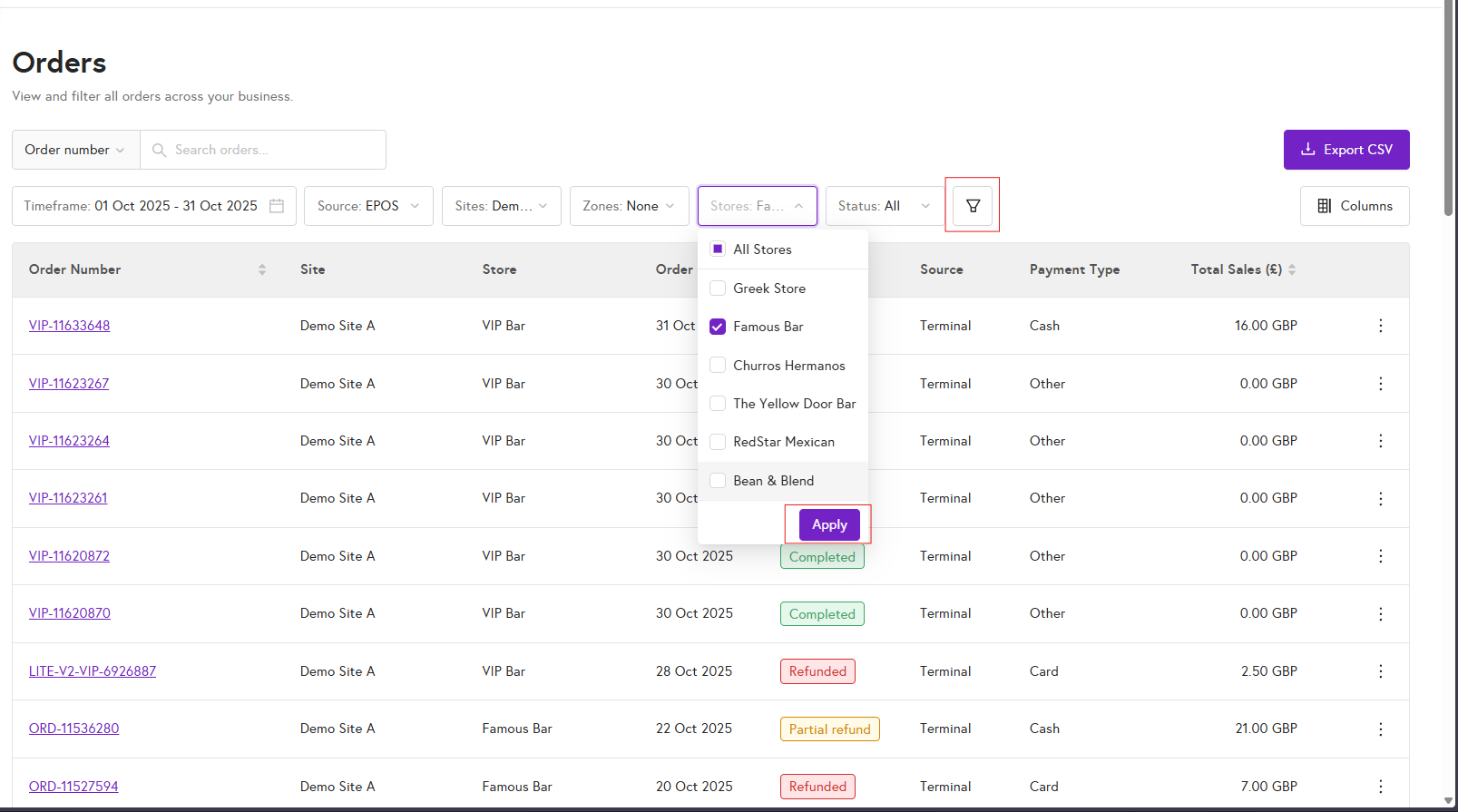
5. In the filters menu, choose and adjust the filters you need, then click Apply filters to update the report. To clear everything and return to the default view, click Reset all filters.
