
The NOQ Sales Summary Report provides an overview of product sales, net sales, merchant fees, total banked sales, and other key metrics for a selected timeframe, and allows you to download customized PDFs by applying filters
This guide explains how to view the Sales Summary Report for your store.
1. Log in to the NOQ Portal.
2. From the sidebar, go to Analytics > Sales Reports > Summary.
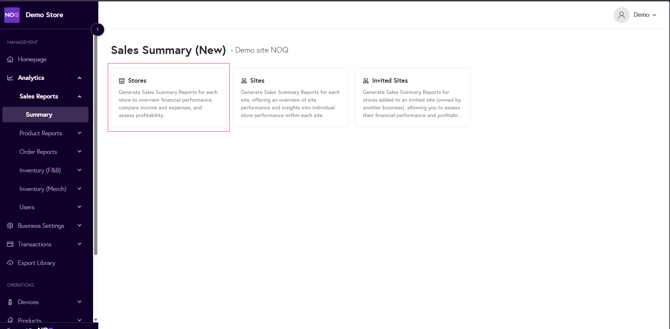
3. Click on the Stores to open site sales summary report.
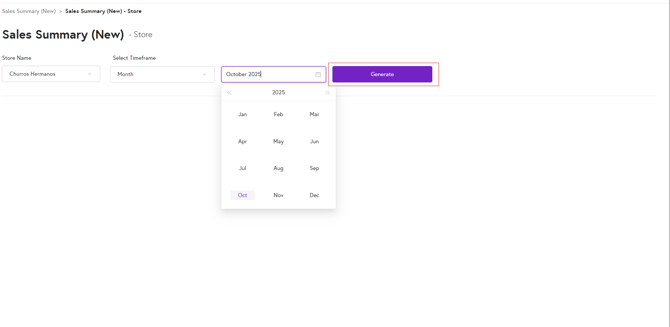
4. From the first dropdown, select the Store. Then choose the timeframe you want the report for — Day, Week, Month, Year, or a custom date range. Click on Generate to create the summary report.
5. Under the Sales Summary tab, you will see all the details for the selected store.
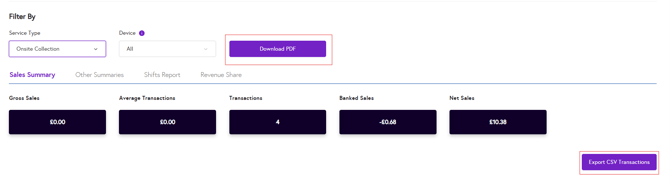
- At the top, you can view Gross Sales, Average Transaction Amount, Total Transactions, Banked Sales, and Net Sales.
- Below this, you will see all transactions processed via card, online, telesales, cash, and any other payment methods used by the site.
- In the last column, you will see the total of all transactions

- Under the Sales Summary section, there is a Fees section where you will see a row titled Total Merchant Service Charge. This shows the total MSC, or the card processing fee, that NOQ applies.

- Under that, you can see Payouts. Where you can see Total Banked Sales after deduction & adjustment.
Please note that only banked card transactions are included in your payout; any cash takings are excluded.

-
At the bottom of the screen, you’ll see the Sales Summary Comparison, where you can compare the current report against another timeframe.

6. Under the Other Summary tab, you will see the following data:
- Tax Summary : You can see all the applicable and excluded tax details for the selected site.
- Eat-in/ Takeaway Summary : Displays a breakdown of sales by service type, separating eat-in and takeaway orders.
- Refund Summary : You can see refund by amount and refund by items. Total transactions & total refund amount for the same.
- Loyalty Summary : You can see how many points customer earned from your loyalty program & also how many points they redeemed.

7. Under the Shift Report tab, you can view any applicable shift report data for the selected store.
8. Under the Revenue Shares tab, you can view any applicable revenue share data for the selected store.
9. You can download the Sales Summary report as a PDF or CSV file by clicking Download PDF or Export CSV as required.

10. If you want a customized PDF or CSV file, you can filter by Service Type and Device. After applying the filters, click on Download to generate a tailored PDF report for the selected store.
What should I do if fees appear twice or duplicated on reports?
If your report shows your MSC fees or charges and transfers being deducted twice, please contact NOQ Support here so we can review your report and correct any duplication.