
1. Login to the EPOS v2 app.
2. Click on Open Register button in the bottom.

3. Each Manager and Staff User is assigned a unique PIN that grants them access to the NOQ EPOS app. Enter the Manager or Staff User pin.
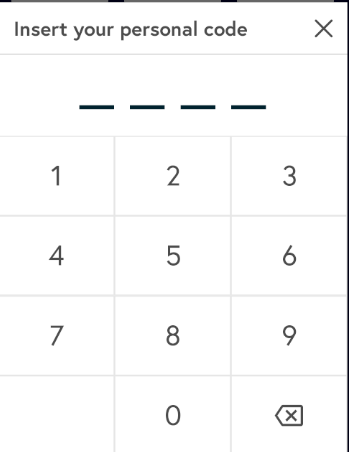
💡Reminder💡
If you have forgotten your PIN, the Default Manager can view and generate new PIN codes as well as adjust staff permissions by navigating to the Backend Portal ▶️ Business Settings ▶️ Users ▶️ Managers/Staff.
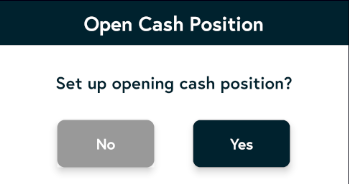
4. You will see a pop-up asking whether you want to open a cash position. Select Yes or No to proceed.
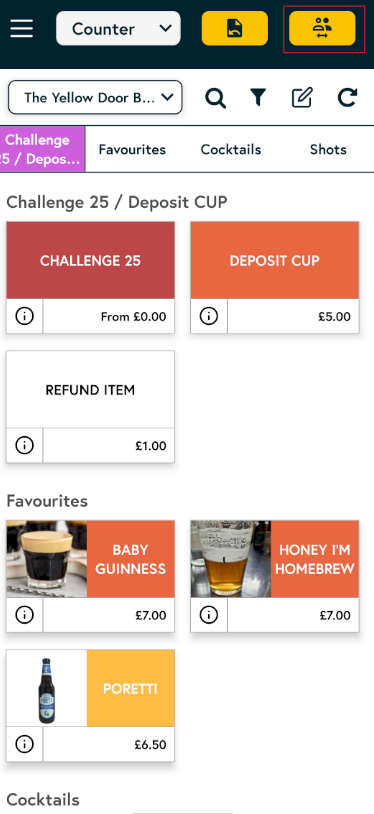
Now your register is open. To close the register click on switch user icon to navigate back to main menu.
5. Click on Close Register to end your current register session. Once closed, a detailed report will be displayed showing all sales processed between the time you opened and closed the register.

You can Print this report or send PDF to email. Click on close to close the report.