
Creating Tags
-
Navigate to the Master Stock List
- Go to the NOQ Backend Portal > Products > F&B Products > Master Stock List > Items.
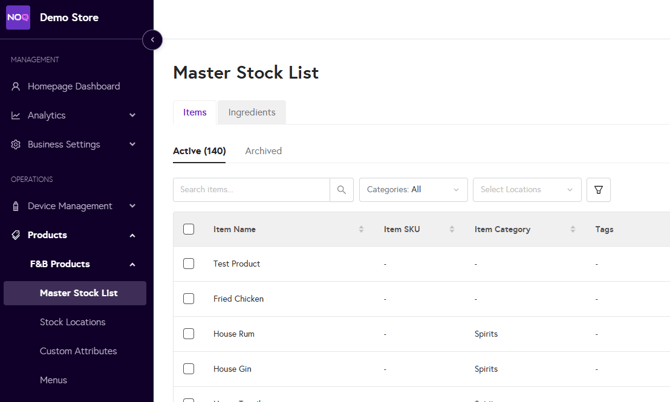
- Go to the NOQ Backend Portal > Products > F&B Products > Master Stock List > Items.
-
Open the Tag Management Panel
- Click the Actions button.

- Select Create/Manage Tags.

- A side panel will open displaying your existing tags.

- Click the Actions button.
-
Manage Tags
- In the side panel, you can:
- View and delete existing tags.
- Add new tags by entering the tag name in the field at the bottom and saving.

- In the side panel, you can:
-
Close the Tag Management Panel
- Once your tags are created, close the side panel.
Assigning Tags to Items
-
Edit an Item
- Locate the item you wish to tag.
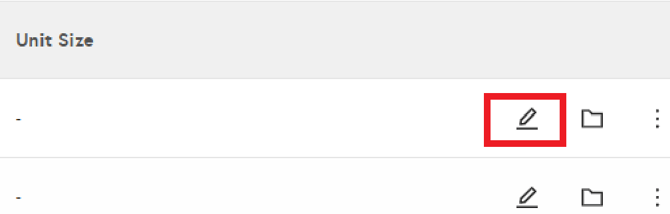
- Click the pencil icon next to the item.
-
Add Tags to the Item
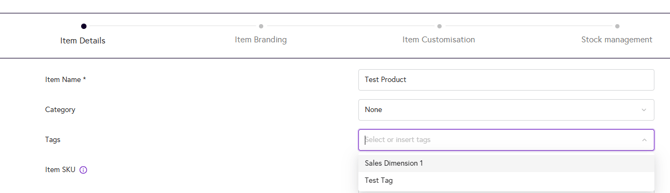
- On the item configuration screen, find the Tags section.
- Select the tag(s) you created.
-
Save Changes
- Save the item configuration to apply the tags.
Filtering by Tags
-
Open the Filter Menu
- On the Items tab, click the Filter icon.

- On the Items tab, click the Filter icon.
-
Apply the Tag Filter
- Select the desired tag(s) from the filter options.
- The list will update to display only items associated with the selected tag(s).
You have now successfully created, assigned, and filtered tags for your items!
Did you know?
Your item tags will be present in exported Product Reports, Stock Movement Reports, and Stock Reports to enable and extra level of organisation. Please view our How to View my Sales Summary Reports on the Backend Portal Guide for more info on how to access your reports!