
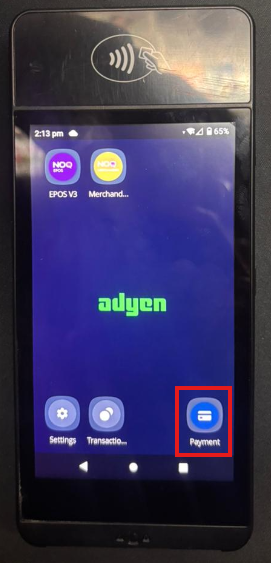
When you switch on your terminal, you will see a payment app in the bottom right corner of the screen. This is a standalone payment app, separate from the NOQ EPOS app, as shown in the picture below.
Things to Remember/Note:
- Use this standalone payment app when the EPOS apps are not working, or when payments are being declined or failing (see the note section below for troubleshooting steps if this happens on your terminal for either the NOQ apps or the standalone app). The standalone app is provided as a backup solution.
- When you use it, all customer payments will still be processed successfully, but these transactions will not appear in the “Past Orders” section of the NOQ EPOS apps, as they are separate applications.
- Rest assured, all payments taken through the standalone payment app are fully captured and will be settled to your bank account as normal.
To view the transaction history for standalone payments, enter the following code: 9887
Note: If transactions are being declined or failing on your Terminal, first check with the customer that the card type is permitted. For example, if Amex is blocked by your business and the customer tries to pay with an Amex card, the payment will not go through.
Additionally, check that they are entering the correct card PIN and that there are sufficient funds available. If tap-to-pay is not working, ask them to insert the card, re-enter their PIN, and complete the payment using chip and PIN instead.
If none of these steps work, please raise a ticket with our support team here.