1. Login to the NOQ portal.
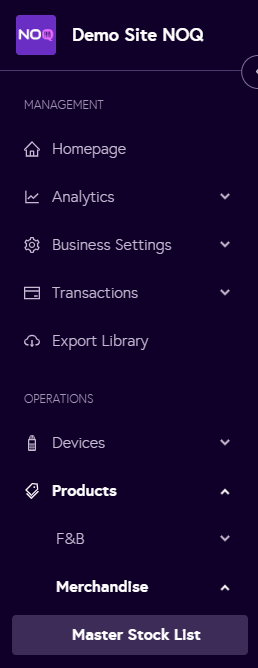
2. Navigate to Products -> Merchandise -> Master Stock List.
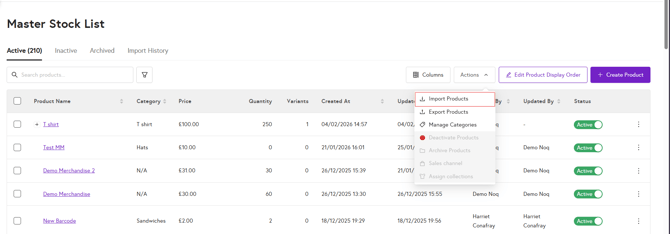
3. Click on Actions and select Import Products.
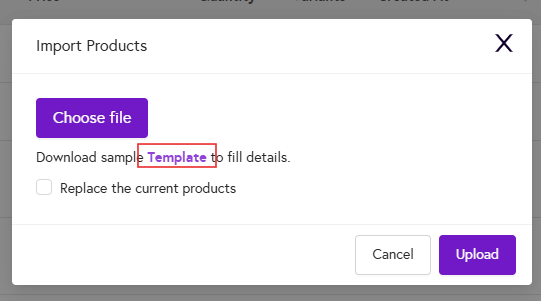
4. A dialog box will appear. First, click on Template to download the sample template.
5.In the template, make sure to add the product name, price and Barcode , as these fields are required. The remaining fields are optional, and some examples are provided in the template for guidance. If you need any further support, you can contact us here.

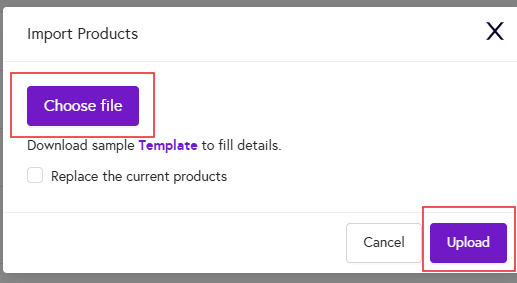
6. Once you have completed the template, save the file. In the dialog box, click on Choose File, select your saved file, and then click Upload to bulk update your products.
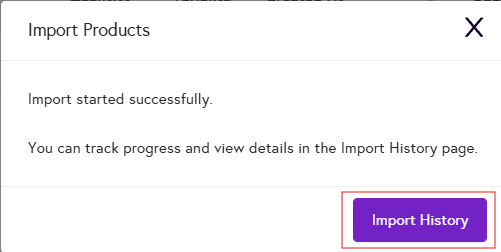
7. After you click Upload, a pop-up message will confirm that the product import has started. To track the progress of the import, click on the Import History button.
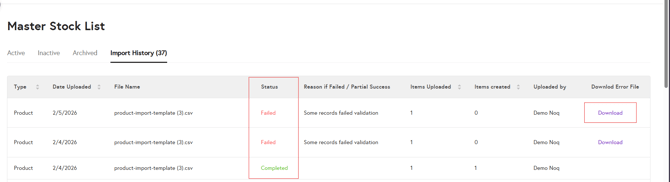
8. In the Import History, the Status column will show Completed if your file was uploaded without any errors. If the Status shows Failed, it means there were issues with your file. Click the Download button to download the error CSV file.
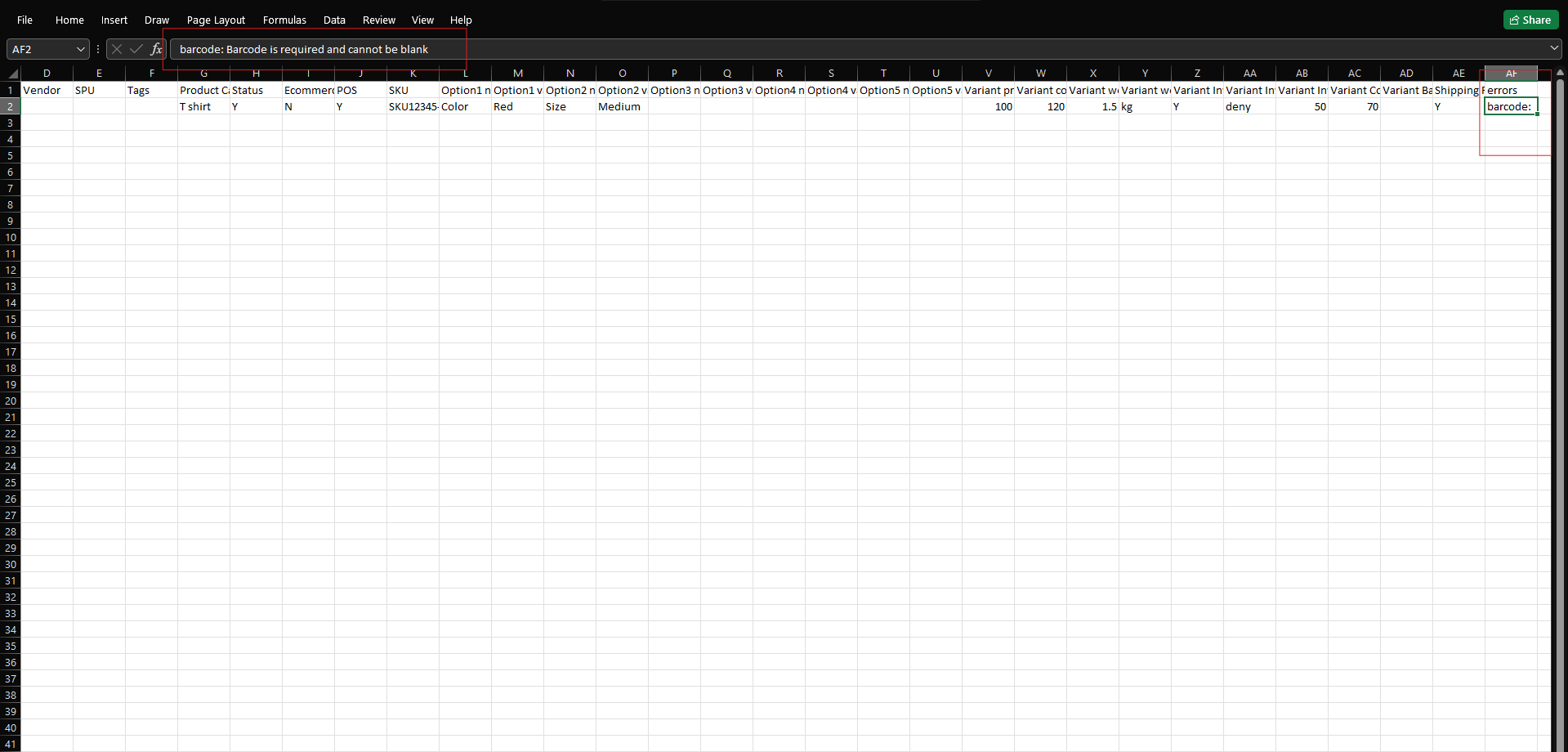
9. Open the error CSV file. Scroll to the right to see detailed information about what went wrong with the file you uploaded. Once you’ve made the necessary corrections, save your changes and re-upload the original CSV file.