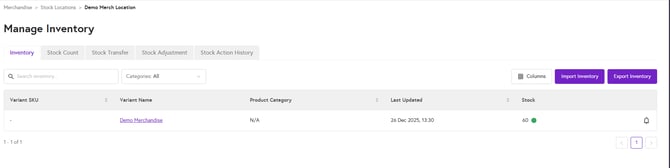
1. Login to the NOQ Portal.
2. From the sidebar, navigate to Products > Merchandise > Stock Locations.
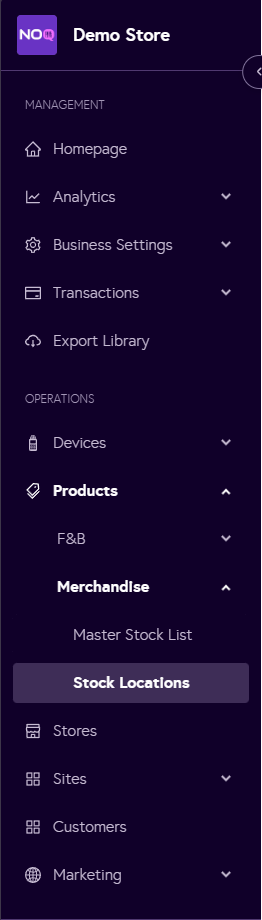
3. Click on the Manage Inventory.

You will see all the items created under inventory tab.
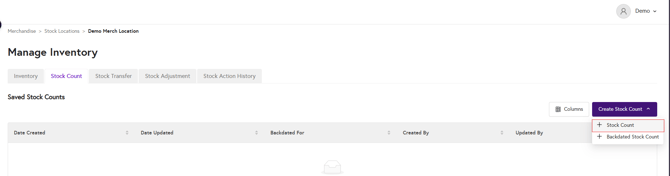
4. Go to the Stock Count tab.

5. Go to Create Stock Count. From the drop down click on + Stock Count.
6. You will list of created items. You can see current stock of item under Current Stock. You can change stock count by entering new stock count under Actual Stock column. You can see variance of current stock and new stock you entered in last column.
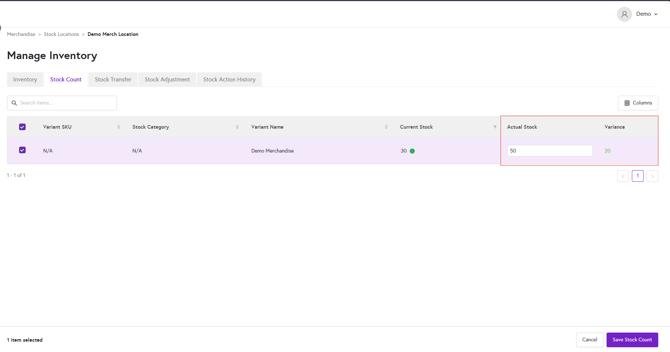
Click on Save stock Count to save.
7. After saving stock count you need to approve the stock count. Under stock count tab you will all saved stock counts list. Click on Review & Approve option.

8. Here you can still change the actual stock. After changing/verifying actual stock count, either you can approve stock count or save stock count as draft and verify it later.

When you approve, the values in the Actual Stock column will replace the Current Stock values in the Inventory tab. Any items you untick before approving will be excluded and their stock will remain unchanged.