
1. Login into the NOQ Portal.
2. From the sidebar, navigate to Products > Merchandise > Master Stock List.

3. Click on + Create Product.

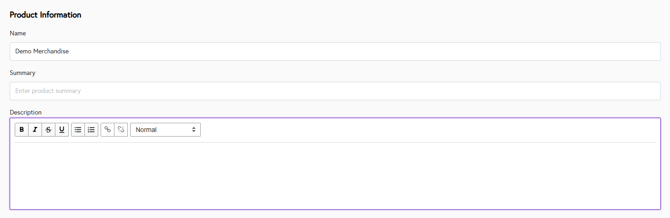
4. You will see following details under Product information section.
- Name : Name of merchandise.
- Summary : Enter the summary of product.
- Description : Enter the description of the product.
5. You can upload product images under product images section. Uploading file should be less than of 5MB & either JPEG or PNG format.

6. Variants:
-
If your product has variants, check on “This product has multiple variants.”
-
By default, the Size variant is already added.

-
Size variants come with predefined variant options.
- You can remove any variant options by click on Cross icon next to option name.
-
You can remove any variant by clicking the trash icon.
-
To add more variants, click “ + Add product variants.”
-
Some variants like Color, Material, and Style are provided by default.
-
Not all default variants have preset options.
-
To add options, click the empty box next to the variant name.
-
Enter the option name and press Enter.
-
Repeat the same steps to add options for all required variants.
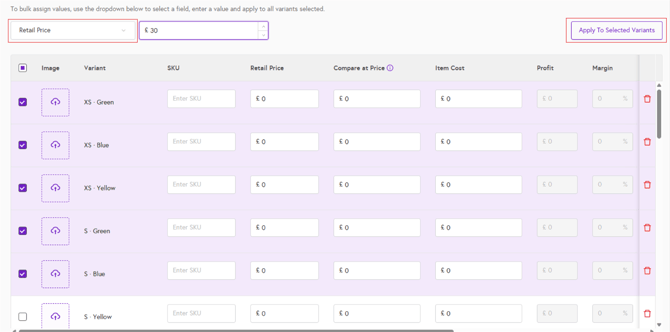
7. SKU LIST : If you check “This product has multiple variants”, the SKU List section will appear. Here you can enter the SKU, Retail Price, Compare at Price, Item Cost, Weight, Barcode, enable or disable the shipping requirement, and upload images for individual variants. If you want to apply the same price or weight to multiple variants, select the required items and use the dropdown to choose which field you want to update. Then click Apply to Selected Variants to confirm the changes.
Compare at Price: To display a markdown, enter a value higher than your price.
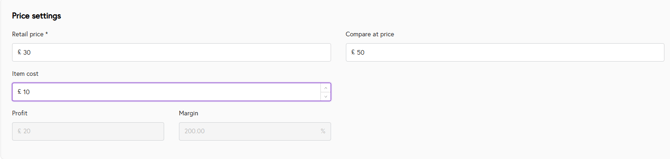
8. If you do not check “This product has multiple variants”, the Price settings section will be displayed. Here you can enter the Retail Price, Compare at Price, and Item Cost. The system will automatically calculate and display your profit and margin.
9. The Inventory section allows you to enter the SKU, barcode, and configure additional options, as well as set the inventory quantity for all available stock locations. By default, the Track quantity option is selected, which will keep a record of your inventory levels. If you select the Continue selling when out of stock checkbox, you will still be able to accept orders even after the item’s inventory reaches zero.
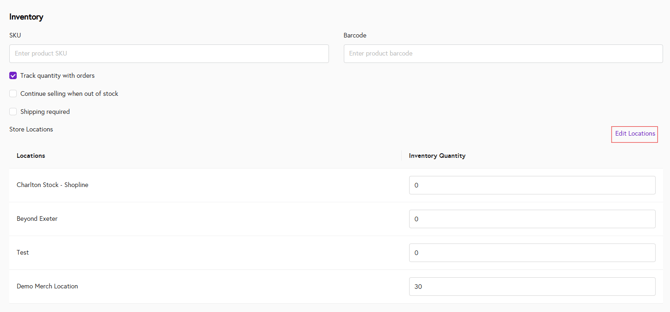
By clicking on Edit location, you can only select the stock location for which you want to add inventory quantity for.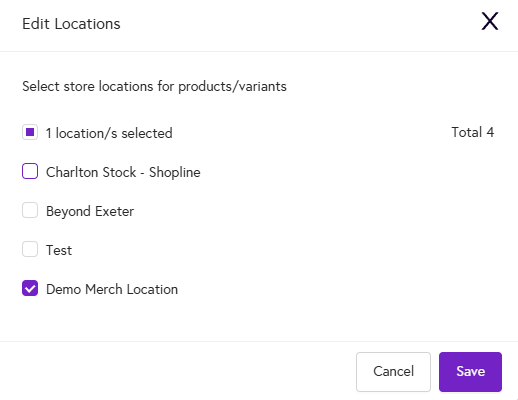
10. Taxes section, allows you to enter tax if you select tax required. You can select taxes from taxes dropdown. For which you need to create taxes from Business Settings > Taxes.