
1. Login to the NOQ Portal.
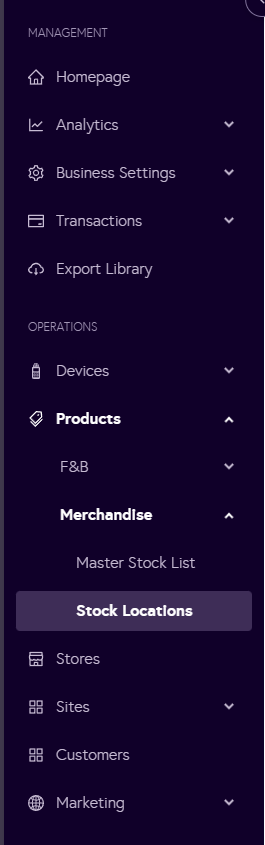
2. From the sidebar, navigate to Products > Merchandise > Stock Locations.
3. Click on the Manage inventory for your stock location.

4. Go to the Stock Transfer tab and click on + Create Stock transfer.

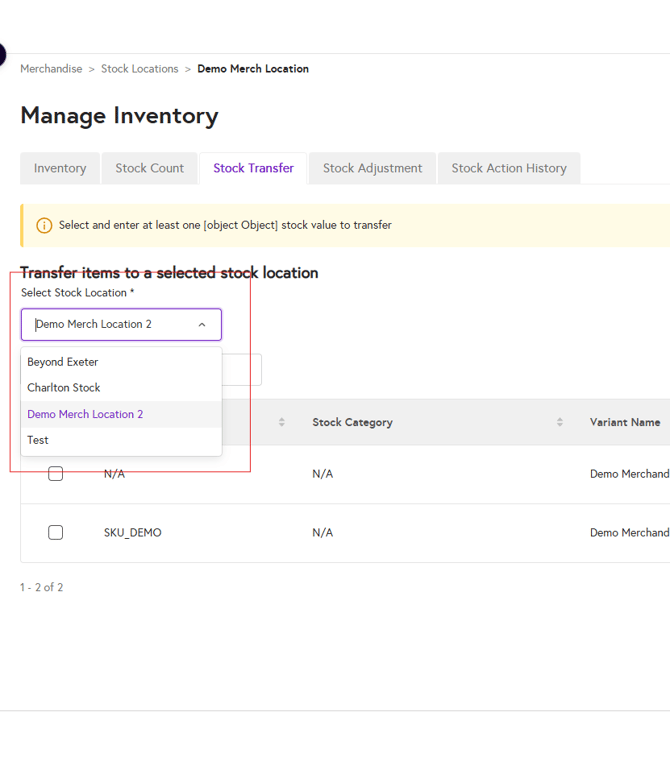
5. From the Select Stock location drop-down, select the to which stock location you want to transfer the stock.
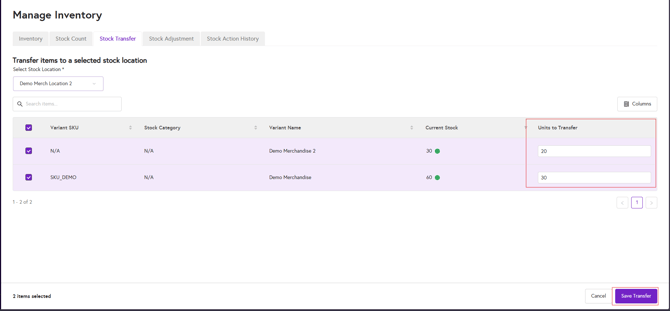
After selecting the stock location, enter the quantity you want to move for each item in the Units to Transfer column. Once you’ve entered all quantities, click Save Transfer to create the stock transfer.
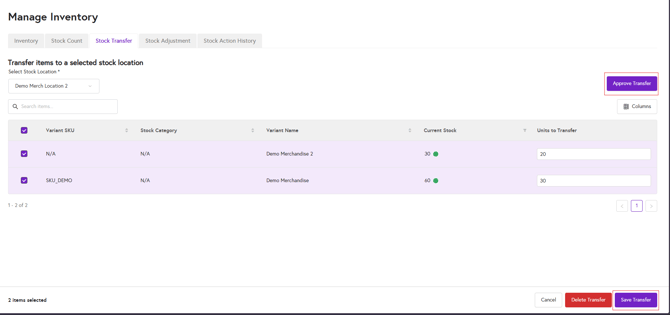
6. You need to approve the stock transfer. Click on Review & Approve.

Here you can update the quantity you want to transfer in the Units to Transfer column. Once you’ve reviewed the transfer quantities, either approve the transfer by clicking Approve Transfer or save your current selection as a draft by clicking Save Transfer. You can also choose which items to transfer by selecting the relevant checkboxes.
7. Go to the stock location you transferred stock to and approved stock will appear.