
NOQ Portal includes a Stock Action History feature that lets you view all past stock movements, making it easy to review and reference them in the future.
1. Login to NOQ Portal.
2. From sidebar, navigate to Products > Merchandise > Stock Location.
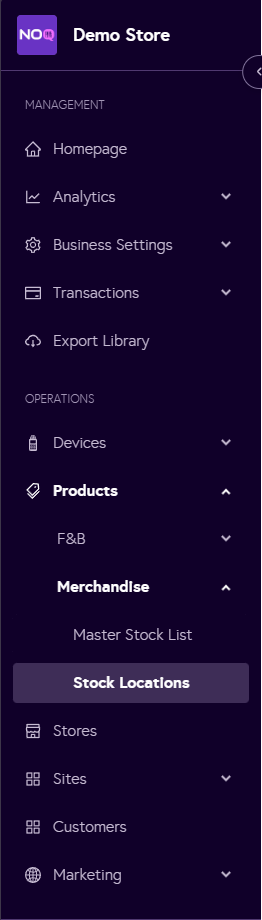
3. Click on Manage Inventory for the stock location you want to see Stock Action History.

4. Click on Stock Action History tab. Here you can see a drop down from which you can select the timeframe. Select the timeframe and time. System will give you Stock Action History for that timeframe.
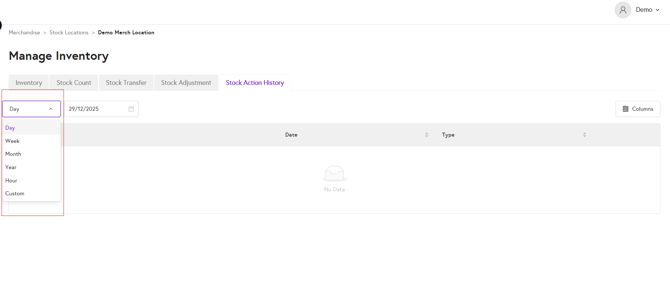
5. List of all the stock action will appear. You can see Date & Time for the stock action and type of stock action as well.

- To reverse a stock transfer, click Reverse. A pop-up will appear asking you to confirm; click OK to proceed.
- To view more information about a stock transfer, click on View Details. This will display all details related to that specific stock action.

- You can download CSF file or PDF file of stock action history by clicking on Export.