
Creating a New Category
1. Login to the NOQ portal.
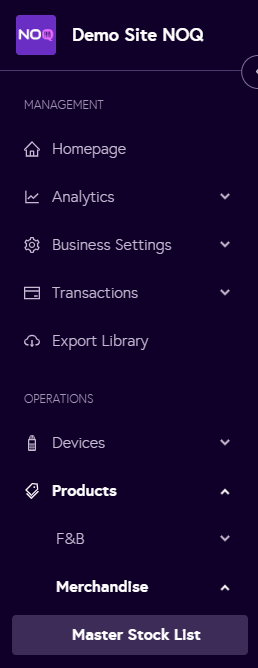
2. Navigate to Products -> Merchandise -> Master Stock List.
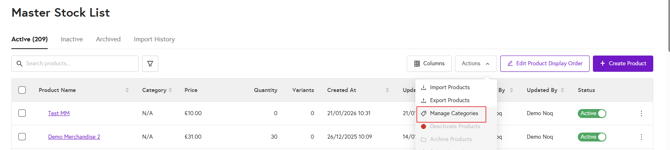
3. Click on Actions and select Manage Categories.
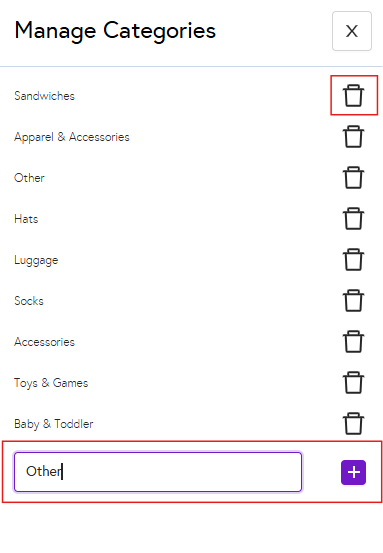
4. Click on Manage Categories and a panel will open on the right. To create a new category, type the name into the input box and click the + button. To delete a category, click the delete/bin icon next to it.
Assigning a Category to a Product
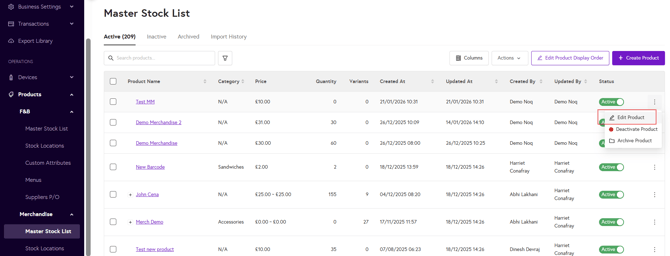
1. Inside the Master Stock List, click Edit Product for the existing product to which you want to assign a category.
2. The Update product page will open. On the right-hand side, under Product Settings, go to Category and select the category you have created which you would like to assign it to this product.
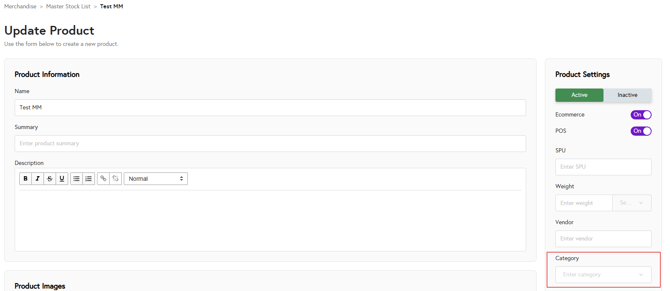
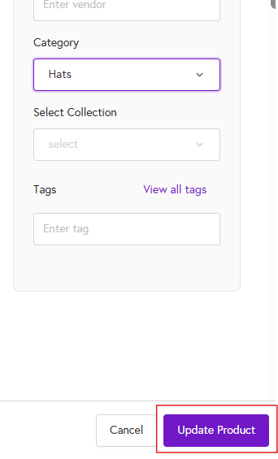
3. Once you have selected the category, click on Update Product.
4. To confirm, you can now see under the Master Stock List that the category has been added to that item.
