
1. Log in to the NOQ Portal.
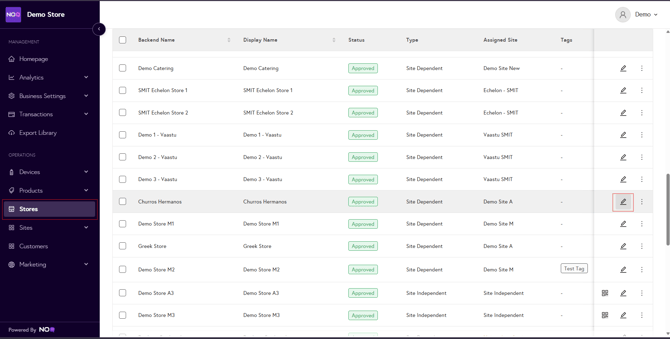
2. In the sidebar, click Stores, then click the Pen.🖊️ icon next to the relevant store to open its profile.
3. In the store profile, ensure that both Printer and KDS are selected.
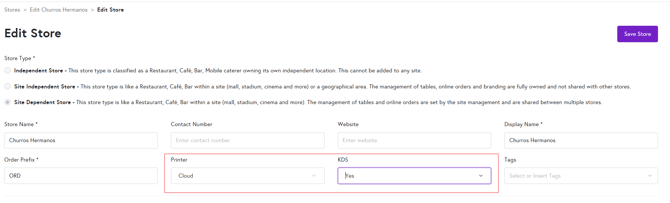
4. In the store profile, under Technology Setup, click Assign Printer/KDS.

Make sure you’ve selected the correct KDS for your item here.
5. In the store profile, click Assign Menu, then click the Pen🖊️ icon next to the relevant service type.

In the service type settings, click Assign Printers and KDS to Menu Items.
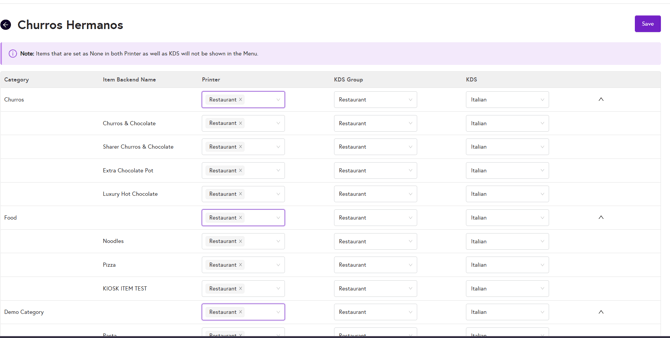
Here, also make sure you’ve selected the relevant KDS for your service type. Assigning different KDS devices to different service types can cause items to not appear on the NOQ KDS app.
Not sure how to assign KDS and printers to your items and menu items? Click the link below for a step-by-step guide on creating and assigning KDS and printers.