
This guide will cover the following:
- Accessing Reports
- Accessing the Insights App
- Reviewing Payouts
- How to Process Refunds
- Support Contacts
1. Accessing Reports
Learn how to view, download, and export your sales reports in the NOQ backend portal.
Steps to access
1. Log in to the NOQ backend portal. You should have received an email with your login credentials.
2. Navigate to Analytics → Sales Reports → Summary.
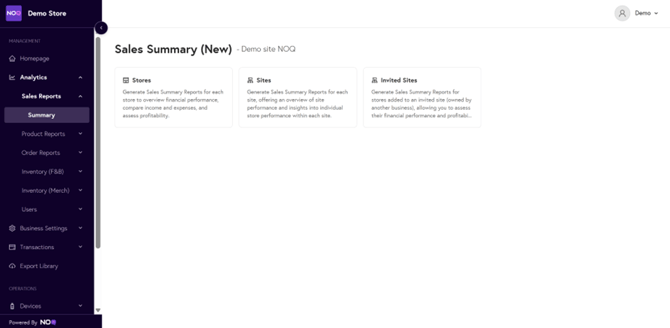
3. Select your Store, choose a Timeframe, then click Generate.

4. Once generated, you can view a sales summary and either Download PDF or Export CSV Transactions.

2. Accessing the Insights App
Access real-time sales data and performance insights from anywhere using the NOQ Insights mobile app.
About the App
- The NOQ Insights app, available on Android and iOS, allows you to log in with your NOQ portal credentials and view live sales summaries by time, site, or terminal.
- Use the app during live events or trading hours for instant visibility into performance.
How to use the app
- Install the app:
- Android: Search NOQ Insights on the Google Play Store.
- iOS: Search NOQ Insights on the Apple App Store.
- Launch the app and sign in with your NOQ credentials.
- Use the navigation/filters to switch between views: date/time, terminal.
- Click Generate to refresh data and view updated reports.
- Email yourself a PDF of the report anytime.
3. Payouts
Understand how NOQ calculates, schedules, and displays your payouts.
What are payouts
- “Payouts” refer to funds transferred to your business after commission, fees, or revenue shares are deducted. The NOQ backend provides real-time visibility into how much is due.
Typical workflow
- Sales are captured in real-time via terminals.
- At defined intervals (daily, or at event close) the system calculates total sales per business.
- Agreed commissions, fees, or revenue shares are deducted.
- The payout is scheduled (or paid) and a statement/report is generated.
- Funds are typically received via bank transfer within T+2 business days.
How to view payouts
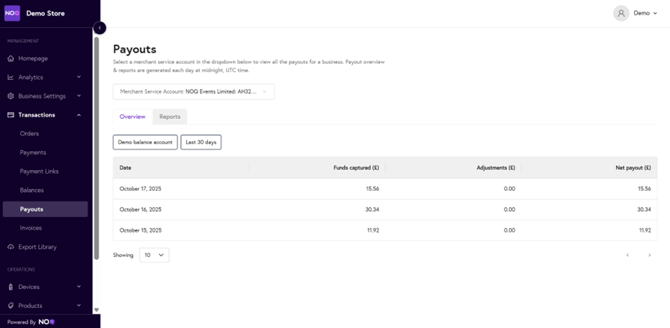
- In the NOQ backend, go to Transactions → Payouts.
- Review the list of payouts.
- Download payout reports as needed.
4. How to Process Refunds
Learn how to locate transactions and issue customer refunds accurately in the NOQ portal.
Steps to process a refund
- Navigate to Transactions → Orders.
- Use filters or the search bar to find the relevant order.
- Click the Order Number to open details in a side panel.
- Click the Refund Order button (red).
- Fill in refund details and click Submit to confirm.


5. Support Contacts
- For reporting or payment-related questions, contact NOQ Support via form here.
- For locker or Hublok-specific queries, contact Hublok Support directly.